Services (1:34 video). Open on its own page
Three building blocks for your checklists
Pool Founder has three related tools for standardizing what technicians do at each stop. Tasks (also called task templates) are the individual reusable checklist items — "Empty skimmer baskets", "Test water chemistry". Task groups bundle tasks by job type so a whole checklist can be applied — and updated — across many jobs at once. Tasks and task groups share one page: sidebar → Services → Tasks (it replaced the separate Task Templates and Task Groups pages on 2026-10-04; the old addresses open it too). Services (sidebar → Services → Services) go one step further: each is something you sell, with its price, tasks and visits. A recurring service (formerly a service plan) repeats on a route and carries a rate, billing mode, and task checklist, so a pool can be put on it in seconds. A work order (formerly a one-time service) does the same for one-off jobs like openings and pump replacements.
Start with ready-made tasks and groups
You don't have to build your checklist from scratch. Pool Founder has a built-in library of 38 common pool tasks, already set up with the answer type, minutes and frequency:
- Add common tasks (top right of the Tasks page, and the big button when you have no tasks yet) opens the library by category: Weekly cleaning, Water, Equipment, Safety and photos, Opening and closing, and a few for green pools. Everything you don't have yet starts ticked; untick what you don't do and click Add N tasks. Tasks you already have by the same name show Already added. A library task that looks like one of yours under another name (for example "Skim/net pool" when you have "Skim Surface") starts unticked and says Like your "Skim Surface", so you don't end up with near-duplicates.
- Ready-made groups are listed at the bottom of the left column on the Tasks page: Weekly Maintenance Checklist, Pool Opening, Pool Closing, Equipment Check, and Green-to-Clean (for bringing back a green pool). Click Add on one to create the group and any of its tasks you don't have yet; it opens so you can edit it. A ready-made group disappears from the list once you have a group with that name.
- Typing a name in New task also suggests matching library tasks under Ready-made:; click one to fill in the whole task.
The Weekly Maintenance Checklist is the real checklist Corey, Pool Founder's co-founder and a working pool tech, runs on his own routes: blow deck, check chemicals, skim/net pool, empty skimmer/strainer baskets, vacuum, balance chemicals, brush walls and floor, check equipment, backwash filter / clean cartridges, clean tiles. It is also offered as Add Corey's weekly checklist (on the Tasks page when you have no tasks) and Use Corey's weekly checklist (in the recurring service editor's Tasks section, and in the guided-setup template questions, when there are no tasks yet). Everything the library creates is a normal task or group: rename, edit, or archive anything that doesn't match how your company works. Adding again never creates duplicates. Pool Founder does not add these tasks to your account on its own; you choose them.
Tasks and how the tech answers
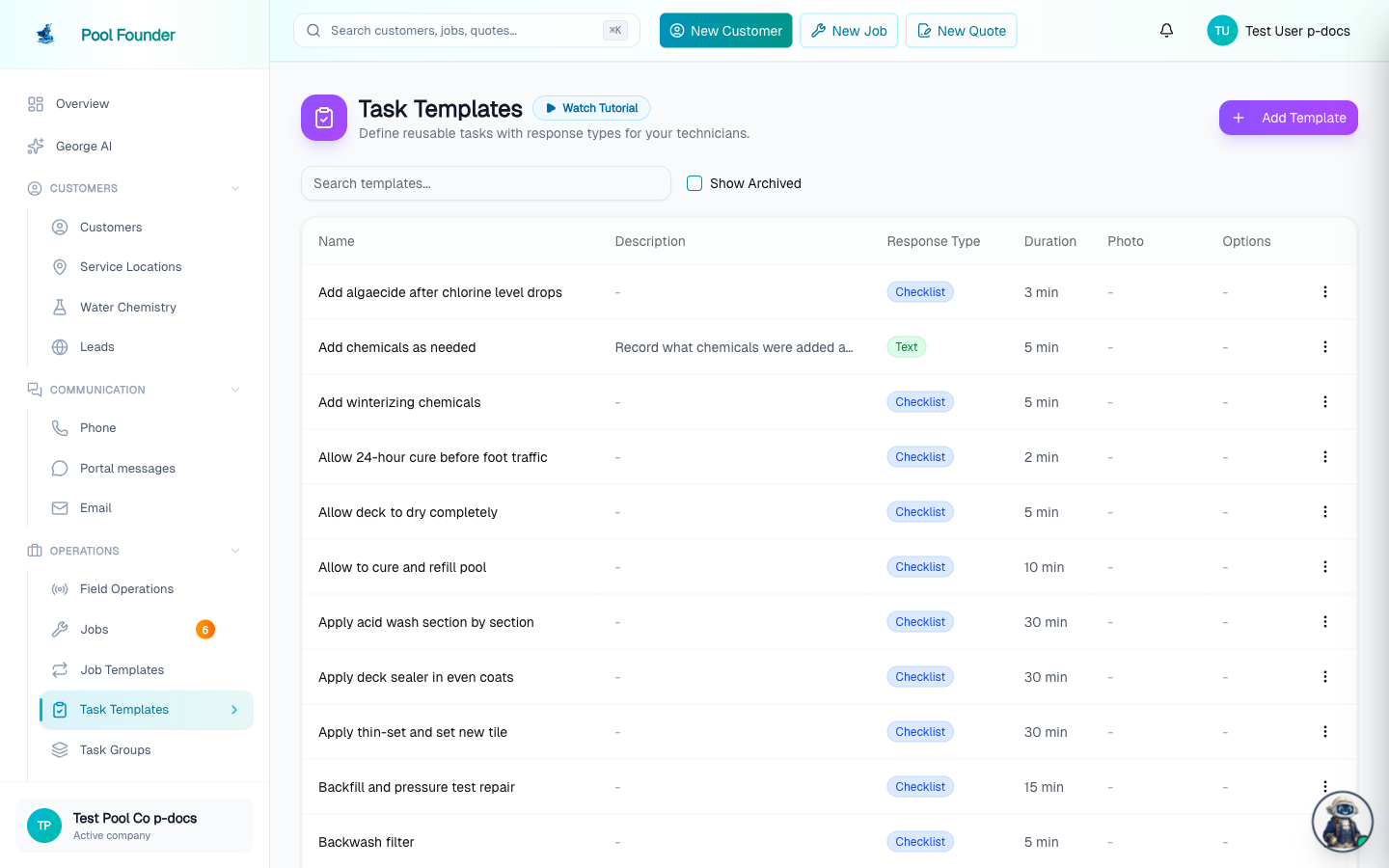
- 1Open Services → Tasks and click New task.
- 2Enter a Task name and pick How the tech answers: Check off (ticks it when done), Yes / No, Pick one (list at least 2 answers), Write in (a short typed answer), Water test (logs a water chemistry reading), or Filter PSI (the filter gauge reading on its own, see below).
- 3Turn on Require a photo to finish it if the technician must attach a photo. Once it is on, tick Camera only, no photos from the gallery to make technicians take a fresh photo on the spot.
- 4Tick Before and after photos (one of each) (under Require a photo to finish it) for work you want proof of, like cleaning a cartridge filter or a salt cell. The technician gets a Before and an After photo slot on that task and can't check it off without at least one photo in each. Completed visits (the visit page, the job's visit history, the customer's service report and the customer portal) show the photos under Before and After labels. Not offered on water test tasks. A technician on an older version of the app that hasn't updated yet only needs one photo.
- 5Instructions and timing (collapsed, showing the current minutes and frequency) holds Instructions for the tech, Name customers see (optional, see "Customer-friendly task names" below), Minutes (default 5) and How often: "Every visit" or every N weeks for less frequent work like cleaning a filter every 4 weeks. The list offers every 2, 3, 4, 6, 8 and 12 weeks; pick Custom… and type a number to use any interval from 1 to 52 weeks (for example every 5, 13 or 15 weeks). Intervals are set in weeks, not months: for every 6 months pick Custom… and enter 26, for every 3 months enter 13, and for once a year enter 52. The same Custom… option is in the frequency menu on a job's tasks, a task group and a recurring service. If QuickBooks is connected, QuickBooks item is here too: which QuickBooks item a priced task's charge posts to. It opens on its own when a task already has any of these set.
- 6Click Create task, or Create and add another to start the next one straight away. When editing, the button is Save task.
All tasks (the top of the left column) lists every task by name with its answer type, minutes and frequency, plus the groups it is in. The search box matches the name and the instructions. Click a task to edit it. The editor has an Archive button for tasks you no longer use: archived tasks leave the pickers but can be restored anytime (tick Show archived at the bottom of the left column, open the task, and click Restore).
Filter PSI asks for the filter gauge reading (psi) as its own step, so techs read the gauge where it belongs in the visit, usually after brushing, vacuuming and emptying baskets, instead of with the water test. The tech types the number and can turn on Filter cleaned today. The number is saved on that visit's water test reading (or a reading of its own when the visit had no water test), so it shows on Chemistry Trends, sets the clean baseline after a clean, and feeds the "over baseline" alert. A visit with a Filter PSI task leaves the gauge out of the water test step, even when your Water Chemistry settings make it required. To ask for it on each visit, add the task to the service (or job) as Required and drag it to the spot in the list where the tech should read the gauge.
Tasks are attached to jobs when you create them (see Create jobs), through a task group, or through a service. Technicians see them as the checklist on the mobile completion screen (see Complete a visit).
Customer-friendly task names
Your techs can keep their shorthand while customers read something they understand. Open the task (Services → Tasks, click it), expand Instructions and timing, and fill in Name customers see, for example "Clean filter cartridges" for a task your techs call "FC". Click Save task.
- Customers see it in the Tasks Completed section of the service report email (and the email sent when a completed visit is edited), on the visit page in the customer portal, in the task list on a quote they receive, and on invoice lines for priced tasks.
- Your team still sees the task name: the technician app checklist, the dashboard, the Tasks page, job pages and Task Skipped alerts all keep using it.
- Leave it blank and customers see the task name, as before. Clearing it later goes back to the task name.
- It applies everywhere the task is used and to past visits too: opening an older visit in the portal shows the current customer name. Invoice lines for a priced task keep the name the task had when the visit was completed.
How "repeat every N weeks" actually works
A task set to repeat every N weeks (say, "clean filter every 4 weeks") does not run on a calendar. The timer runs from the last time the task was actually checked off:
- When the task is due, it appears on the visit checklist as normal. It is also listed on the stop's card in the technician app, on a green "Due:" line (for example "Due: Clean filter, Acid wash"), so the tech knows before opening the stop. Cards for a future day show what will be due on that day.
- If the technician skips it, it is not lost — it stays due and shows again on every following visit until someone completes it. Owners and administrators also get a Task Skipped notification the first time a visit skips it after it came due (see Task Skipped alerts).
- Only when it's checked off does the N-week countdown restart, measured from that completion.
- On off-weeks, visits where the task isn't due yet, it still appears on the checklist marked "Not due this visit", so technicians can see it's coming. It is not required that visit, even when the task is marked required on the job.
- A technician can still check off a "Not due this visit" task, for example when the filter clearly needs cleaning early. Checking it off counts as a real completion: the N-week countdown restarts from that visit, so the next due date moves to N weeks after the early completion. On a priced task, the price is charged for that visit too.
This means an every-4-weeks filter clean that gets missed one week simply reappears the next week, and the next, until it's done. The interval never silently drifts past a skipped task.
Customers moved over from another app have no visits here yet, so their repeating tasks look due on the first visit. Set when the task was last done (on one job, in bulk from the Tasks page, or from the tech app) and it comes due on the right day.
A technician who can't do a due repeating task can tap Can't do it on it and give a reason. The task stays due, and the office gets the reason in the Task Skipped notification.
On a recurring service, a task can also carry a price, like a $45 filter clean every 12 weeks. The charge goes on the next maintenance invoice only for visits where the task is checked off, so a skipped task is not charged until it is done. Set the price on one job in its Edit Tasks dialog (the Edit tasks button on the job's Tasks tab), or on a recurring service or task group so the jobs that get the task from it are priced too (see "Task prices on recurring services and task groups" below). Tasks on the Tasks page have no price of their own. Billing details: maintenance billing modes.
Required tasks: what blocks completion and what doesn't
Only a task that is required on the job blocks completion. Here's how a task gets there:
- Required on a specific job — set in that job's Edit Tasks dialog. This is enforced: the technician must either do the task or tap Can't do it and give a reason before finishing the stop. A skipped required task stays due, and the office gets the reason in a Task Skipped notification.
- Required on a recurring service — a new job created from the service starts with the same Required setting on each task, so those tasks block completion on it. On the create form you can still switch any task to Optional before saving. This applies to jobs created on the dashboard, in the technician app, with Add Service in Bulk, when converting a lead, and when a job is switched to the service.
- Jobs already on the service don't change. Turning Required on or off on a service later, even with Save & apply and Tasks & order ticked, keeps each existing job's own Required setting. To change those, open each job's Edit Tasks dialog.
- The Required label on a task group — guidance on the group itself. When you add the group to a job, each task keeps the group's setting, which you can change before saving.
If you need a task to hard-block completion on a job that's already running, open the job and mark the task required in its Edit Tasks dialog (Edit tasks on the job's Tasks tab).
Task groups: apply one checklist to many jobs
Task groups bundle tasks by job type — a "Weekly Full Service" group, a "Chem-Only" group, and so on. They are listed in the left column of the Tasks page under Task groups, each with its number of tasks, total minutes and how many jobs use it. Click New group (or a ready-made one) to start one, or click a group to edit it right there: name, description, its tasks, and Technicians who can do it (leave empty if any technician can). Add tasks opens a list where you tick several tasks at once, from Your tasks or Ready-made library tasks (created when you add them), or click New task to make one. Each task row has its frequency, a price box, Required/Optional, and a grip handle to drag it into order. Click Create group or Save group. The group's Archive button is at the top of it; restore archived groups via Show archived. When you edit and save a group, the change can propagate to all matching existing jobs and to recurring services whose task list matches the group — so services built from a group stay in sync too. The save screen shows exactly how many jobs and services would update.
Propagation only reaches jobs whose task list EXACTLY matches the group — same tasks, in the same order. A job where someone added, removed, or reordered a task has drifted out of the group and will not be updated by group edits.
To bring a drifted job back in sync: open that job's Edit Tasks dialog (Edit tasks on its Tasks tab), re-apply the task group, and then re-add any extra tasks that job needs on top. From then on it matches the group again (until it's customized again).
Task prices follow the same rule as recurring services. When your edit changes a task's price and you choose Update … using this group (for example "Update 3 jobs and 1 service using this group"), a matching job's or recurring service's price for that task changes only if it still has the group's previous price. Custom prices are kept. The option adds "Custom task prices are kept." and counts the result, for example "1 job and 1 service get the new task prices · 1 job keeps a custom price". A price-only edit asks too. After you click Save, recurring services update right away and jobs update in the background.
Opening a group also shows a Usage panel covering the last 90 days of completed visits: for each task, how many visits it appeared on, how often it was completed versus skipped, and when it was last done. Tasks set to repeat every N weeks are labeled there, since they naturally show lower completion rates than every-visit tasks, and a task with a price shows it as a badge (for example "$45") to users who can view invoices.
Services: everything you sell, on one page
Open sidebar → Services → Services (the other tabs are Tasks, Note Templates and Document Templates; you only see the ones your role has permission to open), or search "Services" in the ⌘K palette. This one page replaced the separate Recurring Services and Work Orders pages on 2026-10-04 (before that, they were called Services and work order templates). The old addresses open it, and searching the old names in ⌘K still finds it. Every service has a badge saying how it runs:
- Recurring service: repeats on a route, like weekly cleaning. This is what used to be a service plan or package: it carries a rate, billing mode, visit frequency, chemical billing, recurring charges, seasonal pricing, tasks, pay per stop, Service Terms and a QuickBooks item. Tiers like Basic, Full Service and VIP are each a recurring service.
- Work order: a single trip, like a filter clean. It becomes a work order and can repeat every few months (Repeats).
- Multi-visit work order: one job over several visits, like a green-to-clean or a plaster startup. It becomes one work order with a visit plan.
Looking for an old name? Service plans, packages, ongoing services, job templates and maintenance jobs are all recurring services now. One-time services, one-time jobs and work order templates are work orders. Nothing was lost in the renames: everything you had is on the Services page with the same settings, and every pool stays linked to its service.
The filter at the top shows All, Recurring services, Work orders or Multi-visit work orders, with a count on each. Next to it: Active / Archived, a Search services… box, and sorting by Name (A–Z) or Recently created. The header buttons are Starter services (ready-made work orders such as Service Call / Diagnostic, Pool Opening, Filter Clean - Cartridge and Green to Clean - Light, see visit plans), Apply to pools (opens Add Service in Bulk, which puts a recurring service on many pools at once) and New service. With no services yet, the page says No services yet and offers Start from common pool jobs and New service.
Create a service
- 1Click New service.
- 2In How does this service run?, pick Recurring service, Work order or Multi-visit work order.
- 3The editor opens, titled New service, with the kind badge at the top. Fill in the price, tasks and the rest (details below), then click Create service. When you edit an existing service the editor is titled Edit service and the button is Save changes.
Each card has a menu with Create quote (also at the top of the work order editors), Edit, Duplicate (creates a copy and opens it for editing) and Archive (Restore on archived ones). Archived services move to the Archived view and stay out of the pickers until restored. Cards show usage stats, "Used by N jobs · last used X ago", and the recurring service editor shows how many open jobs currently use it. A recurring service's card shows its time at stop (for example 20 min a stop), or an amber Set time at stop chip when it has none, meaning its stops count as 30 minutes.
Services are where new jobs start: Create job lists them under Start from a service, and the New Recurring Service and New Work Order forms have a Start from a service button. Create Quote opens the same way, with Start from a service before Or start blank, and the quote form keeps the button too (see quotes and create jobs). The kind of job is still called a recurring service or a work order.
The task list on a service
Every service editor (recurring services and work orders) has a Tasks section: the checklist the technician gets at the stop. The title shows how many tasks there are and about how long they take (for example "7 · about 52 min"). Each task is one row with a number, its name, how the tech answers (Check off, Water test…), a camera icon if it needs a photo, its minutes, and on the right:
- How often ("Every visit" or every N weeks), on recurring services, and on multi-visit work orders set to Same tasks every visit or that use Repeats. Single-visit work orders and One list for the whole job have no frequency.
- A Price box, on recurring services only, for users who can view invoices.
- Only at pools with (the wrench), on recurring services only: Any pool, or one or more equipment types such as Salt Cell (tick several for "any of these"). See "Tasks only at pools with certain equipment" below.
- Required / Optional: click to switch. A task added from the Add a task box starts Required; tasks from a group or Corey's weekly checklist keep the group's setting.
- × to remove the task. Drag the grip handle on the left to reorder (up/down arrows on a phone).
To add tasks, click the Add a task… box under the list and start typing. It lists Your tasks (ones already on the list are left out), then Common pool tasks from the built-in library (picking one adds it to your Tasks page too), then Create "…" for a name that matches nothing, which opens New task with the name filled in. Use the arrow keys and Enter, or click. Library tasks and Create need the Manage task templates permission.
Add a group (top right of the section) adds a task group; if the list already has tasks it asks Add to Existing or Replace All. The ⋯ menu next to it has Save these tasks as a group (keeping each task's Required, how often and price) and Remove all tasks. Add a group is greyed out until the company has a task group. work orders also have Show tasks to the customer on the quote under the list.
On a Multi-visit work order service (one with a visit plan), the Tasks section also asks how the list works across the visits: Same tasks every visit (the default) or One list for the whole job. See Visit plans for what each does. Different tasks on different visits of the same plan is not available; use one list for the whole job, or mark the occasional tasks Optional.
Tasks only at pools with certain equipment
On a recurring service, set a task's Only at pools with to an equipment type, for example Check salt level every 2 weeks, only at pools with a Salt Cell. Every job on the service gets the task, but each visit checks the pool first: the task is on the technician's checklist only when the pool or spa (the task's own body of water, or any of the job's when the task has none) has equipment of that type marked Working. Tick several types in the wrench's list to run the task at pools with any of them; the row then reads, for example, Only at pools with a Sand Filter or DE Filter. Otherwise it is skipped: it isn't on the checklist and doesn't count as a skipped task. A salt cell added to a pool later counts from the next visit, and one marked Not working on its Edit equipment window drops the task until it works again. The match is on the equipment's Type, not its name. The technician sees the unit's name next to the task.
Only at pools with a sand or DE filter (backwashing): a unit matches when its type is one you ticked, or when the Type picked under its category is (a unit with Category Filter and Type Sand filter matches Sand Filter). A filter with no Type picked matches only Filter. To tell filters apart, open each filter's Edit equipment window (web) or Edit Equipment form (technician app) and pick its Type: Cartridge filter, Sand filter or DE filter. Then open the wrench on the Backwash task and tick both Sand Filter and DE Filter: sand and DE pools get the task, cartridge pools don't. Untick a type to drop it, or pick Any pool to clear the rule.
On the Tasks page (Services → Tasks), a task that a recurring service limits this way shows a purple line under its name, for example Only at pools with a Sand Filter or DE Filter on Weekly Service, naming every service that sets that rule. Archived services are left out. Change the rule on the service; the Tasks page only shows it.
New jobs created from the service take the rule. For jobs that already exist, save the service and tick Tasks & order when it asks to apply the change to open jobs (see "Pushing recurring service edits to existing jobs" below). On one job, the Edit Tasks dialog shows Only at pools with a Salt Cell under the task, with Do it at every pool to drop the rule for that job; a rule can only be added on the service. work orders, seasonal schedules and task groups have no equipment rule (a seasonal service keeps the rule on a job while the task stays on the season's list).
Tasks on a job, work order or quote
The Add a task… box above is only in the service editor. A job, work order or quote has its own task controls, and they differ between the create form and a job that already exists.
On the New Work Order, New Recurring Service and Create Quote forms
On the New Work Order and Edit Work Order forms, the Tasks section is the same table as a job's Edit Tasks dialog (see the next part). On the New Recurring Service and Create Quote forms, the Tasks header has four buttons: Apply Group (adds a task group), New Group (saves a new task group, starting from the tasks already on the form), New Task Template, and Add (adds an empty task row; pick its task from the Select a task template... list).
To create a task you can reuse on future jobs, click New Task Template. The New task window opens (task name, how the tech answers, photo, instructions and timing); click Create task. The task is saved to your Tasks page (Services → Tasks), so it is in the task list on every job, work order, quote and service from then on, and it is added to the form you are on.
On a job or work order that already exists
Open the job and click Edit tasks at the top right of its page. The Edit Tasks dialog is a table with Task, Body of water (General or one pool or spa), How often, Price (recurring services only, for roles with pricing access), and a Required switch; drag a row to reorder it. Under the table are Add Task (a new row: pick its task in the row's Select a task template... list, which searches your saved tasks), Apply Group, New Group, and New Task Template. Click Save Tasks when done. Edit Tasks has no Add a task… box. A work order invoiced before the work (prepaid, paid or not) still has Edit tasks, and a deposit invoice never locks it. Only an archived job, or a work order invoiced for a visit that was already logged, has no Edit tasks button (it isn't in More actions either). To give the tech a task on one of those, add it under Just today from the stop's Tasks button on the route page, or use Add note for next visit.
For a task on just one visit (not saved on the job), use the stop's Tasks for this stop dialog on the route page and add it under Just today (see create jobs). There is no one-time setting on the task itself: leave How often on Every visit, which only applies on a job's regular checklist. Under Just today the task runs on that visit only, and Require a photo still applies.
Add a task to many jobs at once, or only at pools with certain equipment
To put one task on many recurring services without opening each one, go to Jobs → View all jobs, tick the checkboxes of the jobs (the box in the header ticks every loaded row), and click Add Task in the bar at the bottom of the page. The Add a Task to N Jobs window asks for:
- Task: any task from your task library (create a new one on Services → Tasks first).
- How often: Every visit, or every N weeks (the same rule as on a job; see "How repeat every N weeks actually works" above).
- Required: on means the technician can't finish the visit without it.
- Only at pools with: a list of the equipment types your pools have, with a checkbox each. Tick none and every selected job gets the task. Tick one, such as Salt Cell, or several, such as Sand Filter and DE Filter, and only jobs whose pool or spa has equipment of a ticked type get the task. It goes on that pool, tied to that unit.
Click Add Task. Jobs that already have the task, jobs without that equipment, work orders and archived jobs are left alone, and the message says how many. Up to 200 jobs at a time; it needs the Edit jobs permission. George can do the same thing: ask him to "add Check salt level every 2 weeks to every pool with a salt cell".
Tasks tied to equipment
A task tied to a unit follows that unit's Status (Working or Not working, on the unit's Edit equipment window, on the web or in the app; see equipment). While the unit is marked Not working, or once it is removed from the pool, the task is skipped: it isn't on the technician's checklist and doesn't count as a skipped task. Mark the unit Working again and the task comes back on the next visit. In the job's Edit Tasks dialog a tied task shows For Salt cell (the unit's name) under it, with Untie to make it an ordinary task; moving it to a different body of water unties it too. The technician sees the unit's name next to the task.
Add Task is a one-time change to the jobs you selected: a salt cell added to a pool later doesn't get the task. For a standing rule, put the task on the recurring service with Only at pools with instead (see "Tasks only at pools with certain equipment" above). Tying a task to one unit is only possible through Add Task (or George), not from the Edit Tasks dialog. Pushing the service's Tasks & order to its jobs keeps tasks tied to a unit; other tasks Add Task put on a job are removed by that push, like any task the service doesn't have. Like any added task, it also takes a job out of its task group's sync (the job's list no longer matches the group exactly; see Task groups above).
Recurring services (formerly service plans): rate, billing, and tasks in one place
- A recurring service (formerly a service plan, and before that a recurring job template) carries a rate, a billing mode, and a task checklist, so a pool can be put on it fast instead of configured from scratch.
- Drag tasks to reorder them: in every service editor, each task row has a grip handle (up/down arrows on small screens). The saved order is exactly the order technicians see, numbered 1 to N, in the mobile app.
- Applying a task group to a recurring service adds the group's tasks in the order the group defines.
- Edits can propagate to the jobs that were created from the service. When you click Save changes on a recurring service that open jobs use, a prompt asks whether to apply what you changed to those jobs (see "Pushing recurring service edits to existing jobs" below) — including "Tasks & order", which rewrites each linked job's checklist to match the service's tasks and order (per-job tweaks like body-of-water assignments, optional overrides, and per-task frequencies are kept for tasks that stay).
- Recurring services can also carry default recurring charges (the "Recurring charges" section of the editor). They pre-fill on new jobs from that service, and Save & apply in the save prompt pushes them to linked jobs. A service with no recurring charges leaves each job's own charges alone.
- Time at stop (minutes), under Basics, is how long a typical stop on this service takes (1 to 720 minutes). Route Builder, the route day timeline, arrival estimates and Route fit plan the day with it. It applies to the service's jobs as soon as you save, except a pool that already has 3 or more timed visits of its own (it uses its own median) and a job whose time was set by hand on the job. Leave it blank and the service's jobs use the median time of their visits once the service has a few timed visits, or 30 minutes until then. Task minutes are not used for a recurring service's stop time: the checklist's "about N min" is only a sum of the tasks' minutes. How the job picks its time is in "How long a maintenance stop takes" below.
- Selling tiers like Basic, Full Service, and VIP? Each tier is its own recurring service. Services → Set up your recurring service can create them all at once (answer Several recurring services; see the quick start guide); those services share one visit checklist, and you give each one its own extras here by editing it.
Task prices on recurring services and task groups
A recurring service or task group can carry a price for any of its tasks, like $45 for a filter clean. In the recurring service editor's Tasks section, and on a task group's page, each task has a $ box (it says "Price") beside its frequency. Type an amount, or leave it blank for no charge (prices can be $0 to $10,000). Only users with the View invoices permission see the box, and technicians never see prices in the app.
Those are the only places besides the job itself. Tasks on the Tasks page, seasonal schedule segments, and work orders have no task prices.
How service and group prices reach jobs
- New jobs from a recurring service copy its task prices. That covers picking it under Start from a service on Create job or on the New Recurring Service form, Add Service in Bulk and customer imports that assign a service, Convert & Schedule on a lead, and creating a job from one in the mobile app (the Start from a service button there too). A job created from an accepted quote fills its unpriced tasks from the quote's service.
- Applying a task group (on the new recurring service form, in a recurring service, or in a job's Edit Tasks dialog) gives the tasks it adds the group's price. In Edit Tasks, tasks already on the job keep their own price, and Replace All keeps the price of each task that stays.
- Once a price is on a job, it belongs to that job. Change it in the job's Edit Tasks dialog and it becomes a custom price that later service and group edits leave alone (see "Pushing recurring service edits to existing jobs" below).
- Billing is unchanged. A priced task is still charged only on visits where it is checked off, on the job's next maintenance invoice, and it is never taxed.
Recurring services don't say which body of water a task is for, so their prices pair with a job's tasks in order. If a job with a pool and a spa has Filter Clean twice but the service lists it once, only the first Filter Clean gets the service's price, so nothing is charged twice. Set the second one's price in the job's Edit Tasks dialog if you charge for both.
Inside a recurring service: pricing, chemicals, and fees
On the Services page, click New service and pick Recurring service (or click an existing recurring service card to edit it). Beyond the name and rate, a recurring service carries the full billing setup for jobs created from it:
- Billing mode — Per Visit, Monthly, or Bill Externally. The rate field follows along: "Rate per visit ($)", "Monthly rate ($)", or "Rate for reference ($)" for externally billed work.
- Chemical Billing — three modes: Chemicals billed separately (everything used bills as additional line items), All chemicals included in price (nothing extra is billed — though chemicals marked "Always Charge" in your catalog still bill), and Specific chemicals included (set included amounts per visit; overages and other chemicals bill separately).
- Pass credit card fees to customer — adds a fee covering Stripe's 2.9% + $0.30 only when the customer pays by credit card, capped at 3% of the invoice (2% in Colorado and Oklahoma). Debit cards and ACH are never surcharged, and state surcharge restrictions are enforced automatically.
- Recurring charges — fixed extra charges billed alongside the base rate on every invoice (a flat chemical fee, equipment rental). They pre-fill on jobs created from the service.
What's included: the text customers see
Under Basics, a recurring service has a text box for your team and one for customers. Internal description is for your team only; customers never see it. What's included (optional, up to 300 characters) is what customers read on your sign-up page, under the service's name, for example "Weekly visit: skim the surface, brush walls, empty baskets, test and balance chemicals. Filter clean every 4 weeks."
Click Fill from tasks above the box to draft it from the service's task list and how often it runs, then edit it and Save changes. The draft (and the sign-up page's optional task list) uses only Check off and Water test tasks, by their customer-facing names. Write in, Yes / No, Pick one and photo tasks stay internal, and per-task prices are never shown.
Whether the page includes it is up to you: see Sign-up Page → "What customers see for each service".
Billing schedule and "Bill ahead"
The Billing schedule section sets when jobs from this service invoice automatically: Manual invoicing, After a set number of visits, Monthly on a set day, or Weekly on a set day. Start dates belong on each job — the service only sets the cadence.
For monthly-flat recurring services there is also a Bill ahead checkbox: it bills the upcoming month's service upfront, with the previous month's chemicals on the same invoice. See maintenance billing modes for how each schedule plays out.
Service Terms
The Service Terms box holds terms shown to the customer on the invoice pay page — they must check "I agree to the Service Terms" before they can pay. Terms are saved onto each invoice when it's created, so editing them later only affects new invoices, never ones already sent.
Pushing recurring service edits to existing jobs
Editing a recurring service never changes jobs already created from it unless you say so. When you click Save changes on a recurring service that open jobs use, and you changed something those jobs carry, a prompt asks "Apply these changes to N open jobs?". It lists only the settings you changed, all ticked. Untick any you want to leave alone on the jobs, then pick:
- Save & apply to N jobs — saves the service and copies the ticked settings to every open job on it.
- Save service only — saves the service; existing jobs stay as they are, and new jobs from the service use the new settings.
- Keep editing — closes the prompt without saving.
The settings the prompt can list:
- Job name (when you renamed the service) — jobs still named after the old name get the new name. A job you gave its own name keeps it.
- Rate — replaces each job's own price with the service's rate. Untick it to keep every job's individual pricing.
- Billing mode & schedule — billing mode, billing schedule, and bill-ahead move together (they have to: an externally billed job must not keep a billing date).
- Chemical billing, Recurring charges, Pass credit card fees, and Seasonal schedule (on seasonal services) — each pushes on its own.
- Tasks & order (when the service has tasks) — rewrites each job's checklist to match the service's tasks and order. Tasks that stay keep their per-job settings and price; tasks it adds take the service's price. Every task takes the service's Only at pools with rule. Tasks a job has that are tied to one piece of equipment (from the Jobs table's Add Task) stay, at the end of the list.
- Task prices (when the service has tasks, and only for users who can view invoices) — "Jobs still on this template's old price get the new one. Custom prices are kept." It changes prices only, never adds or removes tasks.
Anything you unticked or did not change — plus notes, preferred days, and route assignments — is never touched. A save that changes none of these settings (only the description, notes, or Service Terms, say), or a service no open job uses, saves straight away without the prompt. Pushing to jobs needs permission to edit jobs as well as services.
This is how you apply service changes to open jobs without changing their prices — switching a whole book of jobs to Bill Externally, or changing their chemical billing, while keeping the different prices you negotiated per pool: change only those settings (or untick Rate and Task prices in the prompt) and click Save & apply.
Task prices never overwrite a custom price
With Task prices ticked, a job's task price changes only if it still equals the service's previous price for that task. Any other price is a custom one, and it is kept. For example, you raise Filter Clean on your Weekly Service from $45 to $50 and save with Task prices ticked:
- Jobs still at $45 move to $50.
- A customer you gave a custom $35 stays at $35.
- New jobs created from the service get $50.
The same rule covers adding and removing prices. Giving an unpriced task a $45 price fills it on jobs where that task has no price (a custom price stays), and removing a service's price clears it only on jobs still at the old price. The save prompt counts the result before anything changes, for example "1 job gets the new task prices · 1 keeps a custom price" (or "No existing task prices change."), with the note "Jobs still on the old price get the new one. Custom prices are kept."
Move one job to a different recurring service
To upgrade or downgrade one customer, say from Basic to Gold, open their recurring service, click More actions (⋯, top right), and choose Change service (under Service, next to Save as service; it needs permission to edit jobs, and when the switch would change the job's rate, billing, chemicals, recurring charges, card fees or task prices, also the Change job pricing & billing permission. Without it the dialog says "This switch changes the job's pricing or billing, which needs the "Change job pricing & billing" permission."). The job's current service shows beside "Recurring service" under the customer's name, for example "Basic", or "No service".
- In the Change service dialog, pick the New service. The What changes list shows every setting that will move, old value crossed out and new value beside it, before anything is saved.
- Tick Keep this job's current rate to keep a negotiated price (seasonal pricing stays as it is too).
- Click Switch service.
The job then looks like a pool you had just put on that service:
- Rate becomes the service's rate (or its current season's rate), unless you kept the current rate. Seasonal pricing becomes the service's seasons.
- Checklist becomes the service's tasks in its order, with its repeat intervals and task prices. A task already pinned to a specific pool or spa at this location stays pinned. The job's time at stop follows the new service, unless it was set by hand on the job or the pool has 3 or more timed visits of its own. A service with no tasks leaves the checklist alone.
- Billing mode, billing schedule and Bill ahead become the service's. The job's next billing date is kept when the schedule type doesn't change, so the switch never skips or doubles a bill.
- Chemicals (included in the rate, billed separately, or some included) become the service's.
- Recurring charges become the service's. Charges that came from the old service are dropped when the new one has none; charges you added yourself are kept.
- Pass credit card fees follows the service (still off in states that don't allow surcharges).
- Job name changes to the new service's name only if the job was still named after its old service.
Not changed: visit frequency and the job's place on routes, preferred days and technicians, notes, service report settings, the autopay card, and past visits and invoices. Visits already billed keep the old price; the next invoice uses the new one. The job is linked to the new service, so later edits to it pushed with Save & apply reach it. Change service works on recurring services only and lists only recurring services; with no other recurring service the dialog says "There is no other recurring service. Create one on the Services page." For a pool that has no service yet, create its job from the service instead (see set up service in bulk).
Work orders (formerly one-time services)
Services marked Work order or Multi-visit work order are the one-off jobs you sell (a pool opening, a pump replacement, a filter rebuild, a green-to-clean). They used to be called one-time services, on the One-Time Services page, and before that work order templates. Each one pre-fills line items, tasks, and deposit settings on new quotes and work orders, so they are also your quote templates. On the Services page click New service, pick Work order or Multi-visit work order, and click Create service to save it. Multi-visit work order opens with the visit plan turned on. The editor has:
- Line items — description, optional details, and an amount each, with a live subtotal.
- Discounts — flat $ or %, each with its own description.
- Tasks — drag rows by the grip handle to set the order technicians see — plus a "Show tasks to the customer on the quote" checkbox.
- Time at stop (minutes) — under Basics, how long the visit takes, from 1 to 720 minutes. When you schedule many work orders at once on Work orders to schedule, it decides how much of the technician's workday each one takes. With no time set, the total of the tasks' estimated times is used, or 60 minutes when there are no tasks. New work orders made from the service copy this time.
- Require a deposit before scheduling — a Flat amount or a Percentage (of the total after discounts, including tax; the editor shows the resulting amount) the customer pays through their portal before the job starts (see work order billing and deposits).
- Repeats — "New work orders for this service repeat. When one is completed, the next is created and waits on To Schedule." See repeating work orders.
- Visit plan — the visits that make up the one work order; a service with a visit plan is a multi-visit work order. A service has Repeats or a visit plan, not both ("Turn off Repeats to use a visit plan."). See visit plans.
- Pass credit card fees to customer, internal notes, and Service Terms — same behavior as on recurring services.
- Quotes — settings used only when you quote the service: a Customer message, Quote valid for (the company default unless you pick a number of days), and Hide grand total. Work orders created without a quote ignore them. See quotes.
Edits to a work order only affect work orders created afterwards. Unlike recurring services, there is no option to push changes to existing work orders. The one exception is the visit time: a work order created before the service had one uses the service's current time when it's scheduled from Work orders to schedule.
Note templates
A fourth building block: Note Templates (sidebar → Services → Note Templates) are reusable message templates for technician job notes — a "Shock Treatment" or "Green Pool Cleanup" write-up techs can drop into a visit's notes instead of typing it out every time.
- Click Add Template and fill in the two fields: Label (the short name techs pick from) and Message (the full text added to the notes).
- The search box matches both the label and the message text (best matches first).
- The table starts with the most recently updated templates. Click the Label, Message, or Updated header to sort by it (click again to flip it); Created By can't be sorted.
- Each row's menu has Edit and Delete. Delete is permanent — the confirm dialog warns "This action cannot be undone." Note templates are hard-deleted, unlike services, which are archived and restorable.
Frequently asked questions
Can a task depend on equipment, like checking salt only at pools with a salt cell?
Yes. On the recurring service (Services, open the service), add the task (for example Check salt level), set how often, and set its Only at pools with to Salt Cell (or tick several types, such as Sand Filter and DE Filter, to run it at pools with any of them). Save, and tick Tasks & order to apply it to existing jobs. Each visit then checks the pool: the task shows only where there is a salt cell marked Working, including one added later, and is skipped while the cell is marked Not working on its Edit equipment window. For jobs not on a service, use Add Task on Jobs → View all jobs with Only at pools with set to Salt Cell: it ties the task to each salt cell the selected jobs have today, as a one-time change.
How do I describe a service to customers? What is "What's included"?
Open the recurring service on Services and fill in What's included under Basics (up to 300 characters), or draft it from the service's tasks with the button above the box. Customers read it on your sign-up page. The Internal description above it stays internal.
How do I create a task on a work order that I can save and use on future jobs?
While creating the work order (or a recurring service or quote), click New Task Template in the Tasks header, fill in the New task window and click Create task: it is saved to Services → Tasks for every future job and added to this one. On a job or work order that already exists, the Edit Tasks dialog (Edit tasks at the top right of the job page) has the same New Task Template button. The Add a task… box is only in the service editor, not on a job or work order.
Is there a diagnosis or diagnostic service (a service call) in the catalog?
Yes, as a starter service: Service Call / Diagnostic ("Find out what is wrong with equipment or water.", one visit, 30 minutes at the stop). If it isn't on your Services page yet, open sidebar → Services → Services → Starter services, tick Service Call / Diagnostic (it is under Single visits) and click Add 1 service; George can add it for you too. Its price starts blank, so open it and set your diagnostic fee. Once added, it shows under Work order on the Services page and in Start from a service on New Work Order and Create Quote. See visit plans for the other starter services.
Can customers see a different task name than my techs?
Yes. Open the task on Services → Tasks, expand Instructions and timing, and fill in Name customers see (for example "Clean filter cartridges" for "FC"). Service reports, the customer portal, quotes and invoice task lines show that name; the technician app and the dashboard keep the task name. Leave it blank to show the task name to customers.
How long a maintenance stop takes: where does a job's time at stop come from? Why does it say 30 minutes?
A recurring service's time at stop (on the job page, for example 20 min a stop (from its service)) comes from, in order: set on this job, kept over its visits (set on the job once the pool has 3 or more timed visits; kept until you choose Use visit times); from this pool's visits (once the pool has 3 or more timed visits, the median, rounded up to the next 5 minutes); set on this job (set on the job before that, used until the pool has 3 timed visits); from its service (the recurring service's Time at stop); from visits on its service (when the service has no time set, the median of its pools' timed visits, rounded up to the next 5 minutes); or default, 30 minutes. Times are re-checked every night as visits come in. The checklist's task minutes never set a recurring service's time: owners rarely time each task, and adding them up made a 15-task checklist look like a 75-minute stop. To fix a whole service at once, set its Time at stop on the Services page; to set one pool's time, even over its own visits, click the time on the job page.
If an every-4-weeks task isn't completed on its visit, is it lost?
No. The interval runs from the last actual completion, not the calendar. A skipped task stays due and reappears on every following visit until someone checks it off — only then does the 4-week countdown restart.
Can a technician check off a task that says "Not due this visit"? Does doing it early reset the schedule?
Yes to both. "Not due this visit" only means the task isn't due yet, so it isn't required on that visit; the technician can still check it off in the app. Checking it off counts as a completion, and the repeat countdown restarts from that visit. For example, a 26-week task done 4 weeks early is next due 26 weeks after the early visit, not on its old date. A priced task is charged whenever it is checked off, early or not.
How do I make a task repeat every 6 months?
Set its Frequency to every 26 weeks. Repeat intervals are in weeks (1 to 52), and 26 isn't in the preset list, so pick Custom… in the Frequency menu and type 26. The same Custom… option is on the task template, a job's Edit Tasks dialog, a task group and a recurring service. Use 13 for every 3 months and 52 for once a year. The countdown runs from the last time the task was actually checked off, not from a calendar date.
Why didn't my task group edit update one of my jobs?
Group edits only propagate to jobs whose task list exactly matches the group (same tasks, same order). A job with an extra, missing, or reordered task has left the group. Re-apply the group in that job's Edit Tasks dialog, then re-add its extra tasks.
Can I change the billing mode on many jobs without wiping their different prices?
Yes. Edit the recurring service (sidebar → Services → Services, filter Recurring services), change the billing settings, and click Save changes. In the "Apply these changes to N open jobs?" prompt, leave Rate unticked (it is only listed if you changed the rate) and click Save & apply. Every linked job takes the new billing mode, schedule, or chemical billing while keeping the price it already had. There is no bulk price editor in the Jobs list — to change prices themselves you either push the service's rate to all linked jobs (same rate for every one) or edit each job individually.
Can I change the order of tasks in a service?
Yes — drag task rows by the grip handle in the service editor (every kind of service supports it; small screens get up/down chevrons instead). Technicians see the tasks in exactly that order, numbered 1 to N, in the mobile app. Task Groups and a job's Edit Tasks dialog reorder the same way. To push the new order (and any added or removed tasks) to jobs already created from a recurring service, click Save changes and keep "Tasks & order" ticked in the "Apply these changes to N open jobs?" prompt, then click Save & apply.
Does marking a task Required stop technicians from finishing the stop?
Only when it's required on the job itself. A new job created from a recurring service takes each task's Required setting from the service. Jobs already on the service keep their own setting when you change the service later (even with Save & apply), so for those, mark the task required in the job's Edit Tasks dialog.
Will changing a service's task price change a customer I gave a custom price?
No. When you push a recurring service edit with Task prices ticked in the "Apply these changes to N open jobs?" prompt, a job's task price changes only if it still equals the service's old price. Raise Filter Clean from $45 to $50 and jobs at $45 move to $50, while a customer you set to $35 stays at $35. New jobs from the service get $50. Saving a task group edit to matching jobs and recurring services follows the same rule.
How do I switch one customer to a different recurring service, like Basic to Gold?
Open the customer's recurring service, click More actions (⋯, top right) and choose Change service, pick the New service, check the What changes list, and click Switch service. The job takes the new service's rate, checklist, billing, chemicals and recurring charges and is linked to it. Tick Keep this job's current rate to keep a negotiated price. Visit frequency, routes, notes and past invoices don't change. You can also ask George to do it.
Where do I set up service plans?
On the Services page: sidebar → Services → Services, then New service → Recurring service. Service plans are now called recurring services; each carries a rate, billing mode, visit frequency, chemical billing, recurring charges and tasks, and a pool's service starts from it with Start from a service.
Can I bulk edit the price of jobs?
Not from the Jobs list: there is no bulk price editor there. To give every open job on a recurring service the same new rate, edit the service, change its rate, click Save changes, keep Rate ticked in the "Apply these changes to N open jobs?" prompt and click Save & apply. Otherwise change the price on each job, or ask George to prepare the change for many jobs on one approval card.
How do I save a one-time service like a pool opening?
One-time services are called work orders now. Open sidebar → Services → Services, click New service, and under "How does this service run?" pick Work order (or Multi-visit work order for something like a green-to-clean). Give it a name, line items and tasks, and every work order you start from it fills those in.
Where did Service Plans and One-Time Services go?
They are one page now: sidebar → Services → Services (/dashboard/services). Service plans are the services marked Recurring service; one-time services are marked Work order or Multi-visit work order. Use the filter at the top to see one kind. The old addresses (/dashboard/maintenance-templates and /dashboard/work-order-templates) open the new page, and searching "service plans" or "one-time services" in ⌘K still finds it.
If I rename a recurring service, do the jobs on it get the new name?
Only if you choose to. Save the rename and, in the "Apply these changes to N open jobs?" prompt, keep Job name ticked and click Save & apply. Jobs still named after the service's old name get the new name; a job you gave its own name keeps it. Click Save service only to rename just the service.
Where did Task Templates and Task Groups go?
They are one page now: sidebar → Services → Tasks. Task groups are in the left column, and All tasks at the top of that column lists every task. The old addresses (/dashboard/task-templates and /dashboard/task-groups) open it.
Does Pool Founder come with default tasks?
Yes, as a library you add from: Add common tasks on the Tasks page has 38 common pool tasks, and Ready-made groups in its left column add a whole checklist (for example Pool Opening) in one click. Nothing is added to your account until you choose it.
Do task templates have prices?
No. Tasks on the Tasks page (Services → Tasks) have no price. Put the price on the task inside a recurring service or task group (the $ box beside its frequency), or on one job in its Edit Tasks dialog. Seasonal schedule segments and work orders have no task prices either.
Where are my work order templates?
They became work orders, and are now services marked Work order or Multi-visit work order on sidebar → Services → Services (the old address /dashboard/work-order-templates opens it). Everything they held is the same: line items, discounts, tasks, time at stop, pay per stop, deposit, Repeats, notes, and Service Terms. On New Work Order, use Start from a service to start from one.