Water Chemistry Settings (1:14 video). Open on its own page
Control what technicians measure
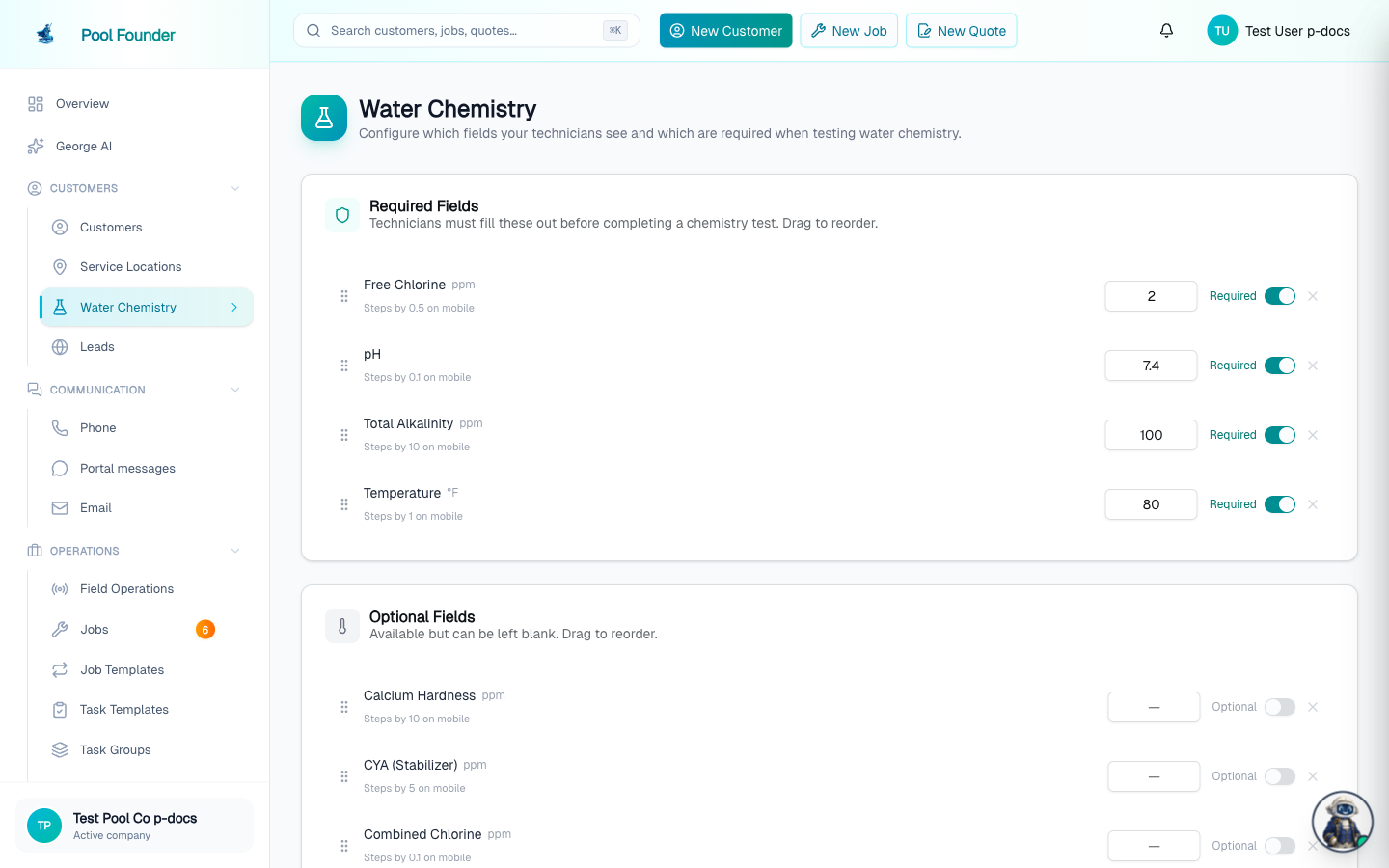
The Water Chemistry page (sidebar → Reports → Water Chemistry) configures which water-chemistry readings technicians see when testing a pool, which of them are required, the order they appear in, and a pre-filled default value for each, for all pools and for each pool type (Salt, Chlorine). Whatever you set here flows straight to the mobile completion flow, where technicians record the readings on every visit (see Complete a visit).
Everything on this page auto-saves as you change it — there is no Save button.
To read the readings back rather than configure them, open a body of water's page: its Chemistry Trends section charts every parameter over time against its target range, LSI included. See chemistry trends.
How the page is laid out
- N pools don't have a type yet · Detect · Review (top): only shown while some active pools have no type set. See "Fill in pools with no type" below.
- Tabs: All pools, Salt and Chlorine. Those three are all most companies need. To give another pool type its own readings (Bromine, Ozone or No sanitizer), click Add type at the end of the tabs; until you do, those pools still get their built-in readings (see "Readings by pool type" below).
- Readings: the list for the selected tab, in three groups: Required, Optional and Hidden. A Reset link appears at the top right once you have changed a pool type.
- Add a Measurement (bottom): your custom measurements, for every pool type.
There is no phone preview of the technician screen and no badge or note saying how a pool type differs from All pools: the tab itself shows exactly the readings techs get for that pool type.
Required, Optional and Hidden readings
- Required: technicians must fill these in before completing a chemistry test. Optional: shown, but can be left blank. Hidden: technicians never see them.
- Drag to reorder readings within a group (on a narrow screen use the up/down arrows); the order here is the order technicians see.
- The toggle on each row flips a reading between required and optional.
- The number box on each row sets a pre-filled default value, so technicians start from a sensible number instead of zero.
- The ✕ on a row hides it. Click a reading in Hidden to put it back.
The built-in parameters are Free Chlorine, pH, Total Alkalinity, Temperature, Calcium Hardness, CYA (Stabilizer), Combined Chlorine, TDS, Salt, Phosphates, Bromine, and Filter pressure (psi). On the All pools tab Free Chlorine, pH, Total Alkalinity, and Temperature start out required; the rest start out optional. There is no Total Chlorine reading.
Filter pressure is the gauge reading on the filter, in psi. It arrives as an Optional reading for every company (including ones set up before it existed) so nobody is suddenly blocked on a new required value — flip its toggle to make it required, or ✕ it to hide it. In the mobile app it comes with a Filter cleaned today switch under the field; when a technician turns that on, the pool's last-cleaned date is set to that visit and, if they entered a pressure, it becomes the pool's new clean baseline. The baseline drives the Filter pressure band on Chemistry Trends (baseline to baseline + 10 psi) and the "over baseline" chemistry alert.
The page has no target or ideal ranges and no dosing settings: target bands are shown on a body of water's Chemistry Trends chart, and dosing recommendations are in the technician app.
Readings by pool type: Salt and Chlorine tabs
A pool's type comes from the Sanitizer on its body of water, and every pool type gets sensible readings out of the box, with nothing to set up. Until you change a tab, it shows your All pools list with these changes:
- Salt (Sanitizer: Salt Water Generator): Salt is shown and required (pre-filled 3200 ppm).
- Chlorine (Sanitizer: Trichlor (Tablets), Liquid Chlorine, Cal-Hypo or Dichlor (Granular)): CYA (Stabilizer) is shown and Salt is hidden. All four chlorine kinds share this ONE Chlorine setup; there is no separate setup for tablets vs liquid chlorine.
- Bromine: Bromine is shown and required (pre-filled 4.0 ppm); Free Chlorine and Combined Chlorine are hidden.
- Ozone and No sanitizer (Sanitizer set to None): the All pools list as is.
- Pools with no Sanitizer set at all use the All pools list.
- 1To change a pool type, click its tab and edit the readings like on All pools: flip toggles, drag to reorder, set default values, ✕ to hide. Changes auto-save.
- 2To undo your changes to a pool type, click Reset at the top right of its tab. It goes back to the readings listed above.
- A pool type you have not changed follows the All pools tab, so a change there (a new required reading, a new default value, a custom measurement) carries into it. Once you change a pool type, it keeps its own list until you click Reset.
- In the technician app the chemistry step shows the readings for the pool being tested, with a tag beside the body-of-water chip naming the pool type in use (e.g. Salt pools or Chlorine pools) whenever it is not just the All pools list. Switching to another pool at the same stop switches the readings. It works offline.
- Pool types are set by sanitizer, not by task group or job. A job named "Weekly Service - Salt" does not pick the salt readings on its own: the pool's Sanitizer does.
- Older versions of the technician app ignore pool types and show the All pools list until the app updates.
Fill in pools with no type: Detect or Review
While some active pools have no Sanitizer set, the top of the page says N pools don't have a type yet. Review needs the Add & edit pools and equipment permission (the same as editing a body of water); Detect fills in types across the whole company, so it needs Manage pool templates.
- Detect guesses the type of those pools from their service history: salt readings, chemicals added on recent visits, and task group and job names (e.g. "Salt" in a task group). It opens a preview first: how many pools it found a type for, how many it is not sure about (they keep no type), and each pool with its guessed type and the reason. Untick any you disagree with, then click Apply. It only fills pools with no type and never changes a pool that already has one.
- Review (or Review pools one by one in the Detect preview) lists the pools with no type: customer, service address and pool name (click the customer to open the body of water). Each row has two buttons, Salt and Chlorine; a click saves it and the pool leaves the list. Chlorine saves the chlorine kind Detect found for that pool, or Trichlor (Tablets) when it found none.
- There is no bulk select or "Set type" menu on this page. To pick a specific sanitizer (Liquid Chlorine, Bromine, None…) or change a type that is already set, edit the body of water.
You can also set a pool's type from the body of water itself: on the web, open the body of water's page, click Edit and set Sanitizer (click Add details (sanitizer, surface, notes) first if the field is hidden). In the technician app it's the Sanitizer Type field when adding a body of water, and the chemistry step shows an optional Pool type row (Salt, Chlorine or ✕ to hide it) for a pool with none set: one tap saves it and switches the readings, and readings can be recorded without answering. Any technician can answer it, even without Add & edit pools and equipment, because it only fills in a missing type.
Add a custom measurement
You can add your own measurements beyond the built-ins — for example ORP, borates, or ozone. Custom measurements are company-wide: they appear for every pool type.
- 1In the Add a Measurement section at the bottom of the page, click Add custom field.
- 2Enter a Name (e.g. "ORP"), a Unit (e.g. "mV"), and a Step — how much the mobile +/- buttons change the value per tap, e.g. 0.5 for fine readings or 50 for larger ones. The number of decimals shown is derived from the step.
- 3Click Add. The new reading appears as an Optional reading tagged "Custom" on every tab. Make it required, reorder it or hide it on any tab like any other reading.
To delete a custom measurement everywhere, click the trash icon beside it in the Add a Measurement list. (The ✕ on its row only hides it from the selected tab.) Custom measurements show up in the mobile completion flow just like built-ins, and the values are stored on the reading and shown alongside it.
Only the built-in parameters feed the LSI (Langelier Saturation Index) calculation. Custom values are recorded and displayed with the reading, but they do not change the LSI result.
Frequently asked questions
Would it be possible to set up a chlorine tab chemistry setup and a salt pool chemistry setup?
Yes, and they work out of the box. The Water Chemistry page has a Salt tab and a Chlorine tab: salt pools require Salt; chlorine pools show CYA and hide Salt. Click a tab and edit its readings to change it (Reset undoes your changes). The Chlorine tab covers every chlorine kind (Trichlor (Tablets), Liquid Chlorine, Cal-Hypo, Dichlor): there is no separate tablets-only setup. Which tab a pool uses comes from its body of water's Sanitizer; pools with no sanitizer use All pools.
Can liquid chlorine pools have different readings from chlorine tab pools?
No. All chlorine pools (tablets, liquid, cal-hypo, dichlor) share the one Chlorine tab. If some pools need different readings, set those readings on the Chlorine tab or the All pools tab.
Why does a salt pool still show the default readings?
Its body of water has no Sanitizer set. At the top of the Water Chemistry page click Review next to "N pools don't have a type yet" and click Salt on its row (or run Detect), or edit the body of water and set Sanitizer to Salt Water Generator. If it is set and Salt still is not required, someone changed the Salt tab: check its readings, or click Reset.
Can it work out which of my pools are salt pools?
Yes. Click Detect next to "N pools don't have a type yet" on the Water Chemistry page. It guesses the type of pools with no type set from their service history (salt readings, chemicals added, task group and job names), shows you every guess with its reason, and fills them in when you click Apply. It never changes a pool that already has a type.
Where do I save my changes?
You don't — the Water Chemistry page auto-saves every change as you make it. There is no Save button.
Do custom measurements affect the LSI calculation?
No. LSI is computed automatically in the mobile completion flow from the built-in parameters. Custom measurements are stored on the reading and shown alongside it, but they don't feed the LSI.
Can imported history from my old software fill in my custom measurements (like Copper or Iron)?
Yes. When George imports past visits from Pool Brain, Skimmer or other software, he can put readings like copper and iron into your custom measurements by name, so add the measurement here first. If your history came in before you added them, ask George to import those visits again with just those readings: he adds them to the readings already imported and leaves everything else as it was. Values typed only into a visit's notes aren't read automatically; George reads them from your export or the notes and shows you what he'll add before anything changes.
I removed Salt by accident — can I get it back?
Yes. The ✕ only hides a reading: it is listed under Hidden for that pool type, and clicking it puts it back. Only deleting a custom measurement (the trash icon in Add a Measurement) is permanent.
How do I track filter pressure?
Filter pressure is a built-in parameter (psi). It is optional by default; on the Water Chemistry page flip its toggle to make it required if every visit should log it. Technicians then enter the gauge reading with the rest of the chemistry, and a "Filter cleaned today" switch under the field records a filter clean — setting the pool's last-cleaned date and its clean baseline. The pool's page shows the latest pressure against that baseline, and the Chemistry Trends chart shades baseline to baseline + 10 psi. To ask for it later in the visit instead (after cleaning, not with the water test), make a Filter PSI task (see Task templates and groups): the water test then leaves Filter pressure out and the task saves it to the same reading.
What does the Step value do on a custom field?
It sets how much the +/- buttons on the mobile app change the value per tap (e.g. 0.5 for fine readings, 50 for larger ones), and the number of decimals shown is derived from it.