Completed Stops: Every Visit, Every Detail (1:11 video). Open on its own page
The automatic after-visit email
After a completed visit, the customer gets an automatic service report email — photos, chemicals, notes, and water chemistry readings from the visit, each section configurable. Reports are switched on per pool, so the first thing to check is that the pools you expect to be emailing actually are (see below). Service report settings live at Service Reports (reached from the Email section), and every sent report shows up in the tracked Email inbox.
Which pools are sending (and turning them all on)
Service reports are a per-pool switch, not one account-wide setting. Every job has its own switch: on the job page, the Service emails row (in the Customer updates group on the Overview tab) reads On or Off. Click Off and confirm Turn On to start sending; click On to open Customize Service Email, which also has a Turn Off button. On the Create Job form the same switch is the Send service report emails to customer after each visit checkbox (Send service report email to customer after completion on New Work Order). Turning the switch on or off, here, on the create forms, in the mobile app, and with Turn on for all pools, needs the "Turn service report emails on or off" permission (Owner, Administrator, and Office Manager by default). Without it the switch is greyed out: a new recurring service sends reports, a new work order follows the company setting below (off unless you turned it on), and Customize email still works. Everything else on the Service Reports page controls what the email looks like — none of it matters for a pool whose switch is off.
New work orders start with the checkbox unchecked unless you turn on Send service reports for new work orders on the Service Reports page (the New Work Orders card), then click Save. With it on, every new work order starts with Send service report email to customer after completion checked, on the web New Work Order form and in the mobile app, so you don't have to check it each time. You can still uncheck it on any one work order (with the "Turn service report emails on or off" permission). It only changes how new work orders start: work orders already created keep their own switch. Recurring services always start checked.
When you add a service to a pool one at a time, the switch is on by default. Pools added through Add Service in Bulk or a CSV import are on by default too — but only for imports done on or after 18 September 2026. Anything bulk-loaded before that date came in off, which is why some accounts saw reports going to only a handful of customers.
The top of the Service Reports page tells you where you stand. If every pool is switched on you get a green "All N pools are sending service reports" line. If any are off, an amber "Not Sending" card shows how many out of your total, with a "Turn on for all pools" button. Confirming turns the switch on for every active recurring service at once, including any you had turned off by hand — the confirmation box tells you how many of those there are first.
Turning reports on affects the next visit, not past ones. Nothing is emailed for visits that are already completed. To send those, open each visit and use Send Report (below).
Turning reports on for a pool is not enough on its own — the customer also needs an email address on file, and their service report email notification has to be on (customer page → email settings). A customer with no email address gets nothing no matter what the job says.
Configure what customers see
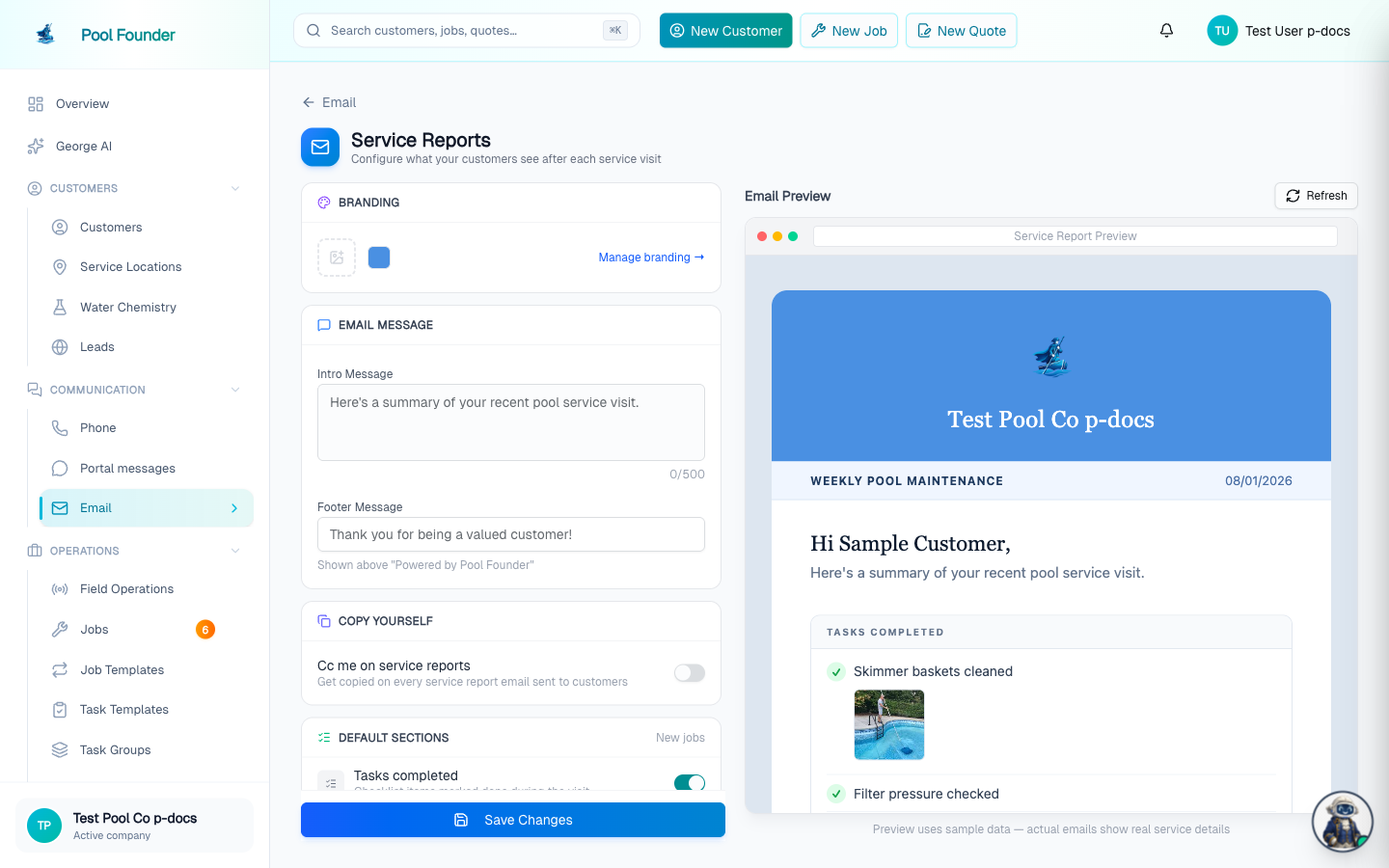
The Service Reports page has a toggle for each section of the report, with a live "Service Report Preview" that updates as you change them:
- Tasks completed on the visit. Each task shows under its Name customers see when the task has one (set on the task in Services → Tasks), so techs can use shorthand like "FC" while the report says "Clean filter cartridges". See Customer-friendly task names.
- Chemicals applied and quantities. When it's on, two pill options appear beneath it: "Decimals (1.5 gal)" (the default) and "Fractions (1 1/2 gal)". Fractions shows amounts like 0.125 as 1/8 and 0.33 as 1/3 in the email; amounts with no close fraction (like 0.3) stay as decimals. This only changes the service report email. Invoices, the customer portal, and the email sent when a completed visit is edited still show decimals.
- Parts used
- Water chemistry readings. Readings a technician records on a water chemistry checklist task (for example a "Check chemicals" task) show right beneath that task in Tasks Completed, labelled with the body of water when the location has more than one. Readings not taken through a task, or all readings when Tasks completed is turned off, show in their own Water Chemistry section.
- Photos — the visit's photo gallery, plus any photos taken against a specific task shown beneath that task. Every photo in the email is a link: clicking or tapping one opens the full-size original in the browser, so the small preview is never the only version the customer can see.
- Technician notes — the notes the technician typed when completing that visit, and only those. Customer notes and the notes timelines on customers, jobs, and locations never show up on a service report.
- Location notes — the Location Notes saved on the visit's service location (gate code, dogs, which side to use), the same notes technicians see on the stop. This one is off by default because those notes were written for your team; turn it on only if your location notes are fine for customers to read. The report shows the location's notes as they are when the report is sent, so fix a wrong gate code on the location and the next report shows the new one.
- Arrival & departure times — shows when the technician arrived and left. This one is off by default — customers see no times unless you opt in. When it's on, two pill options appear beneath it: "Arrival & departure" and "Arrival only". Arrival only shows just the Arrived time on the report and hides Departed; the live preview reflects your choice.
- Portal link — a link to the customer's portal dashboard at the bottom of the report.
- "Let customers leave a tip" — the opt-in tip link (see Tips below).
Changing the order: the section rows in the Default Sections card are in the same order the sections appear in the email. Drag a row by the grip handle on its left (or focus the handle and use the arrow keys) to move it up or down, and the preview reorders to match; click Save Changes to keep it. The order applies to every report your company sends, not per job. Two things always stay put: the "Please wait to swim" banner is always first, and the Portal link, feedback, tip and review buttons are always at the bottom. You can reorder whole sections only; you can't move individual tasks, readings or photos within a section.
A Branding card at the top of the page previews your logo and brand color with a "Manage branding" link — the report email carries your branding. Settings apply when you click Save Changes (the Tipping and Zelle toggles are the exception — those apply immediately).
New jobs vs existing jobs
Six of the section toggles are defaults for new jobs (the Default Sections card is labelled "New jobs"): Tasks completed, Chemicals applied, Parts used, Water chemistry, Photos and Technician notes. A job made with the Create Job form saves its own copy of those six choices when it is created, and a job's own choices always win over the defaults. So when you change one of them and click Save Changes:
- Jobs created afterwards start with the new choice.
- Existing jobs with their own choices (any job created with the Create Job form, or customized on its page) keep what they had. Saving the defaults does not change them.
- Existing jobs without their own choices (pools added with Add Service in Bulk or a CSV import, and not customized since) follow the defaults, so they change on their next report.
- To change an existing job, open its page, click On on the Service emails row (Overview tab), flip the sections under Email Sections (Tasks, Chemicals, Parts, Water Chemistry, Photos, Notes) in the Customize Service Email dialog, and click Save. That job only; there is no button that pushes these six choices to every existing job at once.
Everything else on the page is company-wide and applies to every report sent after you save, existing jobs included: the section order, Location notes, Arrival & departure times, Portal link, the decimal or fraction chemical format, the Footer message, the Intro Message for jobs without their own Intro Text, Cc, Review Links, and the tip link. None of it re-sends reports for past visits.
The Intro Message works like the section choices: the Create Job form copies the current Intro Message into the new job's own Intro Text, so a job created that way keeps the intro it was created with when you change the Intro Message later. Change it for that job in its Customize Service Email dialog. Jobs without their own Intro Text (bulk-added or imported, and not customized) use the current Intro Message.
If Pay by Zelle is turned on in Invoice Configuration, a "Show on service reports" toggle there can also put your Zelle QR code and link on report emails — see recording manual payments.
One thing the toggles never hide: the "Please wait to swim" safety banner. When a technician logs a chemical that has a Wait to Swim (hours) value set, the report opens with a highlighted notice — "Chemicals were added to your pool during this visit. Please wait at least X hours before swimming." (the longest wait wins if several chemicals apply). It shows even when the Chemicals Applied section is turned off.
Personal message, Cc yourself, and review links
- Email Message — an Intro Message (up to 500 characters, shown at the top of every report) and a Footer Message shown above "Powered by Pool Founder".
- Copy Yourself — the "Cc me on service reports" toggle copies you on every report email sent to customers. A Cc address field appears when it's on; leave it blank to use your account email. Customers see the address in the email's Cc line.
- Review Links — add links to your review profiles and customers see buttons in their report emails prompting them to leave a review. Each link picks a platform — Google, Facebook, Yelp, Nextdoor, Thumbtack, or Other (Other takes a custom label) — plus the URL. Add as many as you like with Add Review Link. The same list feeds the Review request automated text, which uses your Google link first (otherwise the first link here) and sends nothing at all when this list is empty. There is no separate on/off switch for the review buttons: to stop asking for reviews in the report email, delete every link with its trash icon and click Save Changes, and reports sent after that have no review buttons. Your Google link can also be pasted straight into the Review link box on the Review request row under Messages → Phone → Automated texts; a link saved there shows up in this list, because it is the same list.
Check or resend a report for a visit
Two paths to the same buttons:
- 1From the job: open the job's page → the Visits tab, then click a visit under "Visit history" to expand it. Each completed visit that had a report sent shows a "View Sent Email" button — it opens the exact email the customer received. Every visit also has a "Send Report" button to send or re-send the report.
- 2From the completion: Field Operations → Completed Stops → open the visit — the same "Send Report" button is on the completion detail page.
Or ask George: "send the service report for Maria Garcia's last visit" (add "to jane@example.com" to send it to another address). He finds the completed visit and prepares an approval card that reads "Email the service report for customer's date visit to address" (on George Permissions the action is called Send a service report); the email goes out only when you click Approve, with the report sections the job normally includes. Anyone whose role can see jobs or completed stops can ask, technicians included. George can't send it while customer notifications are paused, before the account's phone or email is verified, or when the customer has no email address and you didn't give one. He doesn't change which sections reports include or switch automatic reports on or off for a pool.
Sent report emails also appear in the Email inbox (sidebar → Messages → Email) with delivery and open tracking, so you can confirm a customer actually received and opened their report. Customer email notifications can be toggled per customer, which controls what each customer receives.
What the customer does not see: technician-reported issues
When a technician uses Report an Issue in the mobile app (a broken pump, a safety concern, anything for the office), that report goes only to your owners and administrators — as an in-app notification, a push notification, and an email. It is never added to the customer's service report email, never shown in the customer portal, and never texted to the customer. There is no setting that changes this; if you want the homeowner to know about a problem, tell them yourself or add it to the technician's visit notes for that report. Details in Technician Alerts.
The report by text and online
Customers can also get a text when their report is ready — the "Service report ready" automated text ("After each service report is sent") under Messages → Phone → Automated texts. It is off by default. It needs texting set up on your account (a texting number), and the customer needs a mobile number on file and must not have opted out. The text carries a link that opens that visit's report on the web, photos and all, with no sign-in; it does not repeat the report's contents in the message. A manual resend of the email never re-sends the text. Setup and wording live in Texting and the Phone inbox.
The report online (no sign-in): every report email has a small "View this report online" link under the greeting, and the "Service report ready" text uses the same link. It opens that one visit's report in the browser, branded with your logo and color, with no customer portal sign-in: the same sections, task names, readings, chemicals, photos (tap to enlarge) and technician notes the email shows, following the same Service Reports settings, plus the Great Visit / Needs Work buttons if the customer hasn't rated the visit yet. Prices are never shown, and neither are the "Hi (name)" greeting, location notes, the tip link or the Zelle block. Anyone who has the link can view that visit's report, so customers should treat it like the email itself and not post it publicly. It shows only that one visit, never their other visits, invoices or account; a "Sign in to see all your visits" link at the bottom goes to the portal (shown when the Portal link section is on). Each visit gets its own long random link the first time its report is emailed or texted; deleting the visit makes the link stop working. There is no setting to turn the online report off.
Customer feedback
Reports can include a feedback link — a thumbs up/down the customer taps right from the email. Responses collect on the Feedback page (sidebar → Reports → Job Feedback), with trends over time, so you hear about an unhappy customer before they call — see Job feedback.
Tips
- Tipping is opt-in and off by default — turn it on with the "Let customers leave a tip" toggle on the Service Reports page.
- When on, service report emails include a tip link. Tips are card-only.
- Tips are listed on the Tips page (sidebar → Billing → Tips), where you track them and pay them out to your technicians — see Tips and gratuities.
Frequently asked questions
Do I have to check "Send service report email" on every new work order?
No. On the Service Reports page, turn on "Send service reports for new work orders" (the New Work Orders card) and click Save. Every new work order then starts with the box checked, on the web form and in the mobile app. You can still uncheck it on a single work order. Work orders already created keep their own setting, and recurring services always start checked.
Only a few of my customers are getting service reports. Why?
Service reports are switched on per pool, and pools added through Add Service in Bulk or a CSV import before 18 September 2026 came in switched off — so only the pools you added one at a time were emailing. Open the Service Reports page: if any are off you will see an amber "Not Sending" card with a count and a "Turn on for all pools" button that fixes every one of them at once. Also check that the customer has an email address on file and has service report emails enabled.
None of my customers got a service report today. What happened?
Check whether customer notifications are paused. If an amber "Customer notifications are paused" bar shows at the top of the dashboard, the "Pause all customer notifications" switch in Notification Settings is on, and no service reports (or any other email or text) go to customers. Reports for visits completed while it was on are not sent later; to send one, turn notifications back on and click "Send Report" on that visit.
Is there a way to turn service reports on for every pool at once?
Yes. On the Service Reports page, the "Not Sending" card at the top has a "Turn on for all pools" button. It switches on every active recurring service, including any you had deliberately turned off (the confirmation tells you how many of those there are). You can still switch an individual pool back off from its job page. If the card is not showing, every pool is already sending.
I just turned reports on — will my customers get one for visits we already did?
No. Turning the switch on only affects visits completed from that point forward. To send a report for a visit that already happened, open the job's Visits tab (or the completion from Completed Stops) and use the "Send Report" button on that visit, or ask George to send the report for that visit (he prepares it for your approval).
Can chemical amounts show as fractions on the service report?
Yes. On the Service Reports page, pick "Fractions (1 1/2 gal)" under Chemicals applied and save. The email then shows 1.5 gal as 1 1/2 gal and 0.125 gal as 1/8 gal. It only affects the service report email: invoices, the customer portal, and the email sent when a completed visit is edited still show decimals.
Are the technician's arrival and departure times shown to customers?
Only if you turn that on — the "Arrival & departure times" toggle on the Service Reports page is off by default. When it's on, you can also choose "Arrival only" to show just the arrival time and keep the departure time private.
Can I change the order of the sections on the service report?
Yes. On the Service Reports page, drag the section rows in the Default Sections card by their grip handle into the order you want, then click Save Changes. The order applies to every report your company sends. The "Please wait to swim" banner always stays first, and the portal link, feedback, tip and review buttons always stay at the bottom.
I changed the sections on the Service Reports page. Does that change reports for all my existing customers?
Not always. Tasks completed, Chemicals applied, Parts used, Water chemistry, Photos and Technician notes are defaults for new jobs. A job created with the Create Job form keeps its own copy of those choices, so saving new defaults does not change it; only jobs created afterwards, and jobs with no choices of their own (pools added with Add Service in Bulk or a CSV import), follow the new defaults. To change an existing job, open its page, click On on the Service emails row, change the Email Sections in Customize Service Email, and click Save. There is no bulk "apply to all jobs" for those six. The other settings (section order, Location notes, arrival times, portal link, intro and footer messages, Cc, review links, tips) are company-wide and apply to every report sent after you save.
How do I stop the service report email from asking customers for a review?
Remove your review links. The review buttons only appear when the Review Links list on the Service Reports page has links, and there is no separate switch for them. Click the trash icon next to each link and click Save Changes; reports sent after that have no review buttons. The same list feeds the Review request automated text, so with no links that text sends nothing either. To stop only the text and keep the buttons, switch Review request off under Messages → Phone → Automated texts instead. The Great Visit / Needs Work feedback buttons always stay on the report; they collect feedback for your Feedback page and are not review requests.
Can the water chemistry readings show under the "Check chemicals" task?
They already do when the readings were recorded on a water chemistry checklist task: the report shows them right beneath that task in Tasks Completed. Readings not tied to a task show in the separate Water Chemistry section.
Can the service report show the location notes, like the gate code or "has dogs"?
Yes. Turn on the "Location notes" toggle on the Service Reports page and save. It is off by default. The report then shows the Location Notes from the visit's service location in a "Location Notes" section. Customer notes and the internal notes timelines are never included.
How do I know whether a report was actually emailed for a visit?
Open the job's page → the Visits tab and expand a visit. Visits that had a report sent show a "View Sent Email" button opening the exact email the customer received, and sent reports also appear in the Email inbox with delivery and open tracking.
Can customers tip in cash through the report?
No — tips through the service report link are card-only. The feature is opt-in and off by default, and tips collect on the Tips page where you pay them out to techs.
When my technician reports an issue, does the homeowner get it too, or only our office?
Only your office. Issues a technician reports from the field go to owners and administrators — in-app, by push notification, and by email — and never to the customer. They do not appear in the service report email, the customer portal, or any text, and there is no setting to send them to customers.
Can the homeowner get a text version of the service email?
Yes. Turn on the "Service report ready" automated text under Messages → Phone → Automated texts (it is off by default). It sends right after the report email goes out, with a link that opens that visit's report, photos and all, with no sign-in. It requires texting to be set up on your account, and the customer needs a mobile number on file and must not have opted out of texts.
Do customers have to sign in to the portal to see their service report?
No. The report email's "View this report online" link and the "Service report ready" text both open that visit's report in the browser with no sign-in, showing what the email shows (no prices). Anyone with the link can view that one visit's report, so customers should treat it like the email. Their other visits, invoices and account still need a portal sign-in.
The photos in the service report email are tiny — can the customer click one to see the full-size picture?
Yes. Every photo in the report email is clickable — tapping or clicking one opens the full-size original in the browser. The same photos also show in the customer portal under Service History (as long as the portal's Photos visibility toggle is on), where the customer can open each one in a full-screen viewer.