A Repair From Quote to Finish (1:51 video). Open on its own page
Quote it, send it, convert it
The Quotes page is where you create and send quotes. Quotes are emailed to the customer, who can accept online — and an accepted quote converts straight into a work order or a recurring service. Every quote moves through four statuses: draft, sent, accepted, and rejected.
Writing and saving a draft quote is always available. Sending one requires a verified phone number or email on the account — see verify your phone or email.
The Quotes overview
Quotes in the sidebar opens an overview, not the list. It only counts quotes that aren't archived.
- Needs attention lists what to do next, each with a button: accepted quotes that don't have a job yet (Create jobs), drafts not sent yet (View drafts), sent quotes that expire in the next 7 days without an answer (Follow up), and accepted quotes whose deposit or work order hit a problem. It is hidden when there is nothing to do.
- The numbers across the top: Open quotes (drafts plus sent quotes that haven't expired, and what they are worth), Waiting on customer, Won, last 90 days, Win rate, last 90 days (accepted out of the quotes customers answered), and Time to an answer (the average days from sending to the customer's answer). Click one to open the matching list.
- Pipeline shows Draft and Waiting (sent, not answered yet), then Accepted, Rejected and Expired, with a bar showing how much of the answered value you won. Each stage opens its list.
- Sent and accepted charts quotes sent and accepted each month for the last 6 months. A quote counts as accepted in the month the customer said yes.
- Waiting on customers lists the sent quotes that have waited longest for an answer, with when each expires. Recent activity shows the latest quotes created, sent, accepted or rejected.
Click View all quotes for the full list. It opens on the Open tab: drafts, and sent quotes the customer can still accept. The other tabs are Draft, Sent (every sent quote without an answer, including expired ones; click Expiring soon under the tabs for the ones expiring in the next 3 days), Expired (sent, past the Valid Until date, no answer), Accepted (click To book under the tabs for accepted quotes with no job or project made from them yet), Rejected and All. The tab is kept in the page address (for example <code>/dashboard/quotes/list?status=expiring</code> or <code>?status=to_book</code>), so the home to-do list links straight to it. Pool Founder doesn't track whether a customer has viewed a quote on its page; the quote's Emails card shows whether the email was opened.
Create a quote
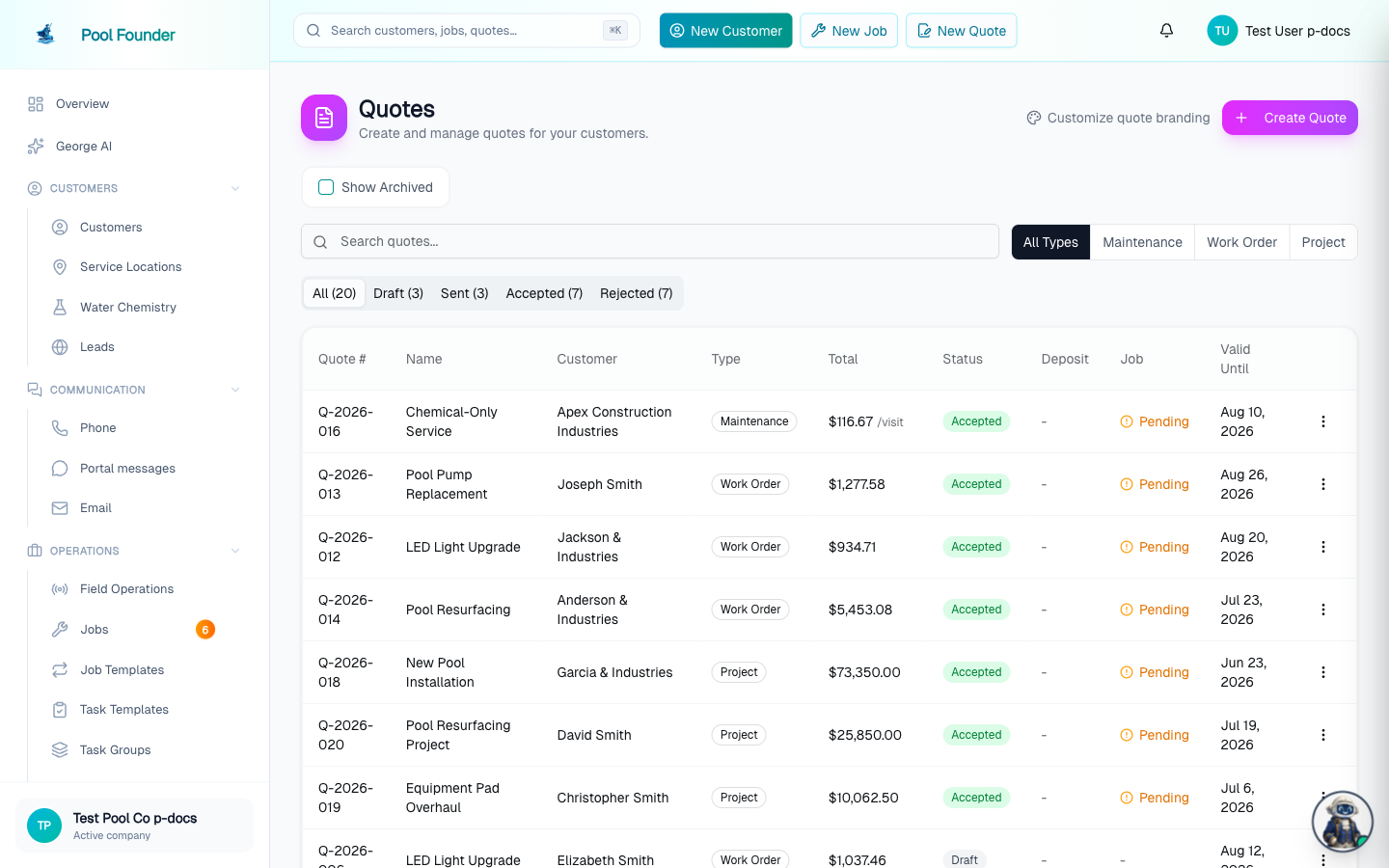
The quotes list (View all quotes on the overview) opens sorted by Needs action: accepted quotes that don't have a job yet come first, then drafts, then everything else, each group with the most recent activity (created, sent, or answered) on top. The Sort dropdown next to the status tabs also offers Latest activity and Newest. Click any column header (Quote #, Name, Customer, Type, Total, Status, Deposit, Job, or Valid Until) to sort the whole list by that column; click it again to reverse. The status tabs and the All Types / Work order / Recurring service buttons narrow the list without changing its order, and the sort is kept in the page address. While you search, results are ordered by best match and the headers don't sort.
- 1In the sidebar, click Quotes (its own item, under To Schedule) and click Create Quote.
- 2The Create quote page opens with Start from a service: your services as cards grouped by kind (Recurring services, Work orders, Multi-visit work orders), each with its price, and a Search services… box when you have more than six. Click one and the quote form opens filled in from it: a recurring service makes a Recurring service quote, a work order makes a Work order quote. With no services yet it links to the Services page.
- 3Or, under Or start blank, click Work order (one visit or several, like a repair or a green-to-clean, priced by line item) or Recurring service (recurring maintenance at a set rate; it goes on a route). These were called One-time job and Ongoing service until October 2026, and One-Time Service and Service Plan before that. There is no project or multi-stage quote type: for a large job, quote it as a Work order with a deposit.
- 4The form opens with that Quote Type picked (you can still switch it at the top of the form), and Back returns to the first step. The form's header reads New quote (or Edit quote when you edit one). Create Quote from a service request, a technician alert, or a service's Create quote menu goes straight to the form. From a customer or a service location it still opens on the first step, with that customer kept.
- 5Fill in the rest of the page, then click Save as Draft or Save & Send. The whole quote is one scrolling page.
- Work order quotes price with line items (title, price, and an optional description behind Add details). Add from catalog adds parts and chemicals at quantity × unit price, and each line has a Taxable switch (below). Recurring service quotes price with a single Price per Visit plus a chemical billing choice (below).
- Validity Period sets how long the quote stays open: 7, 14, 30, 60, or 90 days. New quotes start at your company default (30 days unless you change it in Invoice Settings under Quotes > Quotes valid for). The quote page shows "Valid for N days" in its timeline.
- Customer Message is included in the quote email sent to the customer; Internal Notes are only visible to your team and never appear in the email, the customer's quote page or the PDF. Internal notes are a running log: whatever you type in the Internal Notes box on a new quote becomes its first note, and after that you add more from the quote's page (Internal notes section: type, then Add Note, or Ctrl/⌘ + Enter) or from Edit quote. Each note is saved with who wrote it and the date and time, and earlier notes are never overwritten. Adding a note takes the Edit quotes permission; anyone who can view quotes can read them. A quote from before the log keeps its old text, shown at the bottom as Earlier note. Quote notes can't carry photos.
- When the accepted quote becomes a work order (Create Job from the quote, or linking an existing job), every internal note is copied onto the work order as a job note starting "From quote (number):", keeping who wrote it and when, so the technician sees them in the app on the job page and while completing the visit. Notes added to the quote after that are not copied. The technician app shows a quote's internal notes (read-only) on the quote screen.
- The Customer Message supports rich formatting on the web quote builder — a toolbar above the box gives you bold, italic, a heading, bulleted and numbered lists, and links. The formatting carries through to the emailed quote, so a detailed message reads clean and professional. (Underline is not offered — underlined text reads as a link. Use Preview Email to see exactly how it will look.)
- Save messages you reuse. Above the message box, Save message stores the current message (with its formatting) for your whole team, and Load saved message drops a saved one back in to edit before sending — handy when you send similar wording often. Saved messages are company-wide (everyone shares the same list) and you can delete one from the Load saved message menu; the limit is 50 per company.
- On work-order quotes, Add Discount adds a described dollar-amount discount that shows as its own line in the total.
- Typing a price, changing a catalog price, and adding discounts need the "Change prices & add discounts" permission. Without it the price boxes are locked with a note naming the permission and Add Discount is hidden: build the quote from a service or catalog items at their set prices (quantities can still change). See roles and permissions.
Start a quote from a service
Everything you sell is saved on the Services page (sidebar → Services → Services): one-off jobs (a green-to-clean, a pool opening, a pump replacement) as Work orders or Multi-visit work orders, and your regular maintenance as Recurring services. A quote can start from any of them, so the same line items fill in on their own.
- When you create the quote: the first step of Create Quote lists every service under Start from a service. Click one to open the quote already filled in, with the Quote Type set to match (Work order or Recurring service).
- From the quote form: to switch services later, click Start from a service at the top of the Pricing section. It lists every service grouped by kind, with a Search services… box at the top when you have more than six (type any part of a service's name or description). Picking one fills in the quote and sets the Quote Type to match, with a "Started from" message naming it.
- From the service: on the Services page, open a service's ⋮ menu and choose Create quote. The editor for a work order also has a Create quote button at the top. Either way you land on a new quote with the service already filled in; pick the customer's service location and send it.
- A work order fills in its line items, discounts, tasks, Show tasks to customer, deposit, and Hide grand total. Its customer message only fills in when the box is still empty. The quote name becomes the service's name when it is empty or still the name of the service you picked before, so switching from one service to another renames the quote, but a name you typed yourself is kept.
- A recurring service fills in its price per visit, billing mode, chemical billing, tasks, and internal notes (and the name, by the same rule).
- Everything stays editable. Changing the quote never changes the saved service.
Under the Pricing heading a work order quote shows which service it came from ("From service ..."), with an Unlink link. When the quote is accepted and the work order is created, it stays linked to that service: it gets the service's time at stop and its visit plan or default Repeats rule, its Service Terms on the invoice, and its pay per stop for technicians, and it counts toward the service's usage. Likewise, the job made from an accepted recurring service quote is linked to that service, so later edits pushed from the service reach it.
Quoting a multi-visit work order: the visit count
A multi-visit work order (a green-to-clean, a plaster startup) has a visit plan, and the quote says how many visits its one price covers. The "From service" note in the form adds the plan, for example "Includes 10 visits: Daily for 3 days, then 3 visits a week for 2 weeks, then 1 visit 7 days later." The quote page shows the same Includes 10 visits line under the Pricing heading (and a Visits row in the accept dialog), and the quote email and Preview Email show an "Includes 10 visits" box with the plan above the line items. The work order made from the quote takes that visit plan, including its Tasks setting (Same tasks every visit or One list for the whole job) and its booking choice. The visit plan comes from the linked service: unlink the service and the quote no longer mentions visits, and there is no way to set a visit plan on the quote itself (set it on the work order after it's created, or on the service). The customer portal's quote page shows it too, as a Visits row under Service Type: "Includes 10 visits" with the plan underneath.
Quote defaults on a work order
Each work order has a Quotes section with settings used only when you quote it: a Customer message (with the same formatting toolbar as the quote), Quote valid for (Company default unless you pick a number of days), and Hide grand total. Work orders created without a quote ignore them.
Save a quote as a service
Built a quote you'll send again? On a Work order quote, click Save as service at the top of the Pricing section, name it in the Save as service dialog, and click Save service. It saves the line items, discounts, tasks, deposit, customer message, validity period, and Hide grand total. Photos and internal notes stay on the quote, and the quote is then linked to the new service, which appears on the Services page. The button only shows for people allowed to manage services.
Parts from your catalog and sales tax on work-order quotes
- 1In the line items, click Add from catalog, search Search parts and chemicals, and click a part or chemical (or press Enter). The list stays open so you can add several.
- 2Each catalog line shows a Part or Chemical badge and Qty × Unit price = Amount, starting at quantity 1 and the item's Customer Price. Adjust either for this quote.
- 3Turn on Taxable on any line to charge tax on it. The rate fills in from your Default tax rate in Invoice Settings; catalog lines start at the item's own tax rate.
- The totals read Subtotal, Discounts, the tax row, and Total. Discounts reduce the tax in proportion to the lines they come off.
- The quote page, the quote email, and the customer portal label the tax "Sales tax (estimated)" (or your own tax label) and show a Total that includes it. A percentage deposit is figured on that Total, tax included.
- Hide grand total presents the quote as a menu of optional items: the customer sees each line's price but not the subtotal, discounts, tax, or grand total.
- Adding a part to a quote never takes it out of stock, and neither does the work order it becomes.
- Tax is only on work order quotes. Maintenance quotes are never taxed, and there is no PDF of a quote (except the signed copy when the customer signs to accept, below).
For the full picture, including invoicing and the mobile app, see catalog parts and taxable line items.
Require a deposit on a work-order quote
Work-order quotes can require a deposit. Check Require Deposit in the pricing section, pick a Deposit Type of Flat Amount or Percentage, and enter the amount. As the form says, "A percentage deposit is taken on the total after discounts, including tax." It shows the result under the field, for example "50% of the total after discounts, including tax ($972.00) = $486.00" ($900 of work plus $72 tax), and the builder lists the Deposit and what is Remaining under the Total. The customer sees that same amount on the quote in their portal. Once the deposit invoice is created (when the customer accepts), its amount is locked. Your Stripe account must be connected; until it is, the form shows "Connect Stripe to require a deposit on quotes".
- When the quote is accepted, the deposit gets collected first. If the customer has a saved payment method, the accept dialog shows a "Charge deposit to" picker: choose Send Invoice to email a deposit invoice, or pick a saved card to charge the deposit on acceptance.
- With no saved payment method, a deposit invoice is emailed to the customer automatically.
- The quote page shows a Deposit Required card with live status: Pending before acceptance, Creating invoice while the deposit invoice is being made, then Awaiting Payment with a View Deposit Invoice link once the invoice goes out.
- If the deposit invoice can't be created (for example Stripe returns an error, Stripe isn't connected, or the customer has no email address), the accept dialog stops and says why, the quote stays accepted, and the Deposit Required card shows a red Not Invoiced badge, "The deposit invoice couldn't be created" with the reason, and a Retry button. Fix the cause (add the customer's email, reconnect Stripe) and click Retry. An accepted quote whose deposit invoice never went out shows Send Deposit Invoice there instead. Retrying takes permission to create invoices, and it never charges a card: it emails the invoice.
- If a saved card was picked but the charge fails, the deposit invoice is still created and left open, and the card says "The card wasn't charged" with the reason.
- A quote and the work order made from it share one deposit. Retry, the work order's Send deposit invoice button, and the automatic run never create a second deposit invoice: whichever goes first creates it, and the other links to that same invoice. Paying it marks the deposit paid on both the quote and the work order.
- Once paid, the deposit moves into the pricing breakdown as a Deposit paid line and the total becomes Remaining.
- Try to create the work order before the deposit is paid and a Deposit Not Yet Paid warning asks you to confirm first.
The quote email (and Preview Email) shows a green Deposit required row under the total with the amount: a flat amount, or the percentage with its dollar figure, for example "50% ($450.00)". Once the deposit invoice exists the row shows that invoice's amount. It still shows when Hide grand total is on.
Chemical billing on maintenance quotes
Maintenance quotes carry a Chemical Billing choice that flows into the recurring service when the quote converts:
- Chemicals billed separately — chemicals used are billed as additional line items.
- All chemicals included in price — the visit price covers all chemicals.
- Specific chemicals included — set included amounts per visit; overages and other chemicals bill separately. The quote page shows an Included Chemicals card listing what the per-visit rate covers.
Send and manage a quote
- On a draft quote: Send Quote emails it to the customer.
- On a sent quote: Resend, Mark Accepted, or Mark Rejected — useful when the customer answers by phone instead of clicking the link.
- Customers can also accept or decline the quote themselves from the link in the email (its View Quote button), with no sign-in. No marking needed on your end.
- On draft and sent quotes, Preview Email shows the exact branded email the customer receives before (or after) you send it.
Automatic quote reminders
Pool Founder can email customers about sent quotes they haven't answered. Turn it on in Invoice Settings under Quotes by picking a Quote reminder cadence. It is Off until you choose one, and it applies to every quote your company sends.
- Off: no reminders.
- Gentle: 1 day before the quote expires.
- Standard: 3 days after it was sent, and 1 day before it expires.
- Aggressive: 2 and 7 days after it was sent, plus 3 days and 1 day before it expires.
Reminders are timed against each quote's own Valid for period, so a 7-day quote still gets them, and they never go out after the quote expires. Any reminder that would land on or after the expiry day is skipped. They stop as soon as the quote is accepted, rejected, or archived. Resend restarts the schedule from the new send. The reminder is the same quote email with the accept link, marked "Reminder" with the expiry date, and it goes to the same people as the original. It shows as Quote reminder on the quote's Emails card.
Quote reminders by text
Reminders can also go by text. Turn on the Quote reminders row on Messages → Phone → Automated texts (managers only). It is off by default. It has no schedule of its own: each time the cadence above sends a reminder for a quote, the customer also gets one text, the same day, with the link to review and accept the quote without signing in. While the Quote reminder cadence is Off, no texts go out either; the row says so ("Quote reminder cadence is Off") with a link to Invoice Settings. Under the cadence in Invoice Settings, a line reads "Reminders can also go by text, with the link to accept." with a link to the row.
- Default wording: "{companyName}: reminder, your quote is ready: {quoteLink}". You can reword it on the row; variables available: <code>{firstName}</code>, <code>{companyName}</code>, <code>{quoteNumber}</code>, <code>{quoteLink}</code>.
- Same rules as every automated text: SMS consent, STOP, the customer's own Texts preference (it has a Quote reminders switch), quiet hours, the daily per-customer limit, and texting live on your own business number (there is no shared-number fallback). A text that can't go out shows in Phone → Activity as a skipped Quote reminder with the reason.
- The text still goes when the customer has no email on file or has quote emails turned off.
- The quote's Timeline shows each automatic reminder as Reminder Sent by email, Reminder Sent by text, or Reminder Sent by email and text.
Text a quote or copy its link
Quotes are sent by email, but once a quote is sent you can also get it to the customer another way. Two buttons sit at the top of a sent quote's page (they also show on accepted and rejected quotes, for reference). Both need the Send quotes permission.
- Copy link copies the quote's own link, the same page the email's View Quote button opens. Paste it into a text from your own phone, a Facebook message, anywhere. The link stays the same on every resend, so an older text or email still opens the quote.
- Text quote texts that link to the customer from your business number. It sends once your business texting is live (see texting and the phone inbox); until then it shows a lock, and clicking it says what's left to set up. A window shows the exact message ("Your Company: your quote Q-2026-007 is ready. Review and accept it here: ...") before you click Send text. The text shows up in the customer's thread under Messages → Phone, and Texted is added to the quote's Timeline. It can't be sent when the customer has no phone number, has texted STOP, or customer notifications are paused. The message wording is fixed; to write your own, use Copy link and paste it into a text.
No sign-in needed: the link opens the quote on its own page, with your logo, where the customer reviews it and taps Accept Quote or Decline Quote (a decline asks for a reason). It works for customers with no email on file and even when quotes are hidden in your customer portal. If the quote has a deposit, accepting shows Pay Deposit Now on the same page. Once answered, the page says "You accepted this quote" (or declined) and the buttons go away; an expired quote can't be accepted there. Anyone with the link can answer the quote, the same way anyone with an invoice's pay link can pay it, so share it only with the customer. Accepting from the link shows in the quote's Timeline as accepted by the customer and sends you the usual "quote accepted" notification. Drafts have no link: send the quote first. A quote sent before quote links existed gets its link the next time it is resent or texted; until then Copy link gives its customer portal page, which needs the email sign-in.
Have customers sign to accept a quote
Optional: you can make customers sign to accept instead of accepting with one click. Turn it on for every quote in Invoice Settings under Quotes > Customers sign to accept quotes, or per quote with the Customer signs to accept checkbox in the quote form's Signature section (below Validity Period). The checkbox starts at your company setting, and whatever you set on a quote wins over it. It is off by default.
- 1The customer opens the quote (from its link with no sign-in, or from the customer portal) and taps Accept Quote.
- 2The Sign to accept dialog asks them to tick the box agreeing to use electronic records and signatures with your company, type Your full name, and sign under Signature: Draw (with a finger or mouse) or Type (their name in a script hand).
- 3They tap Sign and accept. The quote is accepted exactly as with one click (your "quote accepted" notification, the deposit invoice, an automatic work order), and the quote page then says "You signed this quote" with a Signed copy (PDF) link.
- What you keep: a signed PDF of the quote exactly as the customer saw it (line items, discounts, tax, total, deposit, terms and your message), their signature, and a Certificate of Completion listing when they agreed and signed, their IP address and device, and a fingerprint (SHA-256) of the quote text. It is saved on the customer's Documents tab as "Quote (number): (name)", and emailed to the customer when they have an email address.
- On the quote page, the Timeline card shows Signature: Required to accept while the quote is out, then Signed by (name), the time and IP address, and a Signed copy with certificate (PDF) link.
- Why it helps with chargebacks: if a customer later disputes the card charge ("I never agreed to this", "that's not the price I was quoted"), the signed quote and certificate are evidence that they agreed to that work at that price. It does not stop a customer from filing a dispute, and Pool Founder does not send it to the card company for you: download the PDF and upload it with your response. For a "the work wasn't done" dispute, also include the completed visit with its photos.
- Declining never needs a signature. If you mark a quote accepted yourself (Mark Accepted on the quote page or the Quotes list, Mark accepted in the technician app, or asking George) because the customer said yes by phone, no signature is collected, and the confirmation says so before you go ahead. To get the signed copy, have the customer accept from the quote link instead.
- Turning the setting on later applies to quotes that are already out, except quotes where you set the checkbox yourself. The technician app's quote screen has no checkbox: those quotes follow the company setting.
See if the customer received and opened it
Once a quote has been emailed, an Emails card appears on the quote page listing every send with its live delivery status: Sent, Delivered, Opened (with an open count), and Clicked, plus Bounced or Marked spam if delivery failed. So when a customer says "I never got it," you can check whether the quote actually reached their inbox and whether they opened it. A bounce shows a plain-English reason underneath it (a typo in the address, a full inbox, and so on) — see what each bounce reason means.
The same delivery details also appear in the customer's Communications section on their profile and in the Email inbox under Messages, alongside your invoices and service reports. Note that "Opened" means they opened the email — accepting still happens from the link inside it, and shows up in the Timeline when they do.
Timeline: who did what, when
Every quote page has a Timeline card — a full audit log of the quote's life: Created, Updated, Sent, Reminder Sent, Texted, Accepted, Rejected, Archived, Unarchived, Job Linked, Invoice Created, and Invoice Paid. Each entry shows who performed it, with an Employee or Customer badge, and when — so you can see at a glance whether the customer accepted online or someone on your team marked it.
The Created entry is always the person who was signed in when the quote was made. Nobody can change it afterward, so it is a fair record of who sold the quote.
Quote Sales report: who sold which quotes (for commission)
Profitability → Quote Sales totals the quotes each person created in a date range: Quotes, Sent, Accepted, Close Rate, Accepted Value, and Collected. Pool Founder does not calculate or pay commission; use these numbers to pay it through payroll. See profitability analytics.
Archive a quote
- Archive (on the quote or from the list) hides a quote from the main list — useful for dead quotes you don't want cluttering the page.
- Check Show Archived at the top of the All quotes list to see archived quotes, and Unarchive to bring one back.
- Archiving and unarchiving are recorded in the quote's Timeline.
QuickBooks Estimate sync
With QuickBooks connected and quote syncing on, sent quotes sync to QuickBooks as Estimates, with taxable lines marked taxable, the estimated tax total, and catalog lines on their QuickBooks items. The quotes list shows a per-quote sync status icon (synced, pending, or failed), and the quote page shows the live state: QB Pending, a View Estimate in QuickBooks link once synced, or QB Sync Failed with a Retry button to re-sync that quote on the spot. See QuickBooks sync.
Convert an accepted quote
When you click Mark Accepted on a sent quote, the dialog depends on whether the quote requires a deposit:
- No deposit: the dialog's button reads Accept & Create Work Order on a work order quote or Accept & Create Recurring Service on a recurring service quote. Clicking it marks the quote accepted and takes you straight to the job form, filled in from the quote, to pick the route and dates. A work order quote set to create its work order automatically (below) shows Accept Quote instead: the work order is made for you and you stay on the quote.
- With a deposit (work order quotes): the button reads Accept & Send Deposit Invoice. It marks the quote accepted and emails the deposit invoice (or charges the saved card you picked under Charge deposit to), and you stay on the quote. Create the work order once the deposit is paid, or let the quote create it automatically (below).
A work order quote can create its work order by itself. In the quote builder's pricing section, under Require Deposit, When accepted, create the work order has three choices:
- Manually (the default): nothing is created until someone clicks Create Work Order on the accepted quote.
- Automatically when accepted: created the moment the quote is accepted (quote link, customer portal, Mark Accepted, or QuickBooks). A deposit invoice still goes out and the work order shares it.
- Automatically once the deposit is paid: created when the deposit invoice is paid (online or recorded by hand). Needs Require Deposit; without it the choice is greyed out.
The automatic work order is the one Create Work Order would make (line items, discounts, tasks, linked service, deposit, Internal Notes). It is not scheduled: it waits on Work orders to schedule until you book it. A quote never gets two work orders, even if someone clicked Create Work Order first. The Timeline shows Work order created automatically. Recurring service quotes have no automatic option. A work order has the same choice under Quotes, and Save as service keeps it.
A quote the customer accepted online, or one accepted while waiting on a deposit, shows a Work Order or Recurring Service card until its job exists, with one button matching the quote type: Create Work Order (work order quotes; see work order billing) or Create Recurring Service (recurring service quotes; see create jobs). A quote waiting on its deposit says "The work order will be created automatically once the deposit is paid. You can also create it now." If the automatic one fails, the card says why; use Create Work Order instead. Once the job exists the card shows it with View Job. The quote becomes the job, so nothing gets re-typed: a work order keeps each line's quantity, catalog link, and tax rate, each task's Required or Optional setting, and the linked service's visit plan (with its Tasks setting).
If you buy from Heritage Pool Supply, an accepted work order quote also has a Heritage orders card: Order parts from Heritage orders its Heritage-linked parts with the quote number as the PO, and can put its work order on hold until the parts are ready. See Heritage Pool Supply.
Quote extra work from a technician alert
When a tech finds work outside the regular service (a pressure wash, a worn O-ring), open the alert and use Create Quote: on the web at the bottom of the alert, in the app on the alert screen. The quote opens for that customer and location, named after the alert, with its description in Internal Notes. Saving links the two and marks the alert Acknowledged; it shows Quote: (number) and stays open until the work is done. It needs the Create quotes permission. See technician alerts.
Follow-up quotes: quote the repair found on a visit
For a paid diagnostic, quote the diagnostic (a "Diagnostic" work order service helps), and once accepted it is a work order. The repair the tech finds is a follow-up quote, linked to that job and visit: in the app, the Create Quote button at the top right of the Complete Job screen (see complete a visit); on the web, Quote work found on this visit on a visit in the job's completion history. The job page lists it as a Follow-up quote from a visit, and the quote page has a Found on a Visit card. It must be for the visit's service location. The diagnostic is billed on its own, and its fee is not credited to the repair automatically: add a discount line to the follow-up quote to take it off.
Quotes elsewhere in Pool Founder
- The customer portal has a Quotes toggle on the Customer Portal Settings page, controlling whether customers see their quotes there.
- Technicians and owners can create a quote from the field: the mobile app's Today tab has a Create Quote action under the "Sales" heading, a Quotes action there lists every quote (opening on Open quotes, for roles that can view quotes), and in the app the quote can also Start from a service. See mobile invoices and leads.
- A quote can be written straight from a technician alert with Create Quote (above), or from a visit as a follow-up quote (above).
- A lead who isn't a customer yet can be quoted from the lead's page with Create Quote: it adds the lead as a customer (a service location at the lead's confirmed address, and its pools), marks the lead Converted, and opens the New quote form for them. A quote can't be made for a lead without a customer, because the quote email, the accept link and the work order all need one.
- Ask George (on the web or in the technician app, for owners and admins) can draft one for you: "Quote Maria Garcia $85 for a new pump lid." He finds the customer, asks which service location if they have more than one, and asks for any price you didn't give (he never makes one up). Attach photos in the same message and he uses them to write the lines and puts them on the quote, where the customer sees them. He prepares a draft on an approval card; nothing is created until you approve, and it is only sent if you ask him to send it.
Frequently asked questions
Can my customer accept a quote online?
Yes — quotes are emailed and the customer accepts online from the link. You can also mark a sent quote accepted or rejected yourself if they answer another way.
Can I make customers sign a quote to accept it?
Yes, optionally. Turn on Invoice Settings → Quotes → Customers sign to accept quotes for every quote, or tick Customer signs to accept in the quote form's Signature section for one quote. Accepting then asks the customer to agree to sign electronically, type their full name and draw or type a signature. You get a signed PDF of the quote with a certificate (time, IP address, device) on the customer's Documents tab, which is useful evidence if they dispute the charge later. It is off by default.
Does a signed quote protect me from a chargeback?
It helps you win one, it does not prevent it. The signed quote shows the customer agreed to that work at that price, which answers "I didn't authorize this" and "not what I was quoted" disputes. Pool Founder does not submit dispute evidence for you: download the signed PDF from the quote page and upload it with your response. If the customer says the work wasn't done, also send the completed visit and its photos.
Does my customer have to sign in to accept a quote?
No. The quote email's View Quote button, Copy link, and Text quote all open the quote on its own page where the customer can accept or decline it without signing in to the customer portal. Signed-in portal customers can still answer from the portal's Quotes page. A quote sent before quote links existed opens in the portal (email sign-in) until you resend or text it.
Can I text a quote to a customer, or copy the quote link?
Yes, once the quote is sent. On the quote's page, Copy link copies the quote's link (the same page the quote email's View Quote button opens) so you can paste it into any text or message. If your business texting is live, Text quote sends that link from your business number and adds Texted to the quote's Timeline. The customer opens the link and accepts or declines right there, with no sign-in and no email needed. Drafts have no link; send the quote first.
What happens after a quote is accepted?
It depends on the quote's "When accepted, create the work order" choice (work order quotes). Manually (the default): without a deposit, Mark Accepted goes straight to the job form ("Accept & Create Work Order" or "Accept & Create Recurring Service"); with a deposit, "Accept & Send Deposit Invoice" sends the deposit invoice first. Automatically when accepted, or Automatically once the deposit is paid: the work order is created for you at that moment, filled in from the quote, and waits on Work orders to schedule (it is not booked on a route). Until a job exists, the accepted quote shows one button matching its type, "Create Work Order" for a work order quote or "Create Recurring Service" for a recurring service quote, and the job is filled in from the quote (a work order also takes the linked service's visit plan) without re-entering anything.
If a quote is approved, will the work order be created automatically and show ready to schedule?
Yes, if you set it on the quote. In the quote builder, under Require Deposit, set "When accepted, create the work order" to "Automatically when accepted" or "Automatically once the deposit is paid". The work order is filled in from the quote and waits on Work orders to schedule, unscheduled, until you book it. The default is "Manually" (click Create Work Order). Recurring service quotes don't have this option.
Does a quote say how many visits a green-to-clean includes?
Yes, when the quote comes from a multi-visit work order with a visit plan. The quote form's "From service" note, the quote page, the quote email, and Preview Email show "Includes 10 visits" (or however many) with the plan, like "Daily for 3 days, then 3 visits a week for 2 weeks". The work order made from the quote takes that plan. The customer portal's quote page shows it as a Visits row. A blank quote, or one unlinked from its service, has no visit count.
What statuses can a quote have?
Draft, sent, accepted, and rejected. A sent quote past its Valid Until date with no answer shows as Expired, and the customer can no longer accept it. The quotes list opens on the Open tab, which shows drafts and sent quotes that haven't expired.
Can I collect a deposit when a quote is accepted?
Yes — check Require Deposit on a Work order quote (Stripe must be connected). On acceptance you either charge a saved card or send a deposit invoice, and the quote shows the deposit status live until it's paid.
What if the deposit invoice didn't go out when the quote was accepted?
The Deposit Required card on the quote says why ("The deposit invoice couldn't be created" with the reason, such as a Stripe error or a customer with no email address) and has a Retry button; fix the cause and click it. The quote stays accepted meanwhile. If you already created the work order and sent its deposit from the work order's Send deposit invoice button, the quote links to that same invoice, so the customer is never sent two deposit invoices.
How do I add a part from my inventory to a quote?
On a work order quote, click Add from catalog in the line items, search "Search parts and chemicals", and click the part. It lands as a Part line at quantity 1 and its Customer Price, with its own tax rate, and the list stays open for more. Adding it does not take it out of stock.
Can a quote include sales tax?
Yes, on work order quotes. Turn on Taxable on any line (the rate fills in from your Default tax rate, or a catalog item's own rate). The quote page, email, and portal show "Sales tax (estimated)" and a Total that includes it. Maintenance quotes are not taxed.
My customer says she never received the quote. Can I see if it was delivered or opened?
Yes — after a quote is emailed, an Emails card on the quote page shows each send with Sent, Delivered, Opened, and Clicked status (and Bounced, with a plain-English reason, if delivery failed). The same tracking appears in the Communications section of the customer's Messages tab and the Comms Email inbox. Every quote for a customer is also listed on their customer page's Quotes tab.
Can I format the customer message on a quote?
Yes — on the web quote builder the Customer Message has a formatting toolbar: bold, italic, a heading, bulleted and numbered lists, and links. The formatting is carried into the quote email the customer receives. Underline is not offered because underlined text looks like a link. Use Preview Email to see exactly how it renders. Quotes created from the technician mobile app use a plain-text message.
Can I save a quote message and reuse it?
Yes. Above the Customer Message box, use Save message to store the current message (formatting included), then Load saved message to drop it into a future quote and tweak it before sending. Saved messages are shared across your whole team, and you can delete any of them from the Load saved message menu (up to 50 per company).
Can I save quote templates?
Yes. Save the job as a service on the Services page and start quotes from it: pick it under "Start from a service" when you click Create Quote (or click "Start from a service" in the quote's Pricing section), or choose "Create quote" from the service's card menu on the Services page. To turn a work order quote you already built into one, click "Save as service". There is no separate "quote templates" page; the same service fills in both quotes and jobs, so you stop retyping the same green-to-clean quote.
Can Pool Founder remind customers about quotes they haven't accepted?
Yes, by email, and by text too if you want. In Invoice Settings under Quotes, pick a Quote reminder cadence: Gentle (1 day before it expires), Standard (day 3, and 1 day before it expires), or Aggressive (days 2 and 7, plus 3 days and 1 day before it expires). It is Off by default. Reminders are timed against each quote's expiry, never go out after it, and stop once the quote is accepted, rejected, or archived. To also text them, turn on Quote reminders on Messages → Phone → Automated texts (off by default): each reminder then also goes as a text with the link to accept, on the same cadence. It sends nothing while the cadence is Off.
Can I change how long my quotes are valid by default?
Yes. In Invoice Settings under Quotes, set Quotes valid for to 7, 14, 30, 60, or 90 days. New quotes on the web and in the technician app start there (30 days until you change it). You can still pick a different period on any quote, and a work order can set its own Quote valid for, which wins over the company default.
Can I see which employee created a quote, to pay commission?
Yes. Every quote records who created it (the signed-in person, and it cannot be edited), shown as the Created entry in the quote's Timeline. Profitability → Quote Sales totals it per person for a date range: quotes created, sent, accepted, close rate, accepted value, and amount collected. Pool Founder does not calculate or pay commission itself; use those numbers to pay it through payroll.
Can a technician quote extra work from the field?
Yes, if their role has the Create quotes permission. In the app they can use Create Quote on the Today tab, Create Quote on a technician alert, or the Create Quote button at the top right of the Complete Job screen (a follow-up quote linked to that visit), and start from one of your work orders so the price, tasks, and deposit fill in. Techs without the Send quotes permission save a draft that the office reviews and sends.
How do I hide old quotes without deleting them?
Archive them. Archived quotes leave the main list but stay searchable under Show Archived, and can be unarchived any time.
Can I keep a history of notes on a quote, with who wrote each one and when?
Yes. A quote's Internal notes are a log: open the quote, type in the Internal notes section and click Add Note. Each note is saved with the author and the date and time, newest first, and earlier notes stay. Customers never see them. You need the Edit quotes permission to add one.
Why does a note on a work order have no author or time, when my other notes do?
It's a quote's internal note written before quotes kept a notes log (shown on the quote as Earlier note). It was a single free-text box with no author or time, and it's copied onto the work order as is. Notes added to the quote's log since then keep their author and time when they're copied.