Setup: Service Packages (1:23 video). Open on its own page
Schedule a whole book of business in one pass
Add Service in Bulk applies one recurring service to many service locations at once (the page reads "Pick a recurring service, choose the pools that get it…"). Use it for pools that still need a service after import — spreadsheet rows you left without a service, QuickBooks customers (which bring locations only), or anyone you added by hand without a job. Spreadsheet import can create jobs in the same pass when you fill the service columns; this screen covers everything else without creating jobs one at a time.
Add Service in Bulk is available any time — not just during onboarding. The Needs attention panel on the Jobs page counts pools that have never had a job ("N of M pools have never had a job") and links straight to it. Repair-only pools and pools whose recurring service was archived are not counted, and Not now hides the row until the count goes up.
Where to find it
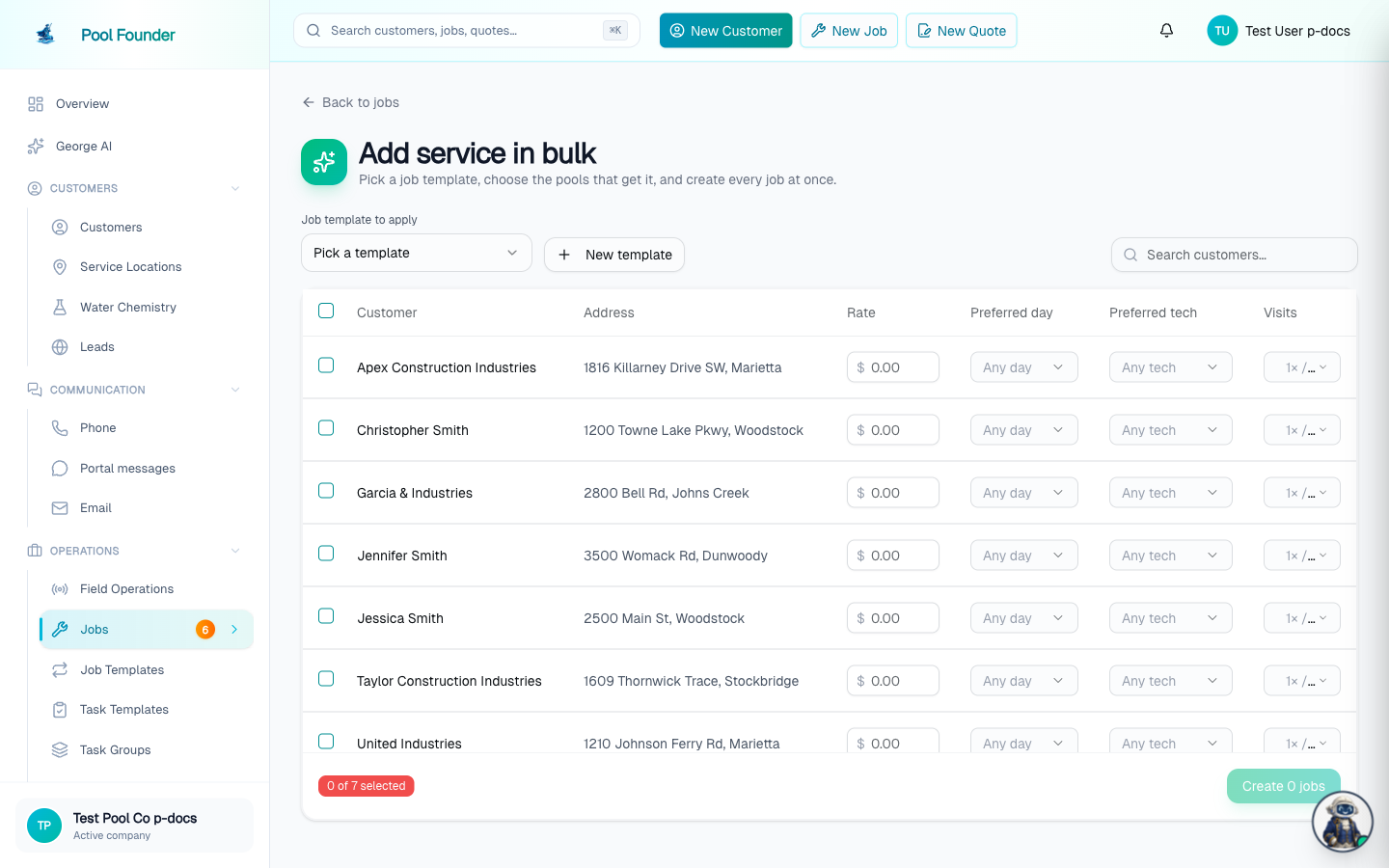
- Add Service in Bulk in the dashboard (under Jobs).
- The Add Service in Bulk button in the Needs attention panel on the Jobs page ("N of M pools have never had a job").
- Services (sidebar → Services → Services) → Apply to pools.
- The command palette: press cmd+K and search "Add Service in Bulk".
How to create the jobs
- 1Pick the recurring service under Service to apply ("Pick a service") at the top. If you don't have one yet, click New service to create it — a name, rate, billing mode, and task checklist. See services.
- 2Check off the service locations that should get that service. There's a search box and a select-all for the current filter, and a progress bar tracks how many customers already have service scheduled.
- 3Override the rate, preferred day, preferred technician, or visits per week (1–5×, for pools serviced multiple times a week) on any individual row. Editing a row auto-checks it.
- 4Customers with no service address show an Add service location button that opens an address form inline — no need to leave the page.
- 5Click Create N jobs to build them all from the service at once.
- 6Repeat with another service until nothing is left. A Create a one-off job link covers pools that don't fit any service.
Coming from an import with leftover service details
If some pools imported without a job but the file still carried service details — rate, day, technician — those rows arrive already checked with those fields filled in under a green banner. Review the table, change anything that looks off, pick a service, and create the jobs. Prefer assigning the service in the import review sheet next time so jobs land in the same pass.
- No recurring service yet? Build the service from my file creates one from what the import saw — weekly vs every other week, flat monthly rate vs per visit, and a representative rate. Each pool keeps its own rate as a row override.
- Technicians are matched by name, including first-name-only and last-name-only matches when they are unambiguous. Two people who could both be the match are never guessed between. Names from the file that no one on your team answers to are called out in the banner with a link to add them.
- While any pools still have service details from your import, the table shows only those pools: Only pools on a route in your import beside the search box is ticked, with the count. Leads and inactive customers from the file have no service details, so they stay out of the list. Untick it to see every pool without a service.
- Once the jobs are created, the pre-fill is used up and the banner stops appearing for those pools.
If you sell several recurring services: a service on every row
When you sell Several recurring services, your import gave no pool a service unless the file named it, so this screen is where they get assigned (the import's Assign services button brings you here).
- 1The blue line at the top counts "N pools still need a recurring service" — the pools from your import that have no job yet. It counts down as jobs are created and disappears when every one has a job.
- 2Every row has a Service column, starting at Pick a service. Nothing is picked for you. Choosing a service ticks the row and fills the rate box's placeholder with that service's default rate. Each pool's rate, day, and tech from your file are already filled in.
- 3To give many pools the same service, tick them (search helps, and the header checkbox ticks every pool in the list) and choose one from Set service for N selected at the bottom of the table.
- 4Click Create N jobs. One click creates the jobs for every service at once. Ticked pools that still have no service are counted in amber ("N pools still need a recurring service"), are left out, and stay ticked so you can finish them.
- Build the service from my file does not appear with several recurring services — your services already exist, and one service built from the file would put every pool on it.
- Missing a recurring service? Add it on the Services page first.
- Pool Founder never assigns a service from the price. If your file had a column naming each pool's service, those pools already got it during the import.
- Prefer to say it in words? On a computer, tell George in the chat which pools get which recurring service ("everyone on Route 2 is VIP") and he prepares the same jobs on an approval card — see George approvals and permissions.
Then put the jobs on routes
Bulk-created jobs still need to be assigned to routes. Open the Route Builder (Route Builder in the sidebar) and use Auto-Assign to place everything automatically — see Build and optimize routes.
Frequently asked questions
Why don't my imported customers have any jobs?
Spreadsheet import creates jobs only for rows that had a service set in the review sheet. Rows left without a service, and every QuickBooks import, create customers and locations only — Add Service in Bulk is the follow-up that schedules those pools.
Can different pools get different rates from the same service?
Yes. The service sets the default, and each row can override the rate, preferred day, preferred technician, and visits per week individually before you create the jobs.
How do I give each imported pool the right recurring service?
Pick a service in the Service column on each row, or tick several pools and choose one from Set service for N selected at the bottom of the table. Their rate, day, and tech from your import are already filled in. Then click Create N jobs once: it creates the jobs for every service together. The "N pools still need a recurring service" line counts down until every imported pool has a job. Pool Founder does not guess services from price.
What about a pool that doesn't fit any of my services?
Use the "Create a one-off job" link on the page to set that pool up individually.
Can I use this to create pool openings or closings for all my customers?
No. Add Service in Bulk puts pools on recurring services. Openings, closings, and other work that needs its own visit are work orders: on the Work orders to schedule page (Jobs → View work orders, or cmd+K "Work Orders to Schedule"), Create work orders makes one for every pool on a maintenance plan from a work order on the Services page (formerly a one-time service), with no technician or date, and you book them later.