Setup: Bring In Your Customers (2:04 video). Open on its own page
Three ways to bring your book in
The Import Wizard (the "Bulk Import" button on the Customers page, or sidebar → Settings → Import Customers) accepts a CSV file, an Excel file (.xlsx or .xls straight from your old software — no need to convert), or even a screenshot of your old software's customer list. If your export downloads as a .zip (Quo, formerly OpenPhone, zips its contacts export), upload the .zip as is — Pool Founder unzips it and reads the CSV or Excel file inside. You can also sync customers directly from QuickBooks Online.
A spreadsheet import creates customers, service locations, and their recurring services together when you assign a recurring service (formerly called a service plan or package), day, tech, and rate on each row (or bulk-fill them in the review sheet). QuickBooks import still brings customers and locations only — jobs come next with Add Service in Bulk.
Import from a spreadsheet or screenshot
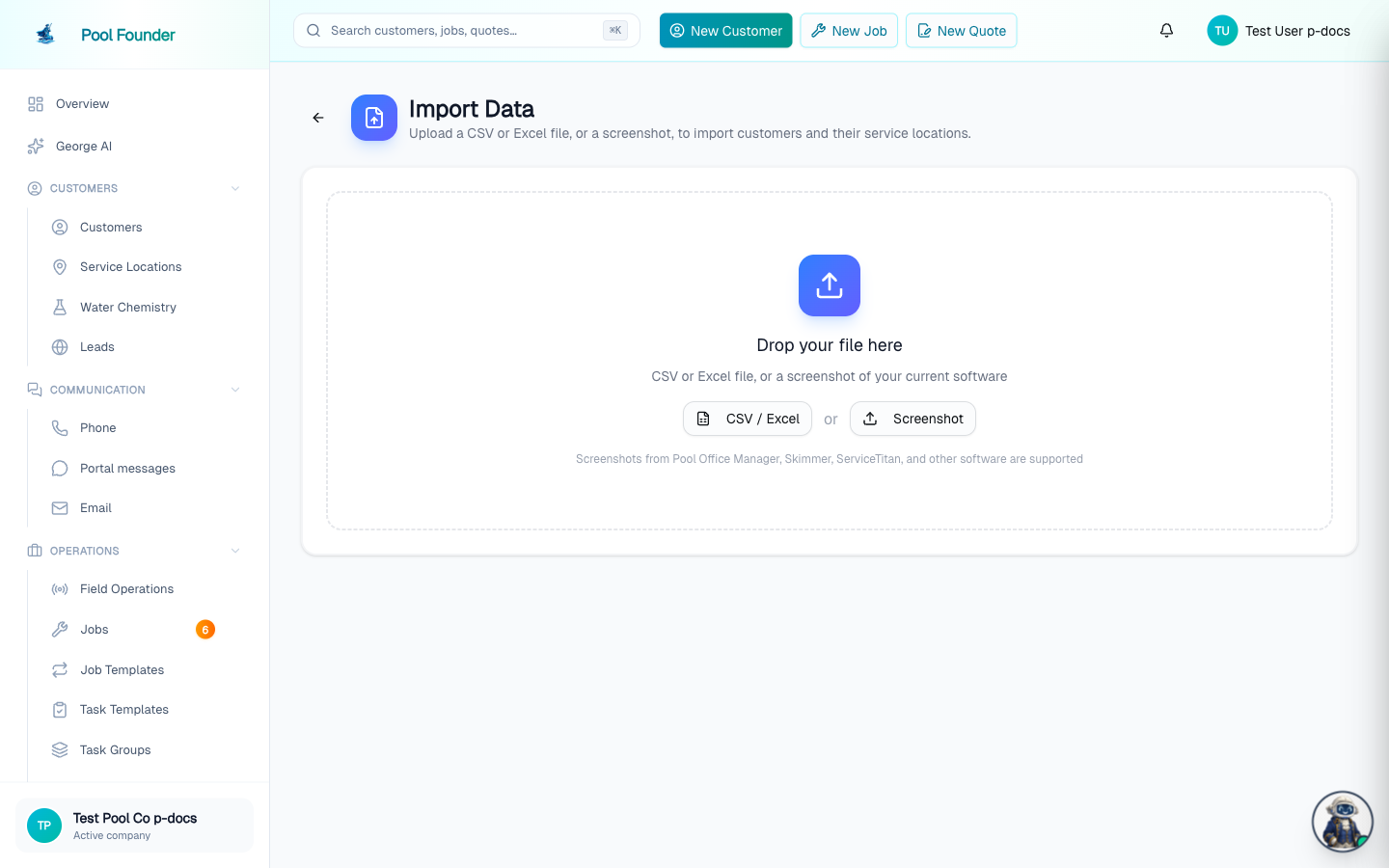
- 1Open the Import Wizard (or click Bulk Import on the Customers page).
- 2Upload your CSV or Excel file, or a screenshot of your old software's customer list — AI extracts the data and matches your columns to Pool Founder fields automatically.
- 3Review everything in the Review & edit spreadsheet. It works like Excel: click any cell to fix a typo, paste in values from Excel or Google Sheets, or drag the fill handle to copy a value down a column. Emails and phone numbers that don't look right are tinted red.
- 4Uncheck any row you don't want — unchecked rows are left out of the import. Rows still missing required info (a customer needs a name plus an email or phone; a location needs an address) are grayed out and skipped; fix them in the sheet or in the Needs your attention list below it.
- 5Click Import N of M rows in the bar above the sheet. Every checked, valid row imports; the rest are skipped, never imported incomplete.
How rows become customers, locations, and jobs
- Rows in the same file that share an email (or phone, or name when contact info is missing) import as one customer with multiple service locations — so exports with one row per pool (like Skimmer's) work as-is.
- Extra email columns become the customer's additional emails; extra info columns (gate codes, secondary phones, lead source) are kept as notes.
- Each customer needs one way to reach them: a valid email or a phone number. A customer row with neither is highlighted and skipped — add one in the sheet, or uncheck the row. (An addresses-only file with no customer names is the exception, covered below.)
- Addresses in one column are fine, with or without commas ("123 Main St Naples FL 34102" works).
- Files that only have addresses (like a route-assignment export with no customer names) still work — each pool imports as a customer named after its address, renameable later.
- When a row has a service filled in (with its Day, Tech, Frequency, and Rate columns), import also creates the recurring service on that pool — no separate bulk setup step for those rows.
Rows already in Pool Founder (duplicates)
Before you import, the review sheet flags rows that match someone already in your book. Re-uploading the same file is safe — already-imported rows are recognized and left out by default.
- Email or phone match — the row gets a Status dropdown with three choices: Skip · exists (the default — the customer is not re-created), Add pools to existing (attach this row's service locations to the matched customer), or Import as new (create a second customer with the same contact info).
- Match with an archived customer: when the email or phone belongs only to a customer you archived, the Status dropdown is amber and offers Skip · archived (the default), Restore customer, or Import as new. Restore customer unarchives them with the service locations and services archived alongside them, then adds any addresses from the row they don't already have. A row address that matches one of their restored locations is not duplicated.
- Service address match — if the pool address already exists, the row shows Exists and is always skipped. There is no override for address duplicates.
- A blue banner above the sheet counts how many rows match customers already in Pool Founder. After import, the result screen reports how many rows were skipped and how many existing customers had pools added.
- Your Status choices are saved with the import — refreshing the page mid-review keeps them, along with every edit you have made to the sheet.
- Import as new creates the customer, but a pool address that already exists is still not duplicated. If every address on the row was already in Pool Founder, the new customer ends up with no pools and the result screen says so — move the pool over from the existing customer, or use Add pools to existing instead.
Service columns: jobs in the same import
Route exports usually carry the whole service arrangement next to each pool — price, how often, which day, and which technician. Pool Founder maps those columns (when you match columns, the plan column is the Service field) into the review spreadsheet's Recurring service, Tech, Day, Frequency, and Rate columns. Fill them (or bulk-fill with the bar above the sheet), then import — customers, pools, and recurring services are created together.
- The review spreadsheet shows those service columns so you can correct a rate or day before importing, or set the same service / day / tech on many rows at once (the bulk bar's first menu reads Service…).
- Columns recognised from the file: service price, charge type (flat monthly vs per visit), frequency, service day, assigned technician, route name, and whether chemicals are billed separately.
- You need at least one recurring service first (the setup guide's What you sell step, or the Services page). Pick which service each pool gets in the Recurring service column.
- Technicians are matched by name — the full name, ignoring middle initials and suffixes, or just a first or last name when only one person on your team has it. Nicknames and small misspellings ("Mikey" for Mike Rivers) are matched too. Anyone the file names who nobody on your team answers to is left on "Any tech" rather than guessed at, and two possible people (two Nicks) is left blank on purpose.
- Anything the file was ambiguous about is left blank rather than guessed. "Twice a month" is not the same as every other week, so Pool Founder leaves the frequency for you to pick.
- The Frequency column is visits per week (Weekly up to 5x/week). A file that says "Biweekly", "Every other week", or monthly leaves Frequency blank and highlighted rather than importing as Weekly — every-other-week is set by the recurring service you pick (its own frequency) or on the route afterwards. The value from your file is still saved with the pool either way.
- Pools that import without a service assignment still need one before they can go on a route — the result screen offers Assign jobs, which opens Add Service in Bulk.
- A Template (or Service / Plan / Service Type) column in the file is matched to your recurring services by name — "Weekly" finds "Weekly Pool Service", but a name that fits two templates is left blank rather than guessed. With no such column, the review sheet's service column is pre-filled only when you have exactly one template, and only on rows the file shows as currently serviced. A row gets no recurring service (it still imports as a customer and pool) when its Status column says Inactive, Lead, Cancelled or "no route" (Pool Brain, Skimmer and most exports have one), or when the file has Day, Tech or Route columns and that row leaves all of them blank. Price alone doesn't count, since some exports leave it blank for active customers. Pick a template on the row if you do want a job for it.
- If you sell several recurring services (you answered Several recurring services when setting up what you sell), the import never guesses one: nothing is pre-filled from your only plan, and nothing is picked from the price. A row gets a service only when its Template / Plan column names one of yours (matched by name, as above). Every other pool imports as a customer and pool with its rate, day, tech, and frequency saved, and a note above the review sheet says so. The result screen's Assign services button takes you to Add Service in Bulk, where those details are already filled in.
- The same rules apply when you hand the file to George in chat instead (see George approvals): his preview card shows the jobs the import will create, and the approval imports customers, pools and jobs together. Like the wizard, the chat import saves each routed pool's rate, day, and tech so Add Service in Bulk can fill them in afterwards; with several recurring services the preview card says how many pools get their service there after the import.
Switching from Skimmer
Skimmer's customer export lets you choose which columns to include, so before you download, add the columns that carry your service arrangement — that's the difference between re-typing every pool and just confirming it.
- Include the Rate and Rate Type columns. Skimmer's Rate Type reads like "Per Month With Chemicals" or "Per Visit" — Pool Founder reads it as both the charge type (flat monthly vs per visit) and whether chemicals are already in the price, so it fills those in for you.
- Include the Service Day column if your export offers it, so each pool arrives with its day already set.
- Everything else Skimmer carries — gate codes, dog names, tags, location notes, secondary phones and emails — comes across automatically as notes and contact info.
Skimmer's customer export does not include how often you visit or which technician is assigned — those live on Skimmer's route screen, not the customer file. So Pool Founder can't read the frequency or tech from a Skimmer file; you set the frequency and pick the technician once, per plan, in Add Service in Bulk.
Switching from other software (Jobber, Pool Brain, Paythepoolman, Pool Office Manager, Housecall Pro…)
Any customer or route report you can export to CSV or Excel will import — the AI column mapper reads whatever layout your old software produces, so you don't need a specific layout. If you can't find an export at all, a screenshot or photo of a customer list or route sheet works too.
- Must-have columns: customer name, a phone or email, and service address — those create the customers and pools. (An addresses-only file with no names is the exception: each pool becomes a customer named after its address.)
- Worth including if your export offers them: price, how it's charged (monthly vs per visit), service day, visit frequency, and assigned technician — these fill the service columns so recurring services are created in the same import.
- One row per pool is fine — rows sharing an email (or phone, or name) import as one customer with multiple service locations.
We don't yet have step-by-step export instructions for these products the way we do for Skimmer above. If you can't find the export in your old software, <a href='/help/book-a-setup-call'>book a free setup call</a> — a co-founder will find it with you and do the migration together on a screen share.
Banners and warnings you might see
- Rows already in Pool Founder — the blue banner above the spreadsheet counts rows that match an existing customer by email, phone, or service address. Use the Status column on contact matches to Skip · exists, Add pools to existing, or Import as new. Address matches always stay on Exists and are skipped. When some rows match archived customers, the banner counts them and says to set Status to Restore customer to bring them back.
- "Data extracted from screenshot" — when you upload a screenshot, a blue banner names the source software AI detected and asks you to review the extracted data carefully before importing.
- The Needs your attention list shows at most 30 fix-it cards. If more rows are missing the same info, a note counts the rest — when a whole column is empty, it's faster to fix the file and re-upload. Unfixed rows are simply skipped, never imported broken.
- "Rate limit reached" — AI file analysis is limited to 10 uploads per rolling 24 hours. If you hit it, wait and try again; the final import itself is not limited.
- "No pool addresses came through" — shown after an import that created customers but zero service locations. Jobs can't be scheduled until each pool has an address, so either re-import with the address column mapped (Import Another File) or add a service location to each customer.
Import from QuickBooks
Click Connect QuickBooks on the Customers page (a one-click sign-in with Intuit). Once connected, use Import from QuickBooks on the Customers page and pick which customers to bring over. The review list has a spreadsheet view (the grid icon next to the search box) where you can fix names, emails, phone numbers, and addresses in place before importing — changes save as you type. Sync settings live on the QuickBooks page — see QuickBooks sync.
QuickBooks marks every customer you have ever invoiced as active, so a full import can bring in hundreds of old one-time customers. After the import finishes, Pool Founder checks QuickBooks for billing activity: customers with no invoices or sales receipts in the last 12 months and no open balance are flagged as inactive, and the completion screen offers to archive them in one click. Archiving is local to Pool Founder only — their QuickBooks records are not changed — and any archived customer can be unarchived later.
After the import: anything still missing a service
When every row had a service assigned in the review sheet, you can go straight to routes. Pools that still need a service show a card on the result screen — use Add Service in Bulk to schedule a plan with per-row rate, day, tech, and visits per week. The Needs attention panel on the Jobs page also counts pools that have never had a job and links straight there. QuickBooks imports always land in this follow-up (they bring customers and locations only).
Frequently asked questions
I sell different recurring services (Basic, Full Service, VIP). Will the import put each pool on the right one?
Only if your file says which recurring service each pool is on. A Template / Plan / Service column whose values match your service names assigns them during the import. Pool Founder never guesses a service from the price, and when you sell several recurring services it never puts everyone on one either. Pools without a match import with their rate, day, and tech saved, and you assign their services in Add Service in Bulk: pick a service, tick its pools, create, repeat.
Do I need to clean up my spreadsheet first?
Usually not. AI maps your columns automatically, addresses can live in a single column, and rows missing required fields are flagged for inline fixes instead of failing the import.
QuickBooks imported a lot of old customers I no longer service. Do I have to keep them?
No. After a QuickBooks import, the completion screen flags customers with no QuickBooks invoices or sales receipts in the last 12 months and no open balance, and offers to archive them all in one click. Archiving only affects Pool Founder — nothing changes in QuickBooks — and you can unarchive any customer later.
I archived my customers and re-uploaded my list. Why does it say they are already in Pool Founder?
Archived customers still count as existing, so a re-upload doesn't create a second copy of them. Rows that match an archived customer get an amber Status: choose Restore customer to bring each one back with their service locations and services, plus any other addresses from your file. You can also restore customers one at a time with Unarchive in the customers table's archived view.
Will importing create duplicate customers?
Not by default. Rows that match someone already in Pool Founder by email or phone get a Status dropdown defaulting to Skip · exists — so re-uploading the same file is safe. Choose Add pools to existing to attach new service locations to that customer, or Import as new to create a second record. Rows whose service address already exists always show Exists and are always skipped (no override).
Does the import create jobs too?
Yes for spreadsheet imports — when you fill the service columns (Template, Day, Tech, Frequency, and Rate) on a row in the review sheet, that pool gets its recurring service in the same pass as the customer and location. QuickBooks import still creates customers and locations only; schedule those with Add Service in Bulk afterwards.
My export came as a .zip file. Do I need to unzip it first?
No. Upload the .zip to the Import Wizard (or attach it in a chat with George) and the CSV or Excel file inside is read for you. If the zip holds more than one spreadsheet, the Import Wizard asks which one to import; George asks you to unzip it and attach the one you want. A zip with no CSV or Excel file in it is refused with "This zip has no CSV or Excel file".
My CSV file already has the price and route day in it. Do I have to enter them one by one?
No. Price, charge type, frequency, service day, technician and route name are read from the file into the review spreadsheet's service columns. Assign a template, confirm the day and tech, and the recurring services are created on import. Technicians are matched by name, so add your team first if you want those assignments to land.