Technician Alerts: What Your Techs Find in the Field (1:41 video). Open on its own page
One queue for everything that needs a second look
The Technician Alerts page (formerly called "Technician Issues", same page) opens on an overview of what needs a decision. Every alert not resolved yet is in one of three stages: New (nobody has opened it), Needs a fix (acknowledged, but no work order, quote, lead or scheduled visit is lined up), or Being handled (a work order, quote, lead, or the Scheduled visit follow-up is taking care of it). The overview shows: Needs attention (critical alerts with nothing lined up, new alerts nobody has opened, and acknowledged alerts with nothing lined up for over 7 days, each with a button that opens them); counts for each stage, Resolved in the last 30 days, and average Time to resolve; To work on, the alerts that need someone, critical first then oldest, each saying what to do next; Being handled, with the work order (and whether it is scheduled), quote (and whether the customer has answered) or lead behind each; Pools flagged again and again (at least 2 alerts in 30 days); Where they came from (field reports vs each automatic detector, last 30 days); and a Raised and resolved chart per week. Click any alert to open it right there.
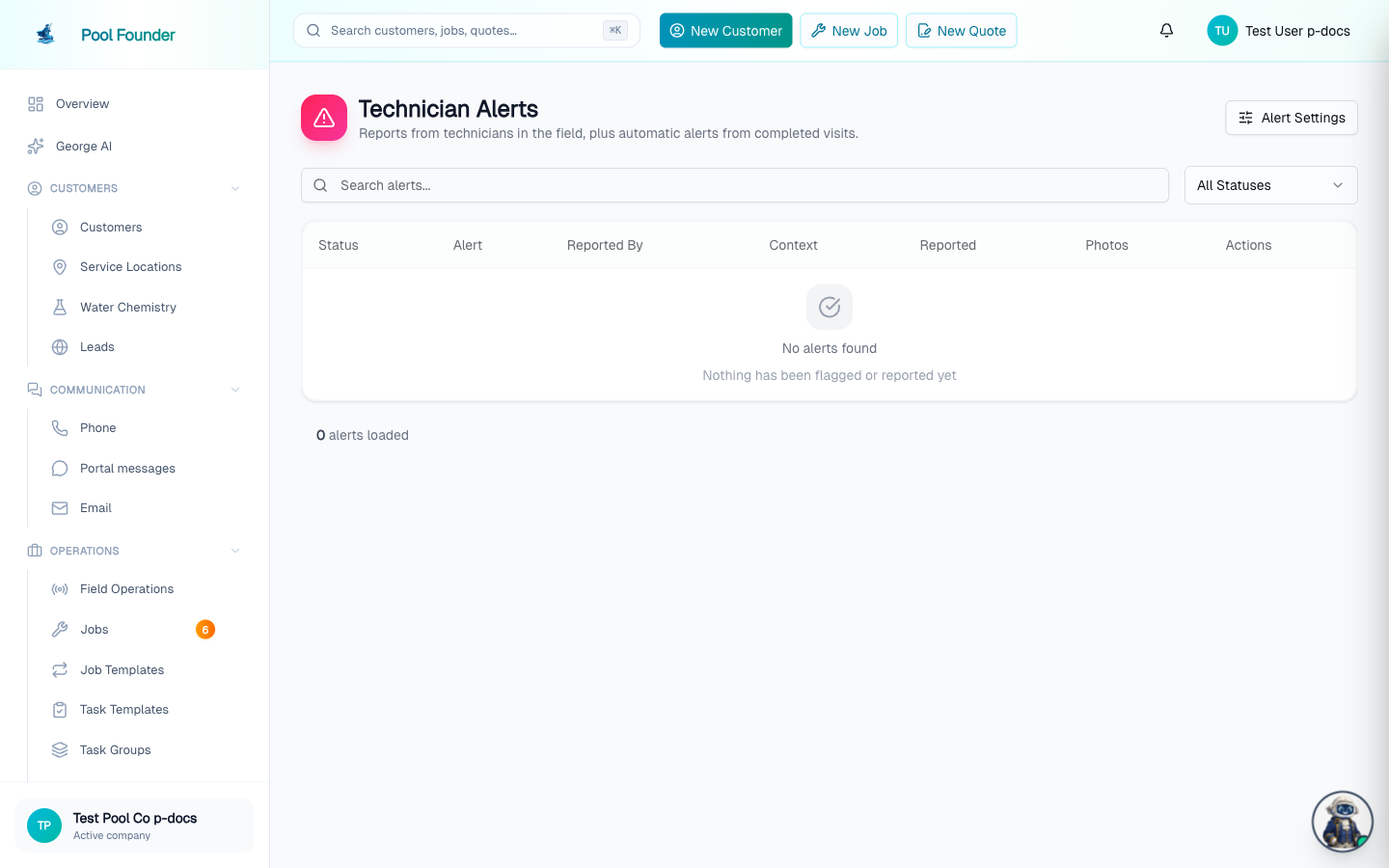
View all alerts opens the full list (All technician alerts, also in the ⌘K menu). It opens on Not resolved (open and acknowledged); switch the status filter to All Statuses, Open, Acknowledged or Resolved. Auto-detected alerts carry an "Auto" badge showing which detector fired: "Auto · Chemistry", "Auto · Time on Job", or "Auto · Chemical Usage". Serious ones are also badged Critical (a depleted sanitizer reading, meaning free chlorine below your minimum, is marked Critical). Search the list, filter it by status, type and technician, and click a row for details.
All automatic detectors are OFF by default — a solo operator would just get noise about their own visits. Turn on the ones you want via the Alert Settings button.
Everything in this queue is internal. Issues a technician reports and alerts the detectors raise go only to your owners and administrators — they are never sent to the customer, never appear in the service report email or the customer portal, and are never texted. There is no setting that changes this.
The automatic detectors
After every completed visit, the system checks these things and files an auto-detected alert when something is off:
- 1Water chemistry out of range — a reading outside your company's acceptable ranges. A depleted sanitizer reading (free chlorine below the minimum) is marked Critical. The same detector also flags a filter pressure reading more than 10 psi over that pool's clean baseline (set on the body of water's page or by the mobile "Filter cleaned today" switch); pools without a baseline are never flagged for pressure.
- 2Time on job — time spent far above or below that job's historical median.
- 3Abnormal chemical usage — any of three signals: the visit's chemical cost passed a hard per-visit dollar cap you set (off until you set one), the visit's chemical cost was far above the job's typical cost, or an individual chemical's quantity was way outside its history for that pool.
- 4Chemical over limit — one chemical on the visit (all its rows added together, at the price the customer is charged) went over that chemical's Max per visit ($), or over the company-wide Flag any one chemical over ($) limit. On whenever a limit is set.
Start location (off by default) is checked about 5 minutes after a tech taps Start on a stop instead of after the visit: it files an alert when their GPS puts them more than about 820 ft from the stop's address. Any GPS position at the stop around that time counts as being there: the one sent with Start, a fresh one the phone sends right after, or a live-tracking position. So a phone still reporting the previous stop when Start is tapped doesn't trigger it. If the tech isn't at the stop yet (for example, they tapped Start on the way), it keeps checking while the stop is in progress and only files the alert once the stop is finished without GPS ever placing them at the pool. GPS from earlier that day also counts: every location the phone sends is checked against every stop on the route, so if it placed the tech within about 500 ft of the pool before they tapped Start (for example, a visit logged after the fact from the next stop or the shop), that counts as being there. Turn on Alert even with no GPS to also flag starts where the phone sent no location. It never stops a tech from starting, and stops without map coordinates are not checked.
Once a detector is on, detection runs automatically after every completed visit — there is nothing to trigger manually.
What an alert looks like, and what you can do with it
- Auto-detected alerts open with a "What was flagged" card comparing what was recorded against what's expected — e.g. pH 8.5 vs an acceptable 7.0–8.0, or 60 minutes on a job that typically takes 20.
- Acknowledge Alert marks it seen. Mark as Resolved closes it and needs a note in How was it handled?; the button stays greyed out until you write one.
- Follow-up: three checkboxes, Contacted tech, Contacted customer, and Scheduled visit. Each shows who checked it and when. Checking one on an open alert also marks it Acknowledged. They only record what you did; they never call, text, or schedule anything. Checked follow-ups show as green badges on the alert's row in the queue.
- Notes: a running log on the alert. Add a note (Add note) to record what you did or what's next without closing the alert, so whoever picks it up next can read it. The log also adds a line by itself for every follow-up checked or unchecked, Acknowledged, Resolved (with the resolution note), Reopened, work order created, quote created, and lead created. Notes are internal and never reach the customer.
- Owners and admins see the same Follow-up checkboxes and Notes on the alert in the technician app (Today tab → Technician Alerts → tap an alert), and resolving there also needs a note.
- Working an alert (notes, follow-ups, acknowledging, resolving) needs the Manage issues permission. Anyone with View technician issues can read the notes and follow-ups.
- Create Quote writes a quote for the extra work an alert describes (a cleanup that is not part of the weekly service, a part to replace) without leaving the alert. It opens a new quote for that customer and service location, named after the alert, with its description in Internal Notes. Saving links the two: the alert is marked Acknowledged, its Notes log gets "Quote created: (name)", and its footer shows Quote: (number) in place of Create Quote. The alert stays open until the work is done. Create Quote needs the Create quotes permission and an alert tied to a customer and service location. See quotes.
- Create Lead (at the bottom of the alert, next to Create Quote) turns the alert into a sales lead, for when a tech spots a sales opportunity: a neighbor asking about service, an upgrade the customer is interested in. One click creates the lead and opens it. The lead gets the customer's name, phone and email, the service location's address, the alert's title as the service and its description as the message, and copies of the alert's photos, which show in a Photos section on the lead (the photos also stay on the alert). The lead shows From technician alert: (title) linking back. The alert is marked Acknowledged, its Notes log gets "Lead created: (name)", and its footer shows Lead: (name) in place of Create Lead. An alert can make one lead. Create Lead needs the Manage website leads permission and an alert tied to a customer or service location. Edit the lead afterwards if the prospect is someone else (the neighbor, not the customer). See leads.
- Create Job starts a work order at that location straight from the alert, named after the alert, with its description in the notes. Saving it links the two: the alert is marked Acknowledged and its footer shows Work order: (name) in place of Create Job, the Technician Alerts section on the work order's Overview tab lists the alert as "This work order fixes it", and the tech sees a Fixing this alert card with the alert's photos on the work order in the app. When the work order is completed, the alert resolves itself with the note "Fixed by work order (name), completed."
- Location tags: when the alert is tied to a service location, the Related box shows that location's tags under its address, with Add tag to add one (or create a new one, like "Needs resurface") and × to remove one. It changes the location's tags, the same as on the location page, and needs the Edit service locations permission (without it the tags are shown read-only). Find every tagged location later with Filter by tags... on Service Locations. See service locations.
Issue templates: your alert types
Issue templates are the problems your techs report over and over. Each one has a title, a description, an icon, a severity, and optional office instructions. On the phone, Report an Issue shows them as a grid of big icon tiles under What's the problem?. One tap fills in the title and description, so a tech in the rain barely types. They add photos, video, or more detail and tap Submit Issue.
Every new company starts with a standard pool set: Pump not running, Leak, Green pool / algae, Water level low, No access, and Safety hazard (Critical); Repair needed, Broken pressure gauge, Heater not working, and Salt low / salt cell (Warning); Cleaner not working, Filter needs cleaning, Heavy debris, and Customer request (Info). Each comes with office instructions you can rewrite. Companies created before October 2026 can add them with Add standard templates in the Issue Templates window; it only adds the ones you don't already have.
- Set them up: Technician Alerts → Issue Templates (next to Alert Settings; needs the Manage issues permission) → Add template. Fill in Title, Description, Severity, Icon, and Office instructions, then Save template. The pencil edits a template, the arrows set the order of the tiles, and the trash can deletes it.
- Severity: Critical (act now), Warning (look into it), or Info (routine). It colors the tile, and every alert filed from the template gets that severity badge in the queue, the same scale the automatic alerts use.
- Office instructions are your playbook for that alert type, for example "Create a work order to replace the gauge on the next weekly visit." They show in a What to do card on each alert of that type. Techs never see them.
- Techs can save their own: once the title and description are filled in, Report an Issue shows Save as a template for next time. Templates a tech saves are shared with the whole team, start as Warning with a generic icon, and show "saved by" their name in the Issue Templates list so the office can set the severity, icon, and instructions.
- A tech can delete a template they saved by pressing and holding its tile. Templates other people saved can only be changed by someone with the Manage issues permission.
- Filter the queue: next to the status filter, All Types narrows the list to one severity or one issue template (e.g. every Broken pressure gauge alert), and All Technicians narrows it to alerts one technician reported (and automatic alerts from their visits). The filters combine and keep the current sort order.
- Sort the queue: it opens newest first. Click a column header (Status, Alert, Reported By, Context, Reported, or Media) to sort the whole queue by it, and click again to reverse. Context sorts by customer name (alerts with no customer come first A to Z); Media sorts by how many photos and videos are attached. The sort works together with the filters and is kept in the page address. The search box searches every alert on the server (title, description, technician, customer and address), and search results are ordered by best match, so the headers don't sort while you search.
- Up to 100 templates per company, and titles must be unique. Deleting a template does not change alerts already filed with it.
Templates only fill in the form. Nothing is filed until the tech taps Submit Issue, and a checklist answer never files an alert by itself.
Photos and video on a field report
When a technician reports an issue from the app (Today tab → Report an Issue, or the red Report an issue button at the top right of the Complete Job screen, which fills in the stop they are completing), they can attach up to 5 photos and, since September 2026, one video clip. Video is for things a photo cannot show — a leak actually dripping, a pump grinding or cavitating, a heater short-cycling.
- On the Report an Issue screen, the Video section sits right under Photos. Tap Add video, then Record video or Choose from library. One clip per alert, up to 30 seconds (the camera stops recording at 30) and under 60 MB. The clip shows as a card with its length and size and an × to remove it before sending.
- The alert is sent first, then the video uploads and attaches to it, so a slow or failed upload never holds up or loses the report. If the video does not make it, the technician sees "Alert sent without the video" with the reason — the title, description, and photos still went through.
- Video needs a connection. Offline, the Add video button is greyed out ("Video needs a connection. Photos still work offline.") and an alert queued offline is sent without a video; photos still go through the offline queue as usual.
- On the web Technician Alerts page, alerts with a clip show a video chip in the Media column, and the alert detail has a Video card with a built-in player (play, pause, scrub, sound, fullscreen). Email and push notifications for the alert link to it as usual.
Video is on field alerts only. There is no video on service visits: the Complete Job screen, completion photos, task photos, and service reports are photos only, and body-of-water and equipment records are photos only too. There is no setting that adds video to those.
Alert Settings: every knob
Click the Alert Settings button (top right of the Technician Alerts page) to configure what counts as abnormal:
- Toggle each of the three detectors on or off individually (water chemistry ranges / time on job / chemical usage).
- Set the time thresholds — how far above or below the job's typical time (as a % of typical) triggers an alert.
- "Flag any visit over ($)" — a hard per-visit chemical-cost cap that works even on pools with no history. Leave it blank to turn it off.
- Start location, with its Alert even with no GPS option, and Chemical limits → "Flag any one chemical over ($)".
- Set the cost multiplier (how far above a job's typical chemical cost is flagged) and the quantity sensitivity (how far outside a chemical's history for that pool counts).
- Edit the per-parameter chemistry min/max ranges that define "in range" for the chemistry detector.
- Notify admins — controls whether flagged visits also send admins a notification. Alerts are filed in the queue either way.
The default chemistry ranges are:
| Parameter | Default acceptable range |
|---|---|
| pH | 7.0 – 8.0 |
| Free chlorine | 0.5 – 10 ppm |
| Alkalinity | 50 – 180 ppm |
Other parameters have defaults too — every range is editable per parameter in Alert Settings.
History requirements: what works from day one
- History-based checks — time on job, and chemical cost or quantity vs typical — need at least 3 prior visits on that job before they start comparing.
- Chemistry range checks, the dollar caps and limits, and Start location work from the very first visit — they compare against your settings, not against history.
Alerts on the mobile app and on completions
- The same alerts queue is in the technician mobile app: Today tab → the "Technician Alerts" card (it sits under "Report an Issue" in the actions list). It requires the alerts read permission — useful for owners who work in the field. The mobile queue has Open / Acknowledged / Resolved / All filters, and users with the manage permission can Acknowledge or Mark as Resolved right from the phone. People who can create quotes also get a Create Quote button on the alert, which opens the app's quote form prefilled from the alert and links the quote to it. People with Manage website leads get Create Lead, which makes the lead (with the alert's photos) and opens it.
- Push notifications for new alerts deep-link straight to the alert.
- When a technician reports an issue from the field, owners and administrators get a high-priority notification for that too — in-app and by push, plus an email when the push cannot reach their phone. The customer whose pool it concerns is not notified and cannot see the report.
- Completion detail views also surface alerts inline (visible with the alerts read permission): the web completion detail page (Completed Jobs → open a completion) shows a red "flagged on this visit" banner linking to each alert, and the mobile completion detail screen shows an "Alerts on This Visit" section.
Permissions for reading and managing alerts are role-based — see Roles & permissions.
Frequently asked questions
Can my techs pick from a list of common issues instead of typing them out?
Yes, with issue templates. Report an Issue in the technician app shows them as big icon tiles under "What's the problem?"; one tap fills in the title and description. New companies start with a standard pool set (pump not running, leak, green pool, no access, broken pressure gauge and more). On the web, Technician Alerts → Issue Templates lets you add your own, set each one's severity (Critical, Warning, or Info), icon and office instructions, or click Add standard templates if you don't have the standard set yet. Techs can also tap Save as a template for next time on the form. You can filter the alerts queue by template or severity.
Why am I not getting any automatic alerts?
All three detectors are off by default. Open Technician Alerts → Alert Settings and turn on the ones you want. Once on, history-based checks (time on job, usage vs typical) also need at least 3 prior visits on a job before they start comparing; chemistry ranges and the dollar cap apply from the first visit.
If I create a work order from an alert, does the alert close when the work is done?
Yes. Use Create Job on the alert. The work order is linked to the alert, the alert is marked Acknowledged, and when the work order is completed the alert is resolved automatically. The tech doing the work order sees the alert and its photos on the work order in the app. A work order created any other way is not linked.
Can a tech turn an alert into a quote for the customer?
Yes. Open the alert (web: Technician Alerts; app: Today tab → Technician Alerts) and use Create Quote. The quote opens for that customer and location with the alert's title and description filled in, and saving it links the quote to the alert and marks the alert Acknowledged. In the app the tech can tap Start from a service to price it from one of the company's services. The person needs the Create quotes permission; sending it on the spot needs Send quotes, otherwise it is saved as a draft for the office.
Can I create a lead from a technician alert, with its photos?
Yes. Open the alert (web: Technician Alerts; app: Today tab → Technician Alerts) and click Create Lead. It creates a lead with the customer's name, phone, email and address, the alert's title and description, and copies of the alert's photos (shown under Photos on the lead), links the lead and the alert both ways, and marks the alert Acknowledged. It needs the Manage website leads permission and an alert tied to a customer or service location. One lead per alert.
Can my office keep notes on an alert while they work it?
Yes. Every alert has a Notes log: click Add note to record what you did ("called the customer, left a voicemail") without closing it. The alert also has Follow-up checkboxes for Contacted tech, Contacted customer, and Scheduled visit, each stamped with who and when, and every action is added to the log. Resolving an alert requires a note saying how it was handled.
What makes an alert Critical?
A depleted sanitizer reading — free chlorine below your configured minimum — is marked Critical.
If I turn off "Notify admins", do alerts still get created?
Yes. The Notify admins toggle only controls whether a flagged visit also sends admins a notification — the alert is filed in the queue either way.
Do issues my technicians report get sent to the homeowner as well as our office?
No — only your office. A technician-reported issue goes to owners and administrators (in-app notification and push, plus an email when the push can't reach their phone). It is never added to the customer's service report email, never shown in the customer portal, and never texted to the customer, and there is no setting to change that. If the homeowner should know, tell them directly or have the technician mention it in the visit notes that go on the service report.
Can my technicians send me a video of a leak or a noisy pump?
Yes — on a field alert. On the Report an Issue screen there is a Video section under Photos: Add video → Record video or Choose from library, one clip per alert, up to 30 seconds and under 60 MB. It plays in the alert detail on the web Technician Alerts page (alerts with a clip show a "video" chip in the list). Video is only on alerts: service visit completions, completion photos, and service reports are photos only.
Can technicians attach a video when they complete a visit?
No. Video is only available on field alerts (Report an Issue). The Complete Job screen and completion photos are photos only, and service reports never include video. If a technician needs to show the office something moving — a leak, pump noise — they report an issue with a video clip attached.
Can I see alerts from my phone?
Yes — the Today tab in the technician mobile app has a "Technician Alerts" card (under "Report an Issue") that opens the same queue, with Open/Acknowledged/Resolved/All filters. It requires the alerts read permission; acknowledging or resolving from the phone requires the manage permission.