Add an Employee (1:31 video). Open on its own page
Granular, role-based access
The Roles & Permissions page holds granular role-based permissions for dashboard users. Every employee is assigned a role when you add them (see Employees, time tracking, and payroll), and the role decides what they can see and do — on the web dashboard and in the technician mobile app alike.
Permission-gated buttons and rows are simply hidden from people without the permission — for example, the "Void" button next to a recorded payment doesn't appear at all without the void-invoices permission. The mobile app gates its rows the same way: each row in the Today tab's actions list is permission-gated, and a heading only appears when at least one of its rows does, so a plain technician sees a much shorter list than an owner.
Create a custom role
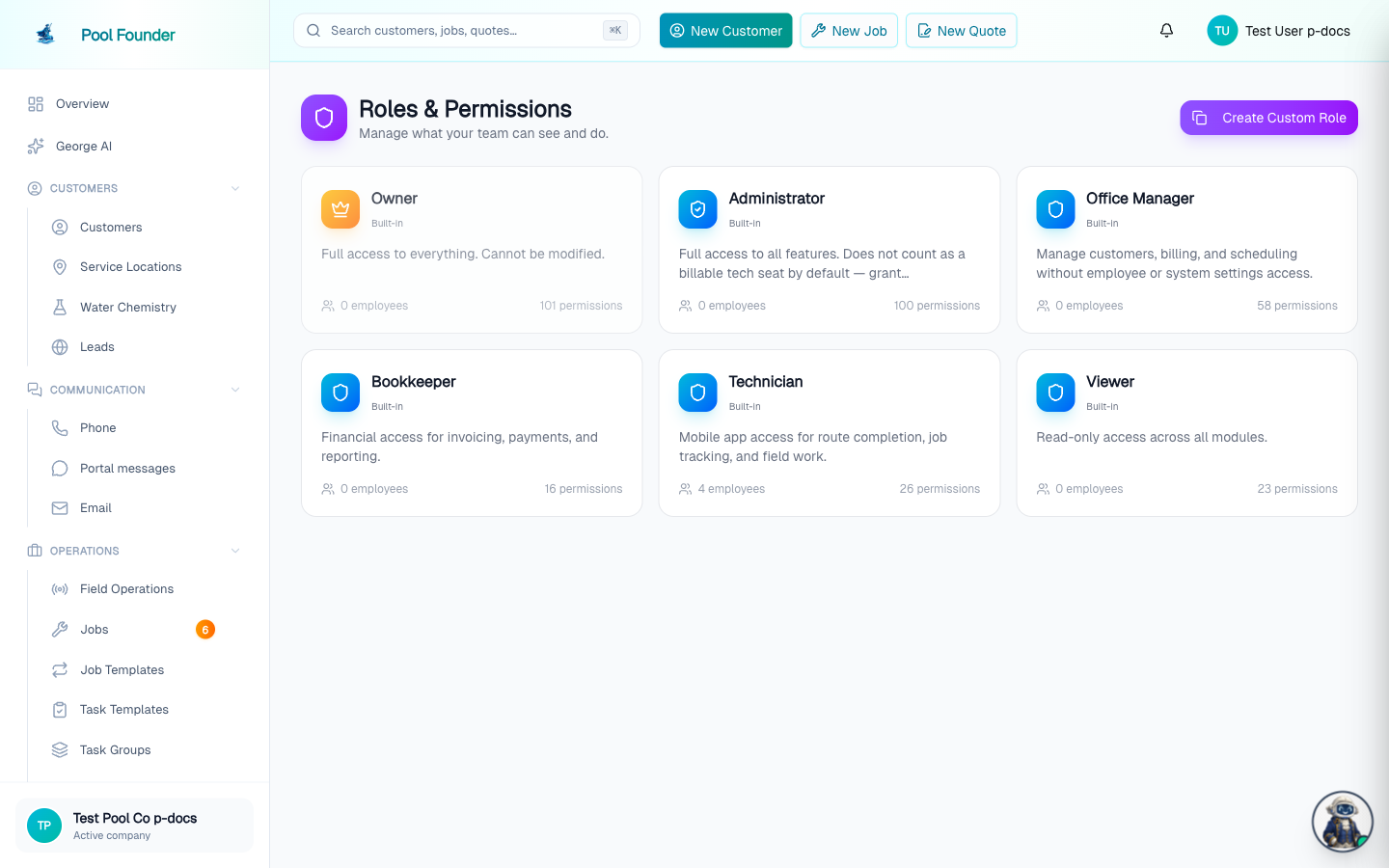
- 1In the sidebar, go to Settings → Roles & Permissions.
- 2Click Create Custom Role.
- 3Give the role a name and description, optionally clone from an existing role as a starting point, then pick its permissions.
- 4Assign the role to employees on the Employees page — the role field is part of the Add Employee form.
Built-in roles include Owner, Administrator, Office Manager, Bookkeeper, Technician, and Viewer. Some sensitive permissions belong only to Owners and Administrators by default — for example, connecting the company Stripe account is something an Office Manager or Bookkeeper cannot do. A role applies everywhere at once: the web dashboard, the technician app, and George. Pool Founder checks the permission again when a change is saved, so hiding a button is not the only guard.
Change a built-in role
Every built-in role except Owner can be edited directly for your company. There is no need to clone it first.
- 1Open the Roles page and click the role, for example Technician.
- 2Permissions are grouped into areas (Customers & Locations, Communication, Jobs & Work Orders, Projects, Scheduling & Routes, Billing & Payments, Inventory, Team, Marketing, Company Setup, Admin & Security, App Access). Each permission says in a sentence what it lets someone do; click What this allows under it to see every action and page it unlocks. The search box also finds permissions by those actions, so typing "refund" finds the one that allows refunds.
- 3Turn permissions on or off with the switches (or Enable All / Disable All on an area).
- 4Click Save Changes. The change applies right away to everyone with that role, on the web dashboard, in the technician app, and in George.
- An edited built-in role shows a Customized label on the Roles page and in the role editor.
- To undo your edits, open the role and click Reset to default, then confirm. The role goes back to the standard permissions and picks up new default permissions again as they ship.
- A built-in role's name and description can't be changed. To get a role with its own name, use Clone or Create Custom Role.
- The Owner role can't be edited or reset: it always has full access, so the company can never lock itself out.
- Full access includes Field technician (assignable to routes), but that alone does not put the owner on the schedule. The owner is a technician only when the Technician box is ticked on their own employee profile (Employees → their page → Edit). An owner who doesn't run routes unticks it and is left out of every technician picker; see Employees, time tracking, and payroll.
- Edit the built-in role when the change is for everyone on it. Clone it when only some people should differ, for example one group of technicians who may see part prices while the rest may not.
What each built-in role can do
These are the default permissions of each built-in role (Owner, Administrator, Office Manager, Bookkeeper, Technician, Viewer), grouped the way the role editor groups them. A company can edit every built-in role except Owner, so your company's roles may differ from these defaults: open the role on the Roles page to see what it has today.
Customers & Locations
| Permission | Owner | Administrator | Office Manager | Bookkeeper | Technician | Viewer |
|---|---|---|---|---|---|---|
| View customers | Yes | Yes | Yes | Yes | Yes | Yes |
| Browse customer directory | Yes | Yes | Yes | Yes | — | Yes |
| Create customers | Yes | Yes | Yes | — | Yes | — |
| Edit customers | Yes | Yes | Yes | — | Yes | — |
| Archive and restore customers | Yes | Yes | Yes | — | — | — |
| Merge duplicate customers | Yes | Yes | Yes | — | — | — |
| Block and unblock customers | Yes | Yes | — | — | — | — |
| Export customer list (CSV) | Yes | Yes | Yes | Yes | — | — |
| View customer contact info (phone, email) | Yes | Yes | Yes | Yes | Yes | Yes |
| View customer notes | Yes | Yes | Yes | Yes | Yes | Yes |
| Delete notes | Yes | Yes | Yes | — | — | — |
| View service locations | Yes | Yes | Yes | — | Yes | Yes |
| Create service locations | Yes | Yes | Yes | — | Yes | — |
| Edit service locations | Yes | Yes | Yes | — | Yes | — |
| Archive and restore service locations | Yes | Yes | Yes | — | Yes | — |
| View location notes (gate codes, access) | Yes | Yes | Yes | Yes | Yes | Yes |
| Add & edit pools and equipment | Yes | Yes | Yes | — | Yes | — |
| Manage pool templates | Yes | Yes | Yes | — | Yes | — |
| View water chemistry | Yes | Yes | Yes | — | Yes | Yes |
| Record water chemistry | Yes | Yes | Yes | — | Yes | — |
| View customer documents | Yes | Yes | Yes | Yes | Yes | Yes |
| Send documents for signature | Yes | Yes | Yes | — | Yes | — |
| Manage document templates | Yes | Yes | Yes | — | — | — |
Communication
| Permission | Owner | Administrator | Office Manager | Bookkeeper | Technician | Viewer |
|---|---|---|---|---|---|---|
| View customer inbox | Yes | Yes | Yes | — | — | Yes |
| Respond to inbox messages | Yes | Yes | Yes | — | — | — |
| Call customers as the business | Yes | Yes | Yes | — | — | — |
| Call customers from their own phone | Yes | Yes | Yes | — | — | — |
| Manage saved replies | Yes | Yes | — | — | — | — |
| Send text broadcasts | Yes | Yes | — | — | — | — |
| Manage email blasts | Yes | Yes | — | — | — | — |
| Pause or resume all customer notifications | Yes | Yes | — | — | — | — |
Jobs & Work Orders
| Permission | Owner | Administrator | Office Manager | Bookkeeper | Technician | Viewer |
|---|---|---|---|---|---|---|
| View jobs | Yes | Yes | Yes | — | Yes | Yes |
| Create jobs | Yes | Yes | Yes | — | — | — |
| Edit jobs | Yes | Yes | Yes | — | — | — |
| Change job pricing & billing | Yes | Yes | Yes | — | — | — |
| Turn service report emails on or off | Yes | Yes | Yes | — | — | — |
| Correct completed visits (other people's) | Yes | Yes | Yes | — | — | — |
| Delete jobs | Yes | Yes | — | — | — | — |
| Manually complete jobs | Yes | Yes | — | — | — | — |
| Export jobs and service locations (CSV) | Yes | Yes | Yes | — | — | — |
| View work orders | Yes | Yes | Yes | Yes | — | Yes |
| Manage work orders | Yes | Yes | Yes | Yes | — | — |
| View quotes | Yes | Yes | Yes | — | — | Yes |
| Create quotes | Yes | Yes | Yes | — | Yes | — |
| Edit quotes | Yes | Yes | Yes | — | — | — |
| Send quotes | Yes | Yes | Yes | — | — | — |
| View technician issues | Yes | Yes | Yes | — | — | Yes |
| Report issues | Yes | Yes | — | — | Yes | — |
| Manage issues | Yes | Yes | Yes | — | — | — |
| Manage services (recurring services & work orders) | Yes | Yes | — | — | — | — |
| Manage task templates | Yes | Yes | — | — | — | — |
| Manage task groups | Yes | Yes | — | — | — | — |
| Manage note templates | Yes | Yes | — | — | — | — |
Scheduling & Routes
| Permission | Owner | Administrator | Office Manager | Bookkeeper | Technician | Viewer |
|---|---|---|---|---|---|---|
| View routes | Yes | Yes | Yes | — | Yes | Yes |
| Create routes | Yes | Yes | — | — | — | — |
| Edit routes | Yes | Yes | Yes | — | — | — |
| Delete routes | Yes | Yes | — | — | — | — |
| Access route builder | Yes | Yes | — | — | — | — |
| Access route map | Yes | Yes | Yes | — | Yes | Yes |
| Optimize stop order on routes | Yes | Yes | Yes | — | Yes | — |
| Transfer routes | Yes | Yes | Yes | — | — | — |
| Move own stops | Yes | Yes | Yes | — | Yes | — |
| Manage other techs' routes | Yes | Yes | Yes | — | — | — |
| Skip/unskip services | Yes | Yes | Yes | — | — | — |
| Add stops to own route | Yes | Yes | — | — | Yes | — |
| Add stops to other techs' routes | Yes | Yes | Yes | — | — | — |
| Manage schedule events | Yes | Yes | Yes | — | — | — |
| Approve AI-proposed appointments | Yes | Yes | Yes | — | — | — |
| View field operations | Yes | Yes | Yes | — | Yes | Yes |
| View completed stops | Yes | Yes | Yes | — | Yes | Yes |
| View unplanned stops | Yes | Yes | Yes | — | — | Yes |
| Manage unplanned stops | Yes | Yes | Yes | — | — | — |
Billing & Payments
| Permission | Owner | Administrator | Office Manager | Bookkeeper | Technician | Viewer |
|---|---|---|---|---|---|---|
| View invoices | Yes | Yes | Yes | Yes | — | Yes |
| Create invoices | Yes | Yes | Yes | Yes | — | — |
| Edit invoices | Yes | Yes | Yes | Yes | — | — |
| Change prices & add discounts | Yes | Yes | Yes | Yes | Yes | — |
| Send invoices | Yes | Yes | Yes | Yes | — | — |
| Void invoices & payments | Yes | Yes | Yes | Yes | — | — |
| Issue refunds | Yes | Yes | Yes | Yes | — | — |
| Issue store credit | Yes | Yes | Yes | Yes | — | — |
| Edit invoices (void & replace) | Yes | Yes | Yes | Yes | — | — |
| View tips | Yes | Yes | Yes | Yes | — | — |
| Mark tips paid out & turn tipping on or off | Yes | Yes | Yes | Yes | — | — |
| Access QuickBooks | Yes | Yes | Yes | Yes | — | — |
| Connect the company Stripe account | Yes | Yes | — | — | — | — |
| View profitability | Yes | Yes | Yes | Yes | — | Yes |
Inventory
| Permission | Owner | Administrator | Office Manager | Bookkeeper | Technician | Viewer |
|---|---|---|---|---|---|---|
| View chemicals | Yes | Yes | Yes | — | Yes | Yes |
| Manage chemicals | Yes | Yes | Yes | — | — | — |
| View parts | Yes | Yes | Yes | — | Yes | Yes |
| See part prices (customer price) | Yes | Yes | Yes | — | Yes | Yes |
| Manage parts | Yes | Yes | Yes | — | — | — |
Team
| Permission | Owner | Administrator | Office Manager | Bookkeeper | Technician | Viewer |
|---|---|---|---|---|---|---|
| View employees | Yes | Yes | Yes | — | — | Yes |
| Create employees | Yes | Yes | — | — | — | — |
| Edit employees | Yes | Yes | — | — | — | — |
| Delete employees | Yes | Yes | — | — | — | — |
| View employee locations | Yes | Yes | — | — | — | — |
| View time tracking | Yes | Yes | Yes | — | — | Yes |
| Access payroll | Yes | Yes | — | — | — | — |
| View vehicles | Yes | Yes | Yes | — | — | Yes |
| Create vehicles | Yes | Yes | — | — | Yes | — |
| Manage vehicles | Yes | Yes | — | — | — | — |
| Log fuel and vehicle expenses | Yes | Yes | — | — | Yes | — |
| Log mileage trips | Yes | Yes | — | — | Yes | — |
| Edit/delete mileage trips | Yes | Yes | — | — | — | — |
Marketing
| Permission | Owner | Administrator | Office Manager | Bookkeeper | Technician | Viewer |
|---|---|---|---|---|---|---|
| View website leads | Yes | Yes | Yes | — | — | Yes |
| Manage website leads | Yes | Yes | Yes | — | — | — |
| View Google reviews | Yes | Yes | Yes | — | — | Yes |
| Connect Google Business Profile & reply to reviews | Yes | Yes | — | — | — | — |
| View the social media calendar | Yes | Yes | Yes | — | — | Yes |
| Connect Facebook & manage/approve social posts | Yes | Yes | — | — | — | — |
| Manage referrals | Yes | Yes | — | — | — | — |
Company Setup
| Permission | Owner | Administrator | Office Manager | Bookkeeper | Technician | Viewer |
|---|---|---|---|---|---|---|
| Manage branding | Yes | Yes | — | — | — | — |
| Manage service reports | Yes | Yes | — | — | — | — |
| Manage invoice settings | Yes | Yes | — | — | — | — |
| Change company pricing settings | Yes | Yes | Yes | — | — | — |
| Manage portal settings | Yes | Yes | — | — | — | — |
| Manage phone & AI front desk | Yes | Yes | — | — | — | — |
| Manage email domain | Yes | Yes | — | — | — | — |
Admin & Security
| Permission | Owner | Administrator | Office Manager | Bookkeeper | Technician | Viewer |
|---|---|---|---|---|---|---|
| Manage roles & permissions | Yes | Yes | — | — | — | — |
| Manage API keys | Yes | Yes | — | — | — | — |
| View the activity log (who changed what) | Yes | Yes | — | — | — | — |
| Set company-wide rules for what George may do without asking | Yes | Yes | — | — | — | — |
| Edit or delete other people's George memories | Yes | Yes | — | — | — | — |
Team Chat
| Permission | Owner | Administrator | Office Manager | Bookkeeper | Technician | Viewer |
|---|---|---|---|---|---|---|
| Use team chats | Yes | Yes | Yes | Yes | Yes | Yes |
| Manage team chats | Yes | Yes | Yes | — | — | — |
App Access
| Permission | Owner | Administrator | Office Manager | Bookkeeper | Technician | Viewer |
|---|---|---|---|---|---|---|
| Sign in to web dashboard | Yes | Yes | Yes | Yes | — | Yes |
| Sign in to mobile app | Yes | Yes | — | — | Yes | — |
| Field technician (assignable to routes, counts toward tech seat limit) | Yes | — | — | — | Yes | — |
What each permission gates
These are the permissions you'll run into most often around the product, and what each one unlocks:
| Permission | What it gates |
|---|---|
| Manage phone & AI front desk | Changing assistant settings, per-conversation assistant controls (auto-reply / draft-for-approval / take over), standing instructions, and the mobile app's "Forward Your Calls" screen. Owners and admins by default. |
| Respond to inbox messages | Replying to texts in the Phone inbox and approving or dismissing the assistant's drafted replies. |
| View customer inbox | Reading the Phone, Portal and Email inboxes, on the web and in the mobile Comms tab. The server enforces it too: without it, customer texts, calls, portal messages and email are not readable at all. |
| Approve scheduling | Approving or declining the assistant's proposed appointments — from the "N visits need approval" banner at the top of the Phone inbox, inline on a lead's page, and on the mobile Approvals screen. |
| View website leads | Seeing the Leads section, including the "Leads" button in the mobile app's Today tab. |
| Browse customer directory | The searchable Customers list on the technician app (Today tab → Actions → Customers). Office and admin roles have it; the built-in technician role does not, so a field tech cannot download the company book. Whether they see the phone number and email on the stop they're servicing is a separate permission, below. |
| Archive and restore customers | Archiving customers, one at a time or in bulk, and restoring them. On by default for Office Manager: uncheck it there so only admins archive. |
| Export customer list (CSV) | The Export CSV button on the Customers page, which downloads every customer the current filters show. Owners, Administrators, Office Managers, and Bookkeepers have it by default; Technicians and Viewers do not. See Export customers, jobs, and service locations. |
| Export jobs and service locations (CSV) | Export CSV on the Jobs and Service Locations pages. On for Owners, Administrators, and Office Managers. |
| View customer contact info (phone, email) | Seeing a customer's phone number and email address — and the phone and email of the on-site contacts (tenants, property managers) on their service locations — anywhere in the product: the customer page, job detail, service location detail, the Phone inbox, and text threads. Every built-in role has it, Technician included, so nothing changes until you turn it off: to hide contact info from techs, open the Technician role, uncheck it, and click Save Changes. Without it the technician app shows the customer's name with "Contact info hidden by your role" and Text and Call buttons instead of the number: Text opens the in-app conversation on your business number, Call rings the tech's phone and connects them through the business number. The raw number never reaches the tech's phone, so it can't be saved or texted from a personal line. Names, addresses, and gate notes are unaffected. Text also needs "Respond to inbox messages" and Call needs "Call customers as the business" (plus a business number); without those the buttons are greyed out with a short reason. |
| Manage website leads | Lead quick actions: editing a lead's details, Convert to Customer, Schedule Walkthrough, Mark Contacted, Mark Converted, and Archive/Restore. The lead page's Convert & Schedule button (Route Fit) also needs Create customers, Create service locations, and Create jobs — plus Edit routes to place the stop on a route, which is also what shows the ranked route options. Same on the web and in the mobile app, where this permission also gates the New Lead action and the Route Fit card. |
| Manage API keys | The API page (sidebar → Settings → API) — creating and revoking API keys and reading the endpoint docs. Owners and admins by default. |
| Manage referrals | The Referrals page — both the Refer & Earn program and your own customer referral program. Owners and admins by default. |
| Connect the company Stripe account | Connecting Stripe to accept payments. Only Owners and Administrators have it by default. |
| Call customers as the business | The "Call" button on a customer's page (web) and the phone icon in a mobile text thread, which place the call showing the business number as caller ID (the company also needs a business number). |
| Call customers from their own phone | In the technician app, adds Call from my phone next to Call as [business number] when a tech taps a call button. That call shows the customer the employee's personal number and is never recorded. Owners, Administrators and Office Managers have it by default; the built-in Technician role does not, so techs always call as the business. It only matters when the company has a business number and the role can call as the business; otherwise the app opens the phone's own dialer. |
| Send text broadcasts | The Broadcasts tab of the Phone section — texting one service update to a filtered group of customers. Owners and Administrators by default; Office Manager and Bookkeeper do not have it, and without it the tab does not appear at all. It is deliberately separate from the email-blast permission, so granting one never grants the other. See text broadcasts. |
| Void invoices & payments | Voiding an invoice and voiding recorded manual payments (check, cash, Zelle) — the "Void Invoice" and payment "Void" buttons are hidden without it. It does not allow refunds. |
| Change prices & add discounts | Deciding what a customer is charged on invoices, quotes, work orders, project milestones, a recurring service's queued charges and a completed visit's rate, chemicals and parts: typing or changing a line's price, and adding, editing or removing a discount. Without it, employees still create and edit all of those, but prices come only from what you already set: a catalog part or chemical at its price (they can change the quantity), a work order, recurring service or milestone template at its price, or the price a line already had. Price and discount boxes are locked with a note naming this permission, the Add Discount buttons are hidden, and a hand-typed price on a custom line is refused (a $0 line is fine). It applies to the web dashboard, the mobile app and George. Owner, Administrator, Office Manager, Bookkeeper and Technician have it by default (everyone who could set prices before it existed keeps it until you uncheck it). A recurring service's own rate and recurring charges are under Change job pricing & billing, so uncheck both to stop all price changes. |
| Issue refunds | The Issue Refund button on a paid invoice, which returns a card or ACH payment through Stripe. Hidden without it. Owners, Administrators, Office Managers and Bookkeepers have it by default. |
| Issue store credit | Giving a paid invoice back as store credit instead of a card refund (the Store credit choice in the Issue Refund dialog), and Add credit / Remove credit on the customer's Billing tab. Owners, Administrators, Office Managers and Bookkeepers have it by default, and custom roles with "Issue refunds" keep it until the role is edited. See store credit. |
| create-invoices | Creating custom invoices, including the "Create Invoice" button in the mobile app. |
| view-invoices | Browsing invoices, including the mobile app's full invoice list and per-customer invoice cards. |
| update-customers | Recording who referred a new customer via the "Referred by…" pill on the customer's page. |
| View customer notes | The Customer Notes field and the customer's notes timeline. On for every built-in role; to keep customer notes office-only, open Technician, uncheck it, and save. Hidden everywhere without it (web, app, George); location notes are unaffected. |
| View location notes (gate codes, access) | A location's Location Notes (gate codes, access), including the gate-code strip on route stops, and its notes timeline. On for every built-in role. |
| See part prices (customer price) | Part prices in the tech app's Parts catalog, Add from catalog, and Parts Used. On for every built-in role; uncheck it on the Technician role to hide prices from techs (or on a clone of it for only some techs). Part cost is only shown with Manage parts. |
| Manage chemicals | Also needed to see chemical cost (what the company pays), along with View profitability for chemical usage reports. Techs still see prices and can add chemicals used to a visit. |
| View water chemistry | Past readings: the app's Recent Readings card and prefill from the last reading. Uncheck it on Technician to hide them from techs; they still record readings. |
| Change job pricing & billing | A job's money: its rate, billing (per visit, monthly, external, billing schedule, bill ahead), chemical billing, extra (recurring) charges, seasonal pricing, passing card fees, the job's AutoPay card, consolidated billing enrollment, and task prices. Also needed when Change service would move the price or billing, and to push a service's price or billing changes to its jobs. Without it the job page shows these values without edit buttons, and on Edit job the Pricing & Billing section is locked while the rest of the form (name, tasks, schedule, service email wording) still saves. Edit jobs is still needed to open Edit job. It also controls Bill externally when a job is created: without it, the Bill externally checkbox is hidden on New Work Order, the Bill Externally tab is hidden on New Recurring Service (and the External choice in the mobile app), and a new job is billed per visit in Pool Founder unless the service or accepted quote it starts from already bills externally. A work order's line items are not part of it. Owner, Administrator, and Office Manager by default. |
| Turn service report emails on or off | The Send service report email switch on a job: the checkbox on New Work Order and New Recurring Service (and the switches in the mobile app), the Service emails row on the job page, and Turn on for all pools on the Service Reports page. Without it the switch is greyed out with "Your role can't turn this email on or off": a new recurring service sends reports and a new work order does not, and the email can still be customized (sections and intro text) wherever the job can be edited. Owner, Administrator, and Office Manager by default; every role that had Edit jobs before it existed keeps it until an admin unchecks it. |
| Correct completed visits (other people's) | Changing a completed visit someone else did: its rate, chemicals, parts, job costs, checklist, the visit report, and its notes. The technician who completed a visit can always edit their own report without it (rate, chemicals, parts, costs and checklist corrections from the dashboard always need it). Owner, Administrator, and Office Manager by default. |
| Change company pricing settings | The Pricing card on the Settings page (target margin, minimum visit rate, parts markup) and the assumed labor rate on a lead's Route Fit card. Without it the Pricing card is read-only. Owner, Administrator, and Office Manager by default. |
| Delete notes | The trash icon on customer, job, and service location notes — on the web and in the mobile app — which permanently removes the note and its photos. Owners, Administrators, and Office Managers have it by default; the built-in Technician role does not, so technicians can add notes but not delete them (not even their own). Adding a note needs no permission. |
| Add & edit pools and equipment | Adding, editing, archiving and restoring bodies of water (pools, spas, fountains) on a location, setting a pool's type, adding one from a template on a single location, and all equipment work: add, edit, remove, log equipment work, mark the filter cleaned, and equipment and pool photos. On the web and in the mobile app (Create → Body of Water, Add equipment). On for Owner, Administrator, Office Manager and Technician by default. Edit service locations still covers the location itself: address, notes, tags, moving it to another customer, archive and restore. |
| Manage pool templates | The company's pool templates (create, edit, archive, restore, save a body of water as a template) and setup actions that touch every location: Apply to All and Detect on the Water Chemistry page. On for the same built-in roles by default. |
| transfer | Transferring jobs between technicians and days, and the "Reschedule Stops" banner for missed stops on a closed route. |
| alerts (read) | Viewing Technician Alerts — the mobile "Technician Alerts" card and the alerts shown inline on completion detail views. |
| alerts (manage) | Acknowledging alerts and marking them resolved, including from the mobile app. |
| work-orders | Creating work orders from the mobile app's Today tab. |
| Set company-wide rules for what George may do without asking | The Everyone control (Default / Ask / Never) on each row of the George Permissions page — the company-wide floor for which changes George may prepare, and whether anyone may set them to run without a confirmation. Owner and Administrator by default; listed under Company Settings in the role editor. Everyone can still set their own You control without it. See George approvals and permissions. |
The Manage referrals permission is on the built-in Owner and Administrator roles by default. It is listed under Marketing in the role editor, so you can turn it on for another role (or a custom role) to give that role the Referrals page.
How gating shows up day to day
- On the web dashboard, actions someone isn't allowed to take are hidden, not greyed out — if a teammate says a button "isn't there", check their role's permissions first.
- In the mobile app, the Today tab's actions list only shows the rows the role allows, grouped under headings that disappear entirely when none of their rows apply.
- Field access follows the same rules — for example, working leads from a truck needs "View website leads", and approving an assistant-proposed booking from the phone needs "Approve scheduling".
Frequently asked questions
Can I make customer notes visible only to admins and location notes available to admins and technicians?
Yes, you can customize who can see each. "View customer notes" and "View location notes (gate codes, access)" are separate, both on by default. Open the Technician role on the Roles page, uncheck "View customer notes", and click Save Changes. Location notes stay visible to techs.
Can I change what the Technician role can see?
Yes. Open the Roles page, click Technician, turn the permissions you want on or off, and click Save Changes. It applies to everyone with the Technician role, and the role shows a Customized label. Reset to default puts it back to the standard permissions. The same works for Administrator, Office Manager, Bookkeeper, and Viewer; only the Owner role can't be edited.
Can one tech see part prices and another not?
Yes. Clone the Technician role, uncheck "See part prices (customer price)", and assign it to the techs who should not see prices.
Can my technicians create work orders from the mobile app?
Not by default. Creating a recurring service or work order needs the "Create jobs" permission (work orders also need "Manage work orders"), and the built-in Technician role has neither. That covers the web dashboard, the mobile app's Work Order and Recurring Service rows and Create chips, and turning an unplanned stop into a work order. Owners, Administrators, and Office Managers have both. To let every technician create jobs, turn those permissions on in the Technician role and save; to let only some, clone the Technician role, add them, and assign the new role.
Can my techs text and call customers without seeing their phone numbers?
Yes. Open the built-in Technician role, uncheck "View customer contact info (phone, email)", and click Save Changes (every built-in role, including Technician, has it on by default so nothing changes until you turn it off). Their app then shows the customer's name and Text / Call buttons instead of the number and email: texts go through the in-app conversation on your business number and calls are bridged through it, so the number is never on the tech's phone and nothing is sent from their personal line. For the buttons to work the company needs a business number and the role needs "Respond to inbox messages" (Text) and "Call customers as the business" (Call), so turn those two on in the same role. Everything the tech saves still keeps the customer's stored number and email intact.
Can technicians delete notes?
Not by default. Deleting a customer, job, or service location note needs the "Delete notes" permission, which Owners, Administrators, and Office Managers have and the built-in Technician role does not, so a technician can add notes but not remove them, including their own. To let every technician delete notes, turn on "Delete notes" in the Technician role; to let only certain technicians, clone the role, add it, and assign the new role.
Can I stop my technicians from moving or rescheduling their own stops?
Yes. Open the built-in Technician role, uncheck "Move own stops", and click Save Changes. It is on by default for Technicians (and included in "Transfer routes", which Owners, Administrators, and Office Managers have). With it off, a technician can no longer move one of their stops to another day (Skip & Do Tomorrow, Skip & Pick Another Day, Move to Another Day, Reschedule on missed stops) or pull a stop onto their own route (Move to My Route just for today); the app hides those buttons and only Just Skip remains. Putting back a stop they had already moved still works. "Transfer routes" only covers handing stops to another technician, so turning it off alone does not stop a technician moving their own stops. To keep moving for some technicians, clone the Technician role, turn it back on there, and assign the new role.
Can I make refunds owner-only without taking away voiding?
Yes. Refunds have their own permission, "Issue refunds", separate from "Void invoices & payments". Open each role that should not refund (Administrator, Office Manager, Bookkeeper, or your own custom roles) on the Roles page, uncheck "Issue refunds", and click Save Changes; the Owner role always keeps it and can't be edited. Those employees can still void invoices and recorded payments, but the Issue Refund button no longer appears for them. Custom roles that could void before refunds were split out keep refunding until you uncheck it and save.
Can I stop employees from changing prices or giving discounts?
Yes. Open each role that should not set prices (Administrator, Office Manager, Bookkeeper, Technician, or your own custom roles) on the Roles page, uncheck "Change prices & add discounts", and click Save Changes; the Owner role always keeps it and can't be edited. Those employees can still create quotes, invoices and work orders and add catalog items, work orders and recurring services at the prices you set, and change quantities, but price and discount boxes are locked, Add Discount is hidden, and the server refuses any other price (in the mobile app and through George too). To also stop changes to a recurring service's rate and recurring charges, uncheck "Change job pricing & billing". Roles saved before this permission existed keep it until you uncheck it and save. You set the prices themselves in Parts, Chemicals, Work orders and Recurring services.
Who can optimize a route?
Anyone with the "Optimize stop order on routes" permission: Owners, Administrators, Office Managers, and Technicians have it by default; Bookkeepers and Viewers do not. It covers the Optimize button on a route's page, the Optimize buttons in the Route Builder, and Optimize in the technician app. Without it the Optimize button does not appear.
Who can change a job's rate or billing, correct visits, or change pricing settings?
These used to all be part of "Edit jobs" and are now their own permissions: "Change job pricing & billing" (a job's rate, billing, chemical billing, extra charges, seasonal pricing, card fees, AutoPay card and task prices), "Correct completed visits (other people's)" (changing a visit someone else completed; a tech can always edit their own), and "Change company pricing settings" (the Pricing card in Settings). Every role that had Edit jobs keeps all three, so nothing changes until an admin unchecks one on the Roles page and saves. A role with Edit jobs but without Change job pricing & billing can still edit a job's name, tasks, schedule and the wording of its service emails.
Can I stop employees from billing a job externally or turning service report emails on and off?
Yes, with two permissions on the Roles page. "Change job pricing & billing" controls Bill externally: without it, the Bill externally checkbox on New Work Order and the Bill Externally tab on New Recurring Service are hidden, a new job is billed per visit in Pool Founder, and an existing job's billing can't be changed. "Turn service report emails on or off" controls the Send service report email switch on new and existing jobs: without it the switch is greyed out, a new recurring service sends reports and a new work order does not, and the email can still be customized. The built-in Technician role has neither. Owner, Administrator, and Office Manager have both by default; to take them away from administrators or office managers, open that role, uncheck them, and click Save Changes. George follows the same permissions.
Who can add a vehicle?
Anyone with "Create vehicles" (on for Technicians, so they can add a truck from the mobile app's Today tab, under Create → Add Vehicle) or "Manage vehicles" (Owners and Administrators, from Vehicles in the dashboard). Editing, archiving, and restoring vehicles needs "Manage vehicles".
Who can add pools and equipment, and who can manage pool templates?
Adding or editing a body of water and its equipment needs "Add & edit pools and equipment"; pool templates, Apply to All and Detect pool types need "Manage pool templates". Both used to be part of "Edit service locations". Any role that had Edit service locations keeps both, so nothing changes until an admin unchecks them on the Roles page. Unchecking them leaves the role able to edit the location itself (address, notes, tags) without touching pools.
Why can my employees archive customers, and how do I stop it?
Their role has the archive permissions. Open the role (Office Manager, for example), uncheck Archive and restore customers and Archive and restore service locations, and click Save Changes. Their Archive and Restore buttons disappear and Pool Founder refuses an archive from that role. Technicians have the service location one by default. See archiving customers.
Why can't my office manager connect Stripe?
Connecting the company Stripe account is limited to Owners and Administrators by default — an Office Manager or Bookkeeper cannot connect Stripe. This is a deliberate safeguard on a sensitive action.
A button my teammate needs is missing. Is that a bug?
Usually not — permission-gated buttons and rows are hidden entirely when the role lacks the permission. Check their role on the Roles page and either turn the permission on in that role, switch them to a role that has it, or create a custom role that does.
Can I start a new role from an existing one?
Yes. Create Custom Role lets you clone from an existing role, then adjust the name, description, and individual permissions from there.
Do permissions apply to the mobile app too?
Yes — the technician mobile app gates its rows the same way as the web dashboard. Each row in the Today tab's actions list is permission-gated, so a plain technician sees a much shorter list than an owner.