QuickBooks Online Sync (1:58 video). Open on its own page
What the QuickBooks integration does
Pool Founder connects to QuickBooks Online for a 2-way sync: customers and items import from QuickBooks, and invoices, payments, refunds, quotes, and voids sync automatically. Once connected, billing runs in Pool Founder and the books stay current in QuickBooks without re-keying anything.
Connect QuickBooks
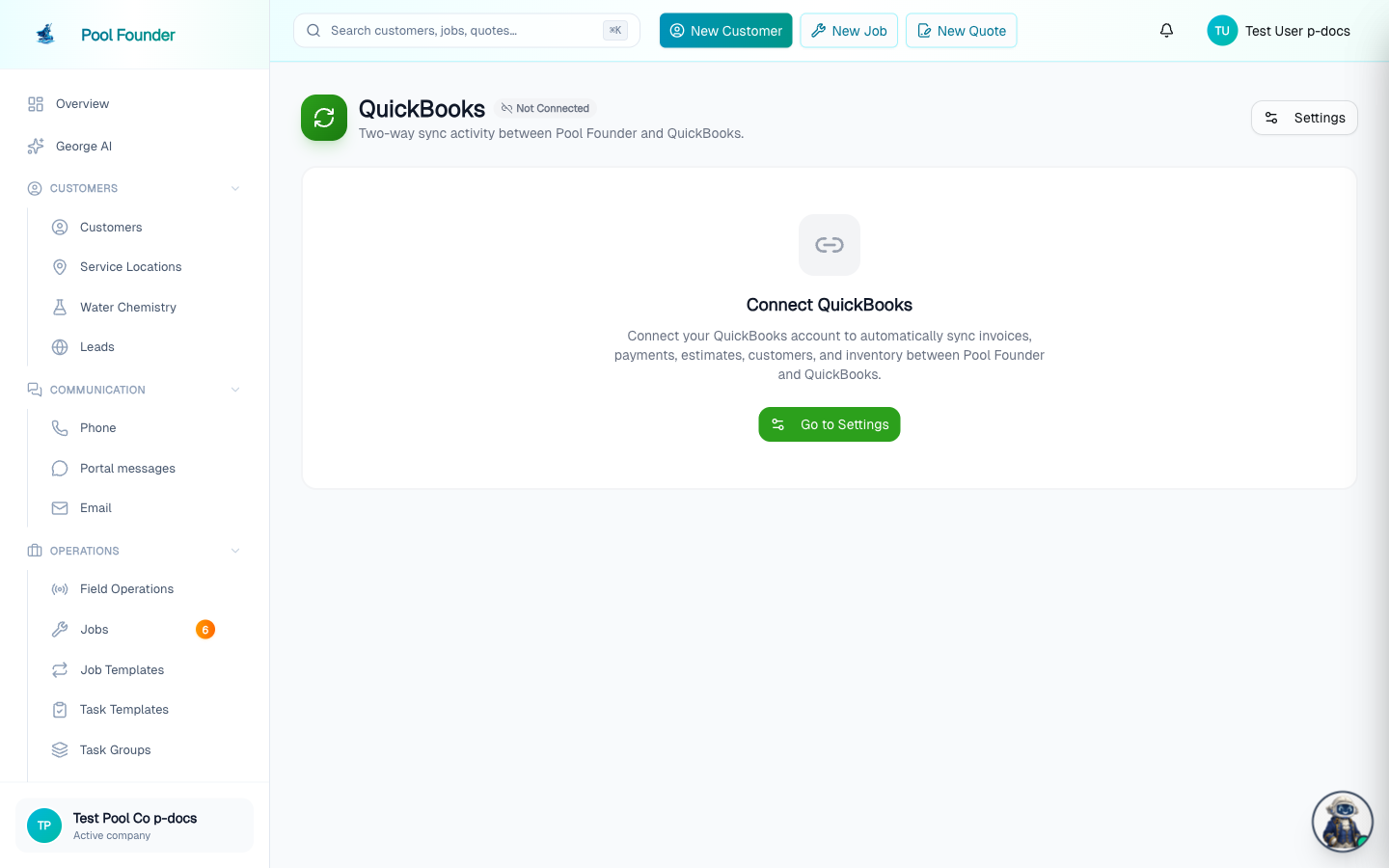
- 1In the sidebar, go to Settings → QuickBooks and click Settings — the not-yet-connected state shows a Connect QuickBooks button (connect buttons also appear on the Customers page, the Invoices page, and in the guided get-started flow).
- 2Approve the one-click OAuth sign-in with Intuit; you're returned to the QuickBooks page with a "QuickBooks connected successfully!" banner.
- 3Then pull your data over with the customer import and items import (both described below), and tune what syncs on the Settings page.
If QuickBooks shows "Reconnect needed"
QuickBooks can end Pool Founder's connection from its side, for example when someone disconnects Pool Founder from inside QuickBooks or the Intuit sign-in lapses. When that happens nothing syncs, the QuickBooks page shows a Reconnect needed badge, and admins get a QuickBooks Disconnected notification. Open the QuickBooks page, click Settings, click Reconnect QuickBooks, and sign in to the same QuickBooks company. Your sync settings and links to QuickBooks records are kept.
There is no self-serve disconnect. To switch QuickBooks accounts, reach out to support — disconnecting an account with synced data can cause duplicate or orphaned records.
What syncs, automatically
- Customers — import from QuickBooks, and edits in Pool Founder push to the matching QuickBooks customer.
- Invoices — pushed to QuickBooks as they're created and updated.
- Payments — Stripe, manual, and autopay payments are recorded against the matching QuickBooks invoice.
- Refunds and voids — sync too, so a refunded or voided invoice doesn't leave a phantom balance in the books.
- Quotes — pushed as QuickBooks Estimates (work order quotes carry their estimated sales tax); when the quote is accepted and billed, the Estimate converts to an Invoice so the proposal-to-paid trail is complete.
- Chemicals and parts — created as QuickBooks items the first time they appear on an invoice, optionally as Inventory items with stock tracking. An item is Taxable in QuickBooks exactly when it carries a sales-tax rate in Pool Founder, and that flag syncs both ways (detailed below).
- Sales tax — each invoice line is sent as taxable or non-taxable, and the total tax we charged is sent with the invoice (detailed below).
- Recurring services (formerly service plans) — a job's service charge posts to the QuickBooks item picked on its recurring service on the Services page, so each service keeps its own income account on your P&L; lines with no item use the Default service item (see Account mapping below).
In the typical workflow, billing runs automatically per each job's billing mode, customers pay by autopay or the emailed payment link, and payments flow through to QuickBooks on their own — see Create and manage invoices and Accept online payments.
Voiding a recorded manual payment (a mis-keyed check, cash, or Zelle payment) also deletes the matching Payment in QuickBooks automatically, so the two systems stay in agreement. See Record and void manual payments.
Sync settings: the seven sections
The QuickBooks Settings page is organized into seven sections — Sync, Billing & payments, Customers, Products & inventory, Account mapping, Stripe fees, and Import customers — with a connection card showing your QuickBooks company ID and connect date.
Sync — the master switch
The QuickBooks sync toggle is the master switch: turn it off and nothing is pushed to QuickBooks — useful while cleaning up data in QuickBooks so Pool Founder doesn't overwrite anything. The status below it reads "Syncing in real time" or "Paused", and a "What's flowing right now" summary shows On/Off chips for Invoices, Payments, Refunds, Quotes (Estimates), Customer changes, Chemicals, Parts, and Inventory tracking. While paused, the other sections show a "Sync is paused" banner and their toggles are disabled — your choices are saved but take effect only when sync resumes.
Billing & payments
- Invoices — push invoices to QuickBooks as they're created or updated. This is the foundation: payments and refunds attach to these QuickBooks invoices.
- Payments — record customer payments (Stripe, manual, or autopay) against the matching QuickBooks invoice. Requires invoice sync to be on. A payment that did not reach QuickBooks (a rate-limited billing day, a brief outage) is retried automatically within about an hour, so an invoice that is paid in Pool Founder but still open in QuickBooks corrects itself — you do not need to record the payment in QuickBooks by hand.
- Refunds — create a refund receipt in QuickBooks against the original payment when you issue a refund. Also requires invoice sync.
- Quotes (Estimates) — push quotes as QuickBooks Estimates and convert them to Invoices when accepted.
Customers
- Sync customer changes — push new customers and edits to the matching QuickBooks customer. Turn this off if you prefer to manage customer details directly in QuickBooks.
- Auto-create customers when invoicing — when you invoice a Pool Founder customer who isn't linked to QuickBooks yet, Pool Founder first looks for them there: by email (when exactly one active QuickBooks customer has that email and the two names share a word), then by name. Only when neither finds them is a new QuickBooks customer created. If off, invoices for unmatched customers fail to sync until you push the customer manually. Once a customer is linked, their invoices, quotes, and refunds all post to that same QuickBooks customer.
Products & inventory
- Chemicals — each chemical you charge for becomes a QuickBooks item the first time it appears on an invoice. Name, price, and Taxable flag stay in sync in both directions: edits in Pool Founder push to the QuickBooks item, and edits your bookkeeper makes to a linked item in QuickBooks come back to Pool Founder, so you never change a price in both places.
- Parts — same for parts (filters, pumps, etc.).
- Track inventory — sync chemicals and parts as Inventory items in QuickBooks (with stock quantities) instead of Non-inventory items. Inventory items hit your balance sheet when received and move into Cost of Goods Sold when sold; leave off to track them as expenses at the time of sale.
Account mapping
In QuickBooks, the item on an invoice line decides which income account that line posts to on your P&L. The Account mapping section controls which items and accounts Pool Founder uses:
- Default service item: the QuickBooks item for charges that have no item of their own: discounts, Stripe fee lines, jobs whose recurring service has no QuickBooks item, and any work order, quote, or invoice line, recurring charge, or priced task where no QuickBooks item was picked. Left on QuickBooks' first service item, those lines go to whichever Service item QuickBooks happens to list first, so pick one.
- Income account: the income account for items Pool Founder creates in QuickBooks (commonly "Service Income" or "Sales of Product Income"). Items that already exist in QuickBooks, including chemicals and parts you imported, keep their own income account. Defaults to Auto-detect.
- Chemicals income account and Parts income account: used instead of the Income account when Pool Founder creates a chemical or part item, so chemical sales and parts sales post to separate accounts. Each defaults to Same as Income account.
- Expense / COGS account — where the cost of items you buy and use on jobs is recorded (commonly "Cost of Goods Sold" or "Job Materials"). Defaults to Auto-detect.
- Inventory asset account — where on-hand inventory value sits on your balance sheet (commonly "Inventory Asset"). Only shown when Track inventory is on. Defaults to Auto-detect.
Recurring services: a QuickBooks item on each service
To keep each recurring service (formerly called a service plan; say, Full Service and Gold) in its own income account, give each one a QuickBooks item:
- 1In the sidebar, go to Services → Services and open the recurring service (filter Recurring services to see only those).
- 2In the QuickBooks item section, click the picker and search for the item from your QuickBooks Products and Services. Each option shows the income account that item posts to. The section only appears when QuickBooks is connected and the service doesn't bill externally.
- 3Save. The service charge (the rate line) of every job on that service now posts to that item, including jobs created before you picked it. There is no need to apply the service to its jobs.
- The service's item covers the service charge of the pools on it only. Chemicals and parts post to their own QuickBooks items, and other lines use the item picked on them (below) or the Default service item.
- Chemical lines on maintenance invoices post to that chemical's own QuickBooks item, matched by its name in your Chemicals list (so a chemical imported as "Liquid Chlorine (gal)" stays on that item). A single line that lists several chemicals posts to the first chemical named. A chemical or part that isn't in your list gets a new QuickBooks item under the Chemicals or Parts income account.
- There is no QuickBooks item setting on an individual job: its service charge follows its recurring service, and a job with no service uses the Default service item.
- Work order, work order, and quote lines each have a QuickBooks item dropdown under the line (Create Work Order, Edit Pricing, the editor for a work order, and the quote builder). An accepted quote keeps each line's item on the work order it becomes, and the invoice keeps it too.
- Create Invoice and Edit Invoice have the same QuickBooks item dropdown on each line.
- Recurring charges on a job or a recurring service each have their own QuickBooks item.
- Priced tasks: open the task on the Tasks page (Services → Tasks) and pick its QuickBooks item; every priced charge for that task posts there.
- A line added from your parts or chemicals list posts to that item's own QuickBooks item unless you pick a different one on the line. A line with nothing picked uses the Default service item.
- Every QuickBooks item picker (recurring services, task templates, the Default service item, and each line) has a search box: type any words from the item's name, its parent item, or its income account, in any order. When your QuickBooks file has more than one kind of item, the All, Service, Non-inventory, and Inventory chips under the search box narrow the list by type, so a service item is easy to find among thousands of parts. The list shows 100 items at a time; keep typing to narrow it.
- The technician app has no QuickBooks item dropdown, but editing a work order, quote, invoice, or recurring charge in the app keeps the items picked on the web.
- A new or changed item applies to invoices synced from then on, and to invoices re-synced after an edit. Invoices already in QuickBooks are not re-sent on their own.
The items importer brings in Inventory and Non-inventory items only, as chemicals and parts. QuickBooks Service items don't import; pick them in a service's QuickBooks item and the Default service item dropdowns instead.
Stripe fees: three strategies
When a customer pays by card, Stripe takes its processing fee before the money reaches your bank. The Stripe fees section decides how that shows up in QuickBooks:
- Ignore fees (record gross) — QuickBooks records the full invoice amount as income; you record Stripe fees separately (most teams pull a Stripe payout report into QuickBooks monthly). Recommended if you already reconcile Stripe payouts in QuickBooks.
- Add fee as a line item — adds a negative "Stripe Processing Fee" line to the QuickBooks invoice so income and fees both show on the same record. Easiest to read per invoice.
- Record net only — QuickBooks records only what hit your bank after fees. Cleanest reconciliation, but you lose visibility into gross revenue and fees inside QuickBooks.
The sync dashboard
The QuickBooks page (sidebar → Settings → QuickBooks) is the sync-activity dashboard: a Connected badge (or Reconnect needed when QuickBooks has ended the connection), then three tiles — Synced, Pending, and Failed — counting your invoices by sync status.
- Recent Failures lists the latest failed invoices with the exact error message, and a Retry Failed (N) button re-pushes them all — a banner then reports how many synced and how many still fail.
- The sync log below shows every event flowing between the systems — time, direction, record type, action, summary, and status — filterable with the All, PF → QB (outbound), QB → PF (inbound), and Failed tabs.
- Each customer's page also has a QuickBooks section (on its Billing tab) showing that customer's link to QuickBooks.
- Paid in Pool Founder but still open in QuickBooks? Leave it. Every hour Pool Founder re-checks paid invoices whose QuickBooks Payment never landed and posts it, checking the QuickBooks balance first — so a payment your bookkeeper already recorded by hand is marked settled rather than duplicated. There is nothing to click and nothing to record yourself; if it is still open a few hours later, check the sync log's Failed tab for the error.
Import customers: a staged review, not a blind dump
The customer import (Settings → Import customers → Open customer import, also offered in the guided get-started flow) stages everything for review before anything is created:
- 1Click Fetch Customers — every active QuickBooks customer is pulled into a review list.
- 2Review with the search box and the All / New / Existing / Missing Info filter tabs. New customers aren't in Pool Founder yet; Existing ones matched by QuickBooks ID or email; Missing Info rows lack both a usable email and phone, so they can't be selected (either one is enough to import).
- 3Pick rows individually, or use "Select all N new" to grab every new customer in one click.
- 4Need to clean data up first? The grid icon next to the search box switches to a spreadsheet view — edit any name, email, phone, or address cell in place (paste from Excel works) and changes save as you type. Fixing a contact on a Missing Info row makes it selectable.
- 5Each imported customer with no service locations yet gets one created from their QuickBooks address — the shipping address when there is one, otherwise the billing address (there is no checkbox for this). When QuickBooks holds a billing address that differs from the shipping address, it is also saved as the customer's Billing address in Pool Founder.
- 6Click Import and watch the progress — the completion screen breaks the run into Imported / Updated / Skipped, notes how many pools were added to customers that share an email, and lists any issues.
- Nothing is duplicated: existing customers are updated in place, and only get a service location from the QuickBooks address if they had none.
- QuickBooks customers that share an email (often one per property) become one Pool Founder customer, because each Pool Founder customer has its own email. The oldest QuickBooks customer becomes the customer, and the others add their addresses to it as more pools; those rows show Adds pool in the review. The same happens when the email belongs to a Pool Founder customer already linked to another QuickBooks customer, which keeps its link. Invoices for those pools post to that customer's QuickBooks customer, and an address the customer already has isn't added twice.
- Going the other way, a customer's Pool Founder Billing address becomes their QuickBooks Bill to address on sync; customers without one send their first service address instead.
- The import creates customers and service locations — not jobs. Schedule service afterwards with Add Service in Bulk.
Import items as chemicals and parts
The items importer (Settings → Import customers → Open items import, also reachable from the Chemicals and Parts pages) pulls QuickBooks Inventory and Non-inventory items into Pool Founder:
- Each row is guessed as a Chemical or Part from its name — flip any row's choice, or mark it Skip. Bulk buttons: All as chemicals, All as parts, Skip all.
- Chemical rows get a unit picker (Gallon, Pound, Ounce, Liter, Each, Tablet, Bag, Bucket, Bottle, or a custom unit), guessed from the name.
- Rows show the QuickBooks price, cost, stock, and item type. Items are matched by name — an existing Pool Founder chemical or part with the same name gets linked instead of duplicated.
- Items already linked to a Pool Founder chemical or part are hidden; when everything is linked you see "All caught up". New items added in QuickBooks appear here later.
- A Taxable column shows each item's QuickBooks Taxable flag: Yes, No, or — when QuickBooks didn't say (QuickBooks only sends the flag for US company files).
- A newly created chemical or part gets your Default tax rate from Invoice Settings if it is marked Taxable in QuickBooks, and imports untaxed if it is not. With no default rate set, Taxable items import untaxed too, and the importer says so with a Set a default rate in Invoice settings link. Items with no flag (—) take the default rate, like an item you add by hand.
- An existing Pool Founder item that gets linked follows the same rule as the ongoing sync: Taxable in QuickBooks but untaxed here gets the default rate, not Taxable there clears the rate here, and if the two already agree its rate is left alone (so a custom 6% part stays 6%).
How sales tax reaches QuickBooks
Sales tax is never pushed as its own line item. Instead, each invoice line goes over marked taxable or non-taxable: any line that carries tax is taxable (chemical and part rows, and work order or invoice lines whose Taxable switch is on, see taxable line items), and so is a discount row that reduces tax, so QuickBooks takes the discount off the taxable amount. Untaxed lines are non-taxable. The total tax Pool Founder charged rides along with the invoice as its tax total.
- Lines added from your catalog (a part or chemical on a work order, quote, or invoice) are sent on that part's or chemical's QuickBooks item, creating the item first if it isn't in QuickBooks yet.
- Estimates from work order quotes carry the same taxable/non-taxable marking and the estimated tax total. When the work order is invoiced, the QuickBooks Invoice converted from the Estimate is built from the real invoice lines, with their tax and discounts, and a paid deposit goes in QuickBooks' Deposit field.
- An earlier bug sent every taxed invoice to QuickBooks as non-taxable with no tax total. It was fixed on September 10, 2026; invoices that synced before the fix are not re-sent on their own.
- Chemicals and parts that carry a tax rate here are Taxable QuickBooks items, so QuickBooks' own tax engine agrees with the taxable/non-taxable marking on the lines.
- If you have Automated Sales Tax turned on in QuickBooks, QuickBooks recalculates the tax itself from the customer's address and its own jurisdiction rate. That can legitimately land on a different number than the per-item rates you set here.
- When QuickBooks' tax total differs from ours by more than a cent, the invoice still syncs and a warning is written to the sync log naming both amounts, so the discrepancy is visible instead of silent. What the customer was actually charged is not affected.
Pool Founder charges the tax; QuickBooks records it. If the two disagree because Automated Sales Tax is on, the sync log warning is the place to catch it — reconcile in QuickBooks if the difference matters to your filings.
The item Taxable flag syncs both ways
A QuickBooks item has a Taxable on/off flag but no rate, so the rule is simple: an item is Taxable in QuickBooks exactly when it has a tax rate in Pool Founder.
Pool Founder → QuickBooks
- Editing a linked chemical or part sends its Taxable flag: on when it has a rate, off when it doesn't. That includes changing or clearing only the Tax Rate (%).
- Apply to all items in Invoice Settings → Sales tax updates the flag on every linked item whose rate it changed.
- This needs the Chemicals or Parts sync toggle on under Products & inventory.
QuickBooks → Pool Founder
Item edits already sync both ways; the Taxable flag rides along. Edits to a linked item in QuickBooks come back through QuickBooks' change notifications and a daily check (along with name, price, cost, stock, and active status). QuickBooks only sends the Taxable flag for US company files.
- Marked Taxable in QuickBooks, untaxed here: the item gets your Default tax rate. With no default rate set, it stays untaxed and the sync log warns "Marked Taxable in QuickBooks, but no default sales tax rate is set in Pool Founder".
- Not Taxable in QuickBooks, taxed here: the rate here is cleared.
- They already agree: the rate here is left alone, so a part you set to 6% stays 6% even if your default is 7.5%.
Tax rates themselves never sync, only the on/off flag. If Automated Sales Tax is on in QuickBooks, QuickBooks may still recalculate the tax on an invoice, and the sync log shows the mismatch warning described above.
Other integrations
Besides QuickBooks Online, Pool Founder integrates with Stripe for payment processing and offers an API for leads (see API keys and the Leads API). There are no other integrations today. If you need one, contact support at support@poolfounder.com and we'll log the request.
Frequently asked questions
If I archive customers in Pool Founder, does that change them in QuickBooks?
No. Archiving a customer only affects Pool Founder, whether you archive one from their page or use the "Archive N customers" suggestion after a QuickBooks import. Their QuickBooks customer record is not changed or made inactive, and you can unarchive them in Pool Founder later.
Is the sync one-way or two-way?
Two-way: customers and items import from QuickBooks into Pool Founder, and invoices, payments, refunds, quotes, and voids created in Pool Founder sync to QuickBooks automatically.
Can I pause the sync without disconnecting?
Yes — the "QuickBooks sync" master switch on the Settings page stops everything from pushing to QuickBooks until you turn it back on. Your per-type choices are saved and resume with it.
How do Stripe processing fees show up in QuickBooks?
You choose one of three strategies in Settings → Stripe fees: record the gross invoice amount and reconcile fees separately (recommended), add the fee as a negative line item on each QuickBooks invoice, or record only the net amount that hit your bank.
I recorded a payment in QuickBooks by hand before Pool Founder synced it. Will it be doubled?
No. Before Pool Founder posts a payment it checks what QuickBooks still shows as owed on that invoice. If QuickBooks already shows a zero balance, Pool Founder marks the payment as settled and creates nothing; if QuickBooks shows a smaller balance than expected, Pool Founder posts only that balance. Any paid invoice whose payment did not reach QuickBooks (for example, if QuickBooks rate-limited a busy billing day) is retried automatically within about an hour, so you do not need to record it yourself.
What happens in QuickBooks when I void a manual payment?
The matching QuickBooks Payment is deleted automatically, so the void in Pool Founder doesn't leave a stray payment in the books.
How does sales tax sync to QuickBooks?
Tax is never sent as its own line item. Each invoice line is sent marked taxable or non-taxable: any line that carries tax is taxable (chemical and part rows, work order and invoice lines with Taxable on, and discount rows that reduce tax), untaxed lines are not, and the total tax Pool Founder charged is sent with the invoice. Estimates from work order quotes carry their estimated tax the same way. If Automated Sales Tax is on in QuickBooks, QuickBooks may recalculate the tax from the customer address and land on a different number; the invoice still syncs and a warning naming both amounts appears in the sync log.
If I mark an item Taxable in QuickBooks, does that carry over to Pool Founder?
Yes, for a chemical or part linked to that QuickBooks item (US company files). If it is untaxed in Pool Founder it gets your Default tax rate from Invoice Settings; with no default set it stays untaxed and the sync log warns "Marked Taxable in QuickBooks, but no default sales tax rate is set in Pool Founder". Turning Taxable off in QuickBooks clears the rate here, and if the two already agree the rate is left alone. It works the other way too: an item with a rate here is Taxable in QuickBooks. Rates themselves never sync, only the flag. The items importer follows the same rule and shows a Taxable column.
Can Pool Founder keep my services (recurring services), chemical sales, and parts sales in separate income accounts?
Yes. In QuickBooks the item on each invoice line decides the income account. Give each recurring service a QuickBooks item (open it from the Services page and pick it under QuickBooks item), and the service charge of every job on that service posts to that item. Chemicals and parts you imported from QuickBooks keep their own items and accounts; for items Pool Founder creates, set a Chemicals income account and a Parts income account under QuickBooks Settings → Account mapping. Work order, quote, and invoice lines, recurring charges, and task templates (for priced tasks) each have their own QuickBooks item dropdown too, so labor, specialty work, and fees can post to their own accounts. Anything with no item picked uses the Default service item. There is no QuickBooks item setting on an individual job; it follows its recurring service.
Why did an edited invoice fail to sync with "Invalid Reference Id : Line.SalesItemLineDetail.ItemRef"?
When an invoice's lines changed after it synced, lines without a QuickBooks item were re-sent on an item id that didn't exist in the QuickBooks file. Fixed on September 12, 2026: those lines now use your Default service item, or QuickBooks' first Service item when none is set. Editing the invoice's lines again re-sends it.
A customer is paid up in Pool Founder but QuickBooks still shows the invoice as open. Should I mark it paid in QuickBooks myself?
No — do not record it by hand. Pool Founder retries any paid invoice whose QuickBooks Payment did not land, automatically, within about an hour (rate limits on a busy billing day are the usual cause). It checks the QuickBooks balance before posting, so even if you or your bookkeeper already marked it paid in QuickBooks it is marked settled rather than doubled. If the invoice is still open several hours later, open the QuickBooks page and check the sync log's Failed tab for the error.
Does importing from QuickBooks create jobs?
No — imports create customers and service locations only. Set up service afterwards with Add Service in Bulk, which applies a recurring service to many pools at once.
Why does the QuickBooks page say "Reconnect needed"?
QuickBooks stopped accepting Pool Founder's connection, usually because someone disconnected Pool Founder from inside QuickBooks or the Intuit sign-in lapsed. Nothing syncs until you reconnect: open the QuickBooks page, click Settings, click Reconnect QuickBooks, and sign in to the same QuickBooks company. Your sync settings and links to QuickBooks records are kept. Admins also get a QuickBooks Disconnected notification when it happens.
How do I disconnect QuickBooks?
There is no self-serve disconnect — contact support at support@poolfounder.com. Disconnecting an account with synced data can cause duplicate or orphaned records, so support handles it carefully.