Invoices: From Finished Job to Paid (2:06 video). Open on its own page
Where invoicing lives
Invoicing lives under Billing in the sidebar. Its Invoices tab is an overview (see the Invoices overview); View all invoices opens the full list. Work orders and deposits are on Work Order Billing (see work order billing and deposits). Company-wide invoice settings live on the Invoice Settings page.
Invoicing works without Stripe — you can create and send invoices before connecting payments, and record offline payments when the money arrives. See accept online payments.
Emailing an invoice to a customer, and charging a saved card, both require a verified phone number or email on the account. If a send is refused, see verify your phone or email.
The All invoices list and the A/R aging report
The Invoices tab opens on an overview: what needs attention, Owed to you, Past due, Collected this month, the next billing run, a six-month invoiced vs collected chart, how late balances are, who owes the most, and the latest payments. See the Invoices overview.
The full list of invoices is on the All invoices page: click View all invoices at the top of the Invoices page, or search "All Invoices" with ⌘K. Its Invoices overview link takes you back. Old links to a filtered invoice list (for example overdue only) open this page with the same filter.
A/R aging report (month-end, with CSV export)
For a downloadable accounts-receivable report, click A/R report on the How late is what you're owed card of the Invoices overview, or By customer on its Who owes the most card (or search "A/R Aging Report" in the ⌘K palette). The A/R aging report page shows what each customer owed on a date, split into Current, 1–30 days, 31–60 days, 61–90 days and 90+ days past due, with a Total owed and a total row. Customers with the largest balance come first; click a name to open the customer.
- As of picks the date (today by default). End of last month jumps to the last day of the previous month for your monthly close; Today goes back to now. Future dates aren't allowed.
- Export CSV downloads one row per customer: Customer, Email, Phone, Invoices, the five aging columns, Total, and Oldest (days past due), plus a Total row. Invoice detail CSV downloads one row per invoice: Customer, Invoice #, Issued, Due, Days past due, Aging bucket, Balance, and Status today.
- A past date counts sent invoices issued on or before it that were unpaid on that date, including ones paid since (at their full amount). Drafts and voided invoices are left out. Invoices with no due date count as Current.
- For invoices that are still unpaid the balance is today's balance, so a partial payment made after the as-of date already reduces it.
- Invoices billed to a parent account (consolidated billing) are listed under the account that pays them.
- Needs permission to view invoices. The report is a separate page; the aging bar on the Invoices overview stays the live snapshot, and its oldest bucket is 60+ days late.
On the All invoices page, above the table, you can search invoices (by customer name, invoice number, and other details), filter by status (All Statuses, Overdue, Paid, Open, Draft, Void), and sort the list. Click any column header (Invoice #, Customer, Source, Total Amount, Amount Due, Status, Due Date, or Payment Failed) to sort the whole list by that column; click the same header again to reverse it. An arrow next to the header shows the column and direction in use. Money and date columns start highest/newest first, names start A to Z. Invoices with no value in that column (for example no due date) count as the lowest value, so they come first in low-to-high order and last in high-to-low. Source groups invoices by type (custom, deposit, maintenance, work order). The Sort dropdown also offers orders that have no column: Last sent (default — most recently emailed invoices first; invoices that have never been sent slot in by creation date), Last paid (most recently paid first, with unpaid invoices below all paid ones), and Newest (most recently created first). The sort is saved in the page address, so a sorted view can be bookmarked or shared. While you search, results are ordered by best match and the column headers don't sort.
Create and send an invoice
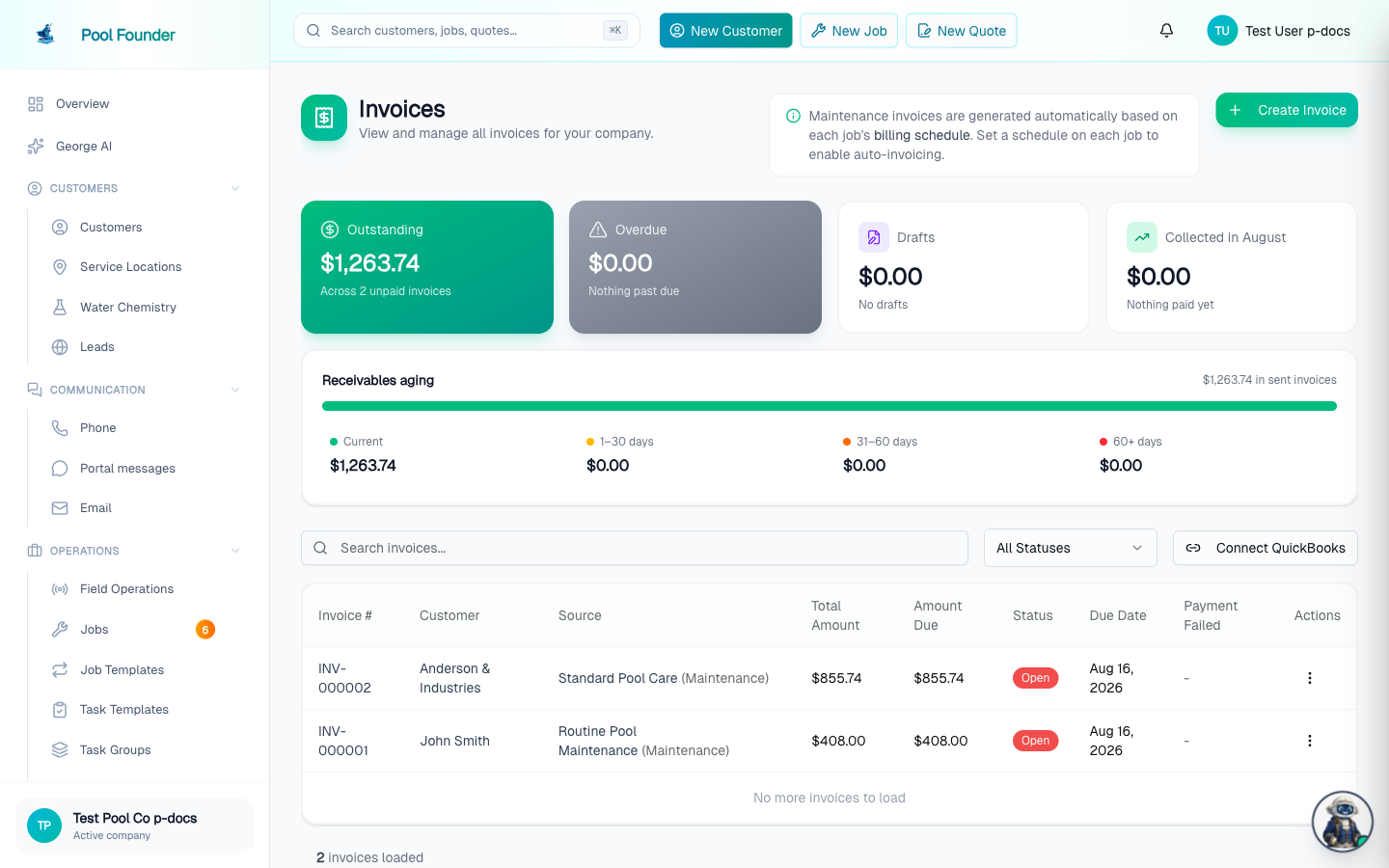
- 1In the sidebar, go to Billing (it opens on the Invoices tab) and click Create Invoice. The All invoices list has the same button.
- 2Pick a mode at the top: From Work Order (invoice a completed work order — line items pre-fill from the job) or Custom Invoice (a freeform invoice for any customer and any charge).
- 3Add or adjust line items and discounts — both modes support discounts on any invoice. Typing a price or adding a discount needs the "Change prices & add discounts" permission (Roles & Permissions); without it, lines come from the catalog at their set price.
- 4Choosing send invoice emails it to the customer with a secure payment link; choosing one of the customer's saved cards charges it immediately.
Create an invoice without emailing it. When the invoice will be paid by link (not charged to a saved card), the form shows an Email this invoice to the customer switch, on by default. Turn it off and the invoice is created without the invoice email or the "Invoice ready" text, so nobody on the account is notified. Then open the invoice and use Copy Payment Link to text or email the link to whoever should pay (for example one person at a commercial account whose regular invoices go to an accounts payable address), or Resend Email to email it to the customer later. Payment reminders only start once it has been emailed. The switch only affects that one invoice: the customer's settings and your other invoices are unchanged. It isn't shown when you charge a saved card, when Send invoice when created is off in Invoice Settings (nothing is emailed on create then anyway), or for older Stripe-hosted invoices, which Stripe emails itself. There is no Save as draft button: clicking Create Invoice creates it right away, so this switch is how you hold the email back. An email on file is still required, even with the switch off (nothing goes to it); without one, creating is refused with "Customer email is required", so add one first.
- Your work in progress is saved automatically. If you leave or reload mid-invoice, the form is restored next time with the banner "We restored your unsaved invoice from where you left off." and a Discard draft button. Drafts are cleared once the invoice is created.
- When invoicing a work order that still has incomplete tasks, a "N Tasks Remaining" warning appears — you can still create the invoice, but it suggests scheduling additional visits to finish the tasks first.
- The "Pass Processing Fees to Customer" toggle (per invoice, credit cards only, auto-disabled in surcharge-restricted states) is covered in accept online payments.
- Invoice Notes (on a Custom Invoice) are printed on the invoice the customer gets: the PDF and the online pay page. Don't put internal remarks there. Team-only notes belong in the Internal notes section at the bottom of the invoice's page, or the Notes on the customer or job page.
A completed work order does not have to get an invoice of its own. Add to Next Maintenance Invoice in the work order page's More actions menu (or Add to next maintenance invoice in the arrow menu on its Work Order Billing row) queues its charges onto the customer's next monthly or weekly maintenance invoice instead, so they arrive as extra line items on one bill — see work order billing and deposits.
Invoices can also be created and managed from the technician mobile app — see mobile invoices.
Everything you can do on an invoice
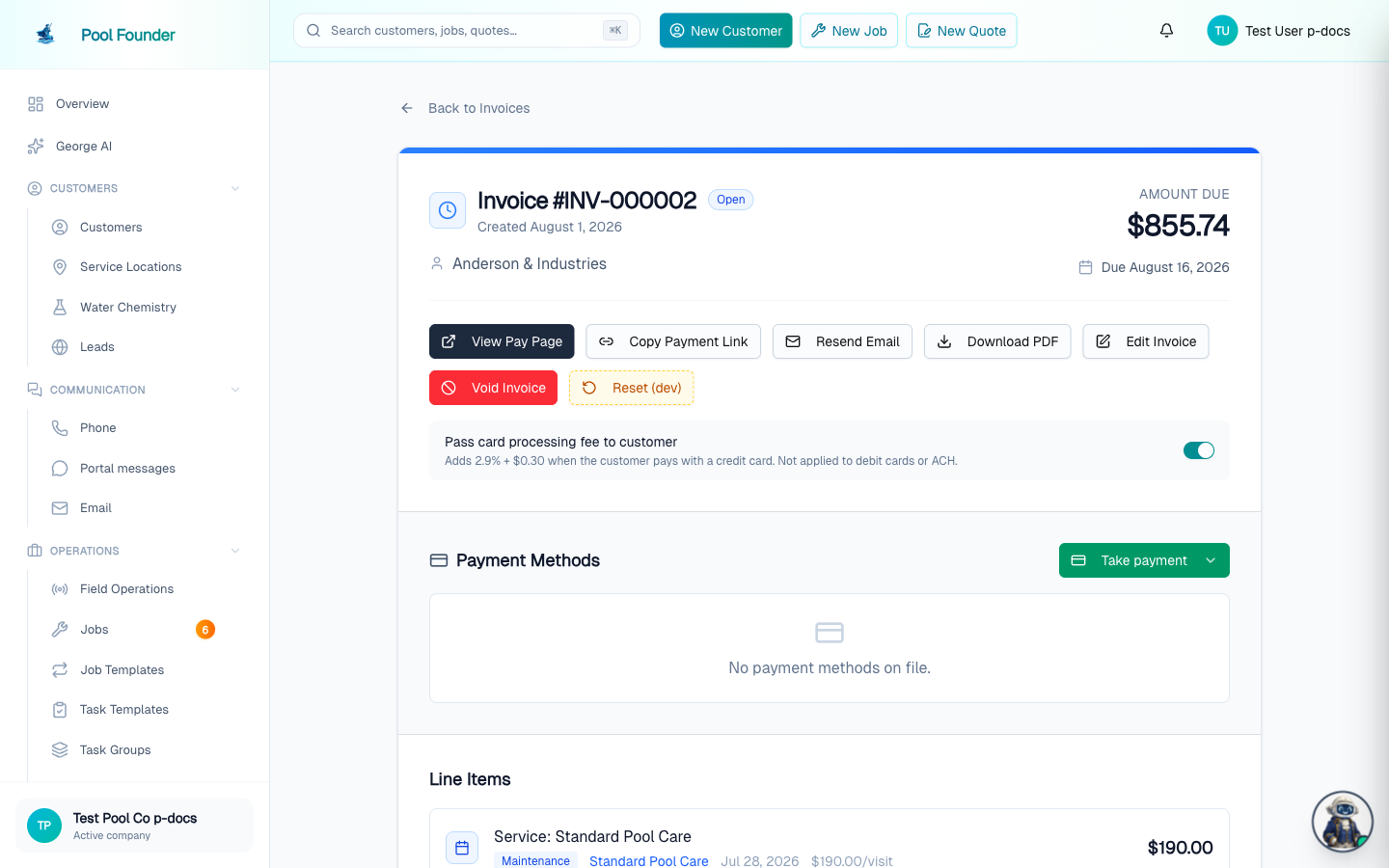
Open any invoice from the All invoices list (or from the Invoices overview) to reach its detail page. Depending on the invoice's status, you can:
- Take payment — "Pay with a new card" or "Record a manual payment" (cash/check, with a description like "Check #1234" and optional proof-of-payment photos).
- Charge / Charge Now — next to any of the customer's saved payment methods.
- Resend Email — re-sends the invoice email (open invoices). On a recurring service, the same send is in the job summary on the job's Overview tab: next to Last invoice, an unpaid invoice shows Send (never emailed yet) or Resend.
- Void Invoice — cancels a draft or open invoice, or a paid invoice whose payment was refunded in full, with an optional email to the customer (see below).
- Issue Refund — for paid invoices; card and ACH payments only (see below).
- Void — next to any recorded manual payment, to reverse a mis-keyed check or cash payment. See record and void manual payments.
- Edit Invoice, Download PDF, View Pay Page, and Copy Payment Link (copies the invoice's pay-page URL to the clipboard, ready to text or email to the customer).
The page also links out to everything the invoice relates to: the customer's name opens their page, a linked quote appears as a chip that opens the quote, and each line item links to its job. While an ACH payment is in flight, Edit, Void, and Take payment are hidden until it settles.
Edit an invoice
Edit Invoice works on draft and open invoices (paid invoices can't be edited — they need a refund or credit adjustments instead). Edits save in place: "Saving will update this invoice in place. The customer will see the new total next time they open the pay link."
- Line items and discounts are fully editable — add, change, or remove them. Changing a price or a discount needs the "Change prices & add discounts" permission; without it the amount and discount boxes are locked (with a note naming the permission), Discount is hidden, and only catalog items at their price can be added.
- Recorded payments are locked. They appear as read-only rows so the running total stays honest, but a payment is a fact, not a discount — reversing one is a deliberate Void from the invoice page.
- You can't cut the total below what's already been paid. Saving is blocked with "Total is below the [amount] already paid. Refund or void a payment first."
- Editing down to $0 resolves the invoice. With a recorded payment, the button becomes Close & mark paid — the invoice closes as paid and the customer gets a receipt. With no payment, it becomes Void invoice, with a confirm dialog ("There are no charges left to bill, so saving will cancel this invoice.") and an "Email the customer" checkbox.
- The due date is editable too — changing it updates the PDF and pay page and shifts when overdue reminders send (an invoice is "overdue" the day after its due date). It never charges the customer or changes when autopay runs.
- Customer notes (optional) (placeholder "Notes shown on the invoice") is the same customer-facing note: it prints on the PDF and the pay page.
- On a normal edit, a Save changes confirm asks whether to "Email the updated invoice" to the customer — or save quietly.
Refunds
Issue Refund on a paid invoice opens the refund dialog. Enter any amount up to the maximum refundable (it defaults to the full amount), add an optional reason, and choose whether to "Email the customer a refund confirmation" (on by default).
- If the customer paid a card processing surcharge, a checkbox — "Refund the [amount] card processing surcharge to the customer" — decides whether the surcharge comes back too. Refunding it makes the customer whole but your company absorbs the fee; keeping it offsets the processing cost, and the customer is refunded the invoice amount only.
- Stripe never returns its own processing fee on refunds — the dialog shows the exact fee your company absorbs, no matter how much you refund.
- Issuing refunds needs the "Issue refunds" permission (Roles & Permissions) — the Issue Refund button is hidden without it. It is separate from "Void invoices & payments", so you can make refunds owner-only (uncheck Issue refunds on Administrator, Office Manager and Bookkeeper) and still let those roles void invoices.
- Refunds only work for card and ACH payments. Recorded manual payments (check, cash, Zelle) are reversed by voiding the payment instead — see record and void manual payments.
- Store credit instead of a refund. With the "Issue store credit" permission, the dialog asks Give it back as: Refund to card or Store credit. Store credit sends nothing to the card; it goes on the customer's account and comes off their next invoices automatically. It also works on invoices paid by check, cash or Zelle. See store credit.
- A refund does not reopen the invoice. It stays paid, and every place that lists it shows Refunded (or Partially Refunded) instead of Paid: the Invoices table, the invoice list on the customer page and on the job's Billing tab, the "Last invoice" line and tile on the job page, and the visit's badge in Visit history. There is no way to put a refunded invoice back to open. If the customer still owes the money (for example the wrong card paid it), create a new invoice for the amount and send it to whoever should pay. Once the whole payment is refunded you can also void the old invoice so it reads Void instead of paid and refunded (see Voiding an invoice).
Voiding an invoice
Void Invoice cancels a draft or open invoice, a paid invoice paid entirely with store credit, or a paid invoice whose payment was refunded in full — with an optional reason for your records and an "Email the customer" checkbox that sends a short notice that the invoice was canceled and nothing is owed. Voiding cannot be undone, and the customer's pay link switches to an "Invoice voided" notice.
Voiding a refunded invoice. A paid invoice shows Void Invoice only after every dollar collected on it has been refunded: the card processing surcharge included, no refund still pending, and no check or cash payment still applied. This is for a customer who wants a clean record, for example when the wrong card was charged. The charge and refund stay in the invoice's payment history. The void does not change QuickBooks, where the refund already offsets the invoice. Voiding does not bill the customer again: create a new invoice for the work and send it to whoever should pay.
If the invoice has a partial payment on it, the dialog warns you: voiding does not automatically refund that payment. Settle the money first — use Issue Refund for a card or ACH payment, or void the recorded manual payment — so the books reflect reality.
Payment links are per invoice
- 1Open the customer's page, find the Invoices card, and click the link icon on the invoice's row ("Copy payment link") — no need to open the invoice.
- 2Or open the invoice itself and use the Copy Payment Link button next to "View Pay Page".
Payment links are per invoice — each invoice has its own secure pay-page URL. There is no single all-invoices payment link for a customer. To give a customer one place to see and pay everything, share the customer portal link instead.
Notes, Emails, Activity, and Edit history
The bottom of every invoice page keeps the full paper trail in four panels:
- Internal notes: notes for collections that the customer never sees, like "Called, said the check goes out Friday". Type in the box and click Add note (or press Ctrl/⌘ + Enter). Each note shows who wrote it and when, newest first. The customer never sees them: they are not on the PDF, the pay page, or the customer portal. Only people whose role can view invoices see or add them, and roles with permission to delete notes get a trash icon on each one. Notes are text only (no photos) and can't be edited; delete one and add it again to correct it. An invoice note the system added on its own (for example on a failed payment fee invoice) shows at the bottom as Invoice note.
- Emails — every email tied to the invoice (invoice sent, updated invoice, payment receipt, payment reminder, payment failed notice, cancellation notice, refund notice) with live delivery tracking chips: Sent, Delivered, Opened, Clicked, Bounced, or Marked spam. A bounce shows a plain-English reason underneath it (see what each bounce reason means). A banner also counts pay-page visits: "Customer viewed the pay page N times", with the most recent time — so you know whether "I never got it" holds up.
- Activity — the invoice's lifecycle timeline: created, sent, viewed, edited, payment attempted, paid in full, payment failed, reminder sent, voided, refunded — each with who did it (you, the customer, or the system) and when.
- Edit history — one entry per edit showing who edited, when, and the total before → after, with an expandable snapshot of the exact version the edit replaced.
Invoice Settings: company-wide invoice configuration
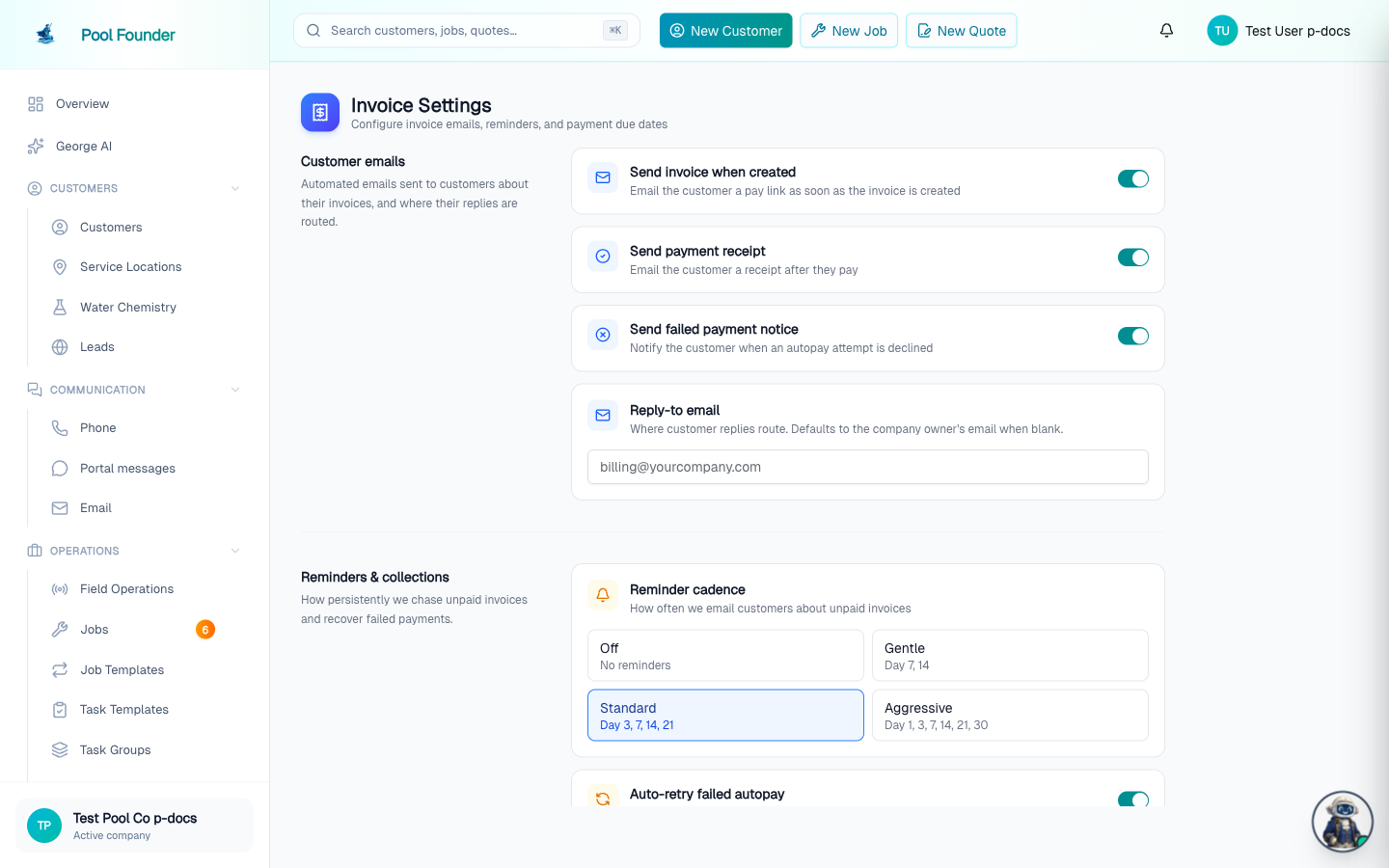
The Invoice Settings page holds every company-wide invoice setting:
- Customer email settings — send on create, receipts, failed-payment notices, the card expiring notice (emails AutoPay customers a link to update their card the month before it expires), and the reply-to address.
- Reminders & collections — reminder cadence, autopay retries, the failed payment fee, and write-off (detailed below).
- Pay by Zelle — show a Zelle QR code and link on invoices, service reports, and the customer portal. See accept online payments for the full setup.
- Payment terms — default due dates for invoices and deposits.
- Invoice footer — text shown at the bottom of your invoices.
- Business address — your company address as it appears in the header of invoice PDFs, on the payment page, and on card receipts. You can type a PO Box into the address field if you don't want your street address on customer documents. If you have open invoices when you save, Pool Founder asks whether to update them; click Update invoices to redraw their PDFs with the new address, or Keep old address to leave them.
- Sales tax — the default tax rate for new chemicals and parts and for line items you mark Taxable, and the label the tax row uses on invoices (detailed below).
- Maintenance line item display options — how maintenance charges are presented on invoices.
Reminders & collections
The Reminders & collections section controls how persistently unpaid invoices are chased and failed payments recovered:
- Reminder cadence — pick a preset for how often customers are emailed about unpaid invoices: Off (no reminders), Gentle (day 7 and 14 after the due date), Standard (day 3, 7, 14, and 21), or Aggressive (day 1, 3, 7, 14, 21, and 30).
- Auto-retry failed autopay — when an autopay charge fails, retry automatically at +24 hours, +72 hours, and +7 days (max 3 retries).
- Retry on card update — immediately re-charge open invoices when a customer adds a new card, so a replaced card settles the balance without waiting for the next retry.
- Failed payment fee — off by default. Turn it on to bill the customer a flat fee ($25 unless you change the Amount, anywhere from $1 to $100) when their autopay charge is declined or their bank (ACH) payment is returned. Some states cap or restrict returned-payment fees, so check your local rules before you turn it on.
How the failed payment fee works
- The fee goes on its own invoice with one line, Failed payment fee, naming the invoice whose payment failed. The original invoice is not changed. The customer gets it like any new invoice (email and pay link, if you send invoices when created), it syncs to QuickBooks as its own invoice, and autopay does not charge it automatically.
- One fee per invoice. Automatic autopay retries, a repeated notice from Stripe, or a later failure on the same invoice never add a second fee. A fee invoice never gets a fee of its own.
- No fee for a card declined on the payment page, where the customer can simply try another card. Only declined autopay charges and returned bank payments count.
- The failed invoice's Activity shows Failed payment fee added with a link to the fee invoice. To waive a fee, void the fee invoice.
- Turning the setting on does not charge fees for payments that failed before. It only works with Pool Founder invoicing, not the older Stripe invoice flow some early accounts still use.
Reminders only go out for invoices the customer was emailed. An invoice never sent (Send invoice when created off, or the customer's invoice emails off) gets none; owners and admins are still told when it goes overdue. Use Resend Email on it to start its reminders.
Whenever an autopay charge fails, owners and administrators also get a Payment Failed notification with the reason, whether or not auto-retry is on. A decline while the customer is paying on the invoice page does not alert you, since the customer sees it right away. If several autopay charges fail within a couple of minutes, they arrive as one notification with the count.
There is no "uncollectible" or automatic write-off status. Once the reminder cadence is exhausted, an unpaid invoice simply stays open and counts toward the balance the customer owes. If you have decided not to collect an invoice, void it — that cancels it and removes it from the outstanding balance.
Sales tax: where to set the tax rate and how it's charged
Pool Founder charges sales tax on any line marked taxable: chemicals and parts from your catalog, and any work order, quote, or invoice line item whose Taxable switch is on, labor included. The rate is set per line and per catalog item, never on the customer, so a taxable line and an untaxed one can sit on the same invoice. Maintenance service rates are not taxed.
Where you set the rate
- On each chemical and part — open the item and set its Tax Rate (%) field. That rate is charged when the item is billed from a visit and is where a catalog line starts when you add it with Add from catalog. The Chemicals and Parts tables show a Tax column so you can see at a glance which items are taxed (untaxed items read —).
- On each line item — work orders, work order quotes, and invoices have a Taxable switch with a rate box on every line. See catalog parts and taxable line items.
- Invoice Settings → Sales tax → Default tax rate — the rate a newly created chemical or part starts with, and the rate a line's Taxable switch fills in when you turn it on. Changing this default never re-rates items you already have or lines already saved.
- Invoice Settings → Sales tax → Apply to all chemicals and parts — a one-time Apply to all items button (with a confirmation) that stamps the default rate onto every chemical and part you already have, including ones that are currently untaxed. Invoices that have already been issued are not changed.
- Invoice Settings → Sales tax → Tax label on invoices — what the tax row is called on the invoice PDF, pay page, and customer portal. Defaults to "Sales tax".
How it appears on an invoice
- A taxed invoice shows Subtotal, the tax row, and Invoice Total. Invoices with no tax on them keep the single total row, with no "$0.00 tax" line.
- Tax is calculated per line, on that line's own amount, at that line's own rate — never as one rate across the whole invoice. A single line that aggregates several chemicals whose rates do not match is taxed item by item and shows the combined amount.
- When you edit an invoice, each line has its own Tax percentage box with a live "+$X.XX tax" preview, and the total updates as you type. Chemical and part lines arrive pre-filled from the item; a line you add by hand starts untaxed. Add from catalog is on Edit Invoice too.
- On Create Invoice (From Work Order and Custom Invoice), every line has the Taxable switch, and Add from catalog adds a part or chemical at quantity × unit price with its own rate. A work order's taxable lines arrive already taxed.
- A line with a quantity other than 1 reads with the count, e.g. "Pool Pump ×2", and lines added from the catalog are badged Part or Chemical on the invoice page.
- If you pass the credit-card processing fee to the customer, that fee is calculated on the taxed total.
Deposits and discounts
- Deposit invoices have no tax row. A deposit is a prepayment toward the job, not a sale of goods, so no tax is added on top of it. A percentage deposit is already figured on the total including tax; all of the tax is charged on the final invoice, which credits the deposit.
- A discount reduces the tax too. The discount is spread across the invoice's own line items in proportion to their amounts, so taxed lines carry less tax, and each discount row shows "Reduces tax by $X.XX". That includes discounts you add while editing an invoice, on the web and in the mobile app. It does not reduce the tax on chemical and part rows that came from visit completions, and it is never spread over a deposit.
Changing an item's tax rate never changes an invoice that has already been issued — every invoice keeps the tax it was created with. Re-rating an item affects invoices created from that point on.
Sales tax needs your account to be on Pool Founder's own invoicing (which is where new accounts start). A handful of older accounts still bill through the legacy Stripe invoice flow, where tax cannot be applied — on those, the Sales tax section and the Taxable switches are not shown, no tax is ever charged, and saving a rate is refused with a message pointing to support@poolfounder.com.
Not available: tax-exempt customers, tax rates based on the customer's address or jurisdiction, Stripe Tax or any automatic tax calculation, and tax on maintenance service rates or maintenance quotes. On the mobile app, the Create Invoice screen has no Taxable switch; mobile Edit Invoice keeps and edits each line's tax.
Invoice numbering
There is no invoice numbering customization — invoice numbers are generated for you and the format is not editable. If that matters to your business, contact support at support@poolfounder.com to request it.
Frequently asked questions
What order are the invoices in the All invoices list in? Can I sort them by when they were paid?
On the All invoices page (View all invoices on the Invoices page), the table is sorted by default by Last sent — the most recently emailed invoices first, with never-sent invoices slotting in by creation date. Yes: pick Last paid in the Sort dropdown above the table (most recently paid first, unpaid invoices below all paid ones); it also offers Newest. You can also click any column header (Invoice #, Customer, Source, Total Amount, Amount Due, Status, Due Date, Payment Failed) to sort by that column, and click it again to reverse the order.
Can I download a monthly accounts receivable (A/R aging) report?
Yes. On the Invoices page, click A/R report on the How late is what you're owed card (or search "A/R Aging Report" with ⌘K). Set As of (or click End of last month) to see each customer's balance split into Current, 1–30, 31–60, 61–90 and 90+ days past due on that date, then click Export CSV for the by-customer report or Invoice detail CSV for one row per invoice.
Can I create an invoice without it being emailed automatically, so I can text the link myself?
Yes. On Create Invoice, turn off Email this invoice to the customer before clicking Create Invoice (it appears when the invoice will be paid by link, not charged to a saved card). Nothing is emailed or texted. Then open the invoice, click Copy Payment Link, and send the link to whoever should pay. You can still email it later with Resend Email; payment reminders only start once it has been emailed. It affects only that invoice, so you don't need to change the customer's email settings or turn off Send invoice when created for the whole company. There is no Save as draft option; this switch is how you hold the email back. An email on file is still required, even though nothing goes to it.
How do I resend an invoice?
Open the invoice (Billing → Invoices → View all invoices, then click it) and use Resend Email. For a recurring service, you can also click Send or Resend next to Last invoice on the job page's Overview tab.
A customer paid by check or cash — what do I do?
Open the invoice, click "Take payment", and choose "Record a manual payment". Add a description like "Check #1234" — and optionally attach a photo of the check — so the record is clear.
Does changing an invoice's due date charge the customer?
No — changing the due date only updates the PDF and pay page and shifts when overdue reminders send. It never charges the customer or changes when autopay runs, and the customer is only emailed if you choose to send the updated invoice when saving.
Does refunding an invoice mark it unpaid again?
No — a refunded invoice stays paid and shows a Refunded (or Partially Refunded) badge on the Invoices table, the customer and job pages, and the visit's badge in Visit history. It can't be reopened. If the money is still owed (say the wrong card paid it), create a new invoice for that amount and send it to the right payer. Once the whole payment is refunded, Void Invoice appears on the old one so it can read Void instead of paid and refunded.
Does the customer get the card fee back when I refund?
That's your choice — the refund dialog has a checkbox to refund the card processing surcharge or keep it to offset the fee. Either way, Stripe never returns its own processing fee on refunds, so your company absorbs that amount.
I fixed my business address. How do I update the address on invoices I already sent?
Open invoices are updated in place, with no voiding. Saving a new Business address in Invoice Settings asks whether to update your open invoices: click Update invoices and every open and draft invoice PDF is redrawn within a minute or two. If you clicked Keep old address or changed it earlier, ask George to update your open invoices (an approval card). Nothing is emailed; use Resend Email to send a customer the updated copy now. Paid and voided invoices stay as they were. George can't void invoices, and voiding is not needed for this.
Can I change the address shown on my invoices — for example to a PO Box?
Yes — go to Invoice Settings and edit the Business address section. The address you save there is printed in the header of every invoice PDF and on the payment page, and it also updates the address on card receipts. A PO Box works: type it into the address field and fill in the city, state, and ZIP by hand (the address suggestions only cover street addresses). New invoices use the new address. If you have open invoices, a prompt asks whether to update them too: click Update invoices and their PDFs are redrawn with the new address within a minute or two (nothing is emailed). Paid and voided invoices keep the address they were sent with. Missed the prompt? Ask George to update your open invoices (an approval card).
Does the invoice show which property or pool it is for?
Yes, when the invoice is tied to a service location. The invoice PDF prints a Service Location block with that address. Invoices from a job or work order carry its location automatically; on a Custom Invoice, pick it in the Service Location (Optional) field. An invoice with no service location (for example a custom invoice where none was picked) leaves the block off. A customer with several properties gets the right address on each invoice, as long as each one is tied to its location.
Where do I set my sales tax rate for invoices?
Start with Invoice Settings → Sales tax → Default tax rate: new chemicals and parts inherit it, and it fills in whenever you turn on the Taxable switch on a work order, quote, or invoice line. The rate actually charged is set per chemical and part (its Tax Rate (%) field) and per line item (the Taxable switch and its rate box). Use the "Apply to all items" button in that same section to stamp the default onto the catalog you already have. Maintenance service rates are not taxed.
Can each chemical have its own tax rate?
Yes. The tax rate lives on each chemical and each part individually, so you can charge 7.5% on one, 4% on another, and leave a third untaxed. The company-wide Default tax rate in Invoice Settings is only the rate a newly created item starts with — changing it never re-rates items you already have.
Can I credit a customer on an invoice?
Yes, with a discount. On a draft or open invoice, click Edit Invoice, click Discount, enter a description (e.g. "Credit: missed visit") and an amount, and save; the customer sees the lower total the next time they open the pay link. Paid invoices can't be edited; refund the payment or give it back as store credit instead. To credit a maintenance customer's next invoice before it exists, queue a discount on the job (One-time charges & discounts, see maintenance billing modes). For credit that carries over to future invoices, use store credit instead: Add credit on the customer's Billing tab, or Issue Refund → Store credit on a paid invoice (see Store credit). Recording a payment the customer never made is not a credit: it logs money you didn't receive.
Does a discount reduce the sales tax on an invoice?
Yes. A discount is spread across the invoice's own line items in proportion to their amounts, so taxed lines carry less tax, and each discount row shows "Reduces tax by $X.XX". It does not reduce the tax on chemical and part rows that came from visit completions, and a deposit invoice has no tax row.
Can I charge sales tax on labor or a service call line?
Yes, on work orders, work order quotes, and invoices. Turn on the Taxable switch on that line and the rate fills in from your Default tax rate (or type one). Maintenance service rates are not taxed.
Can I mark a customer as tax exempt?
No. There is no tax-exempt setting on a customer, and tax is never calculated from the customer's address. Taxability is chosen per line item (the Taxable switch) and per chemical or part (its Tax Rate), so for an exempt customer leave the Taxable switch off on their line items. Chemicals and parts billed from visits still carry their catalog rate, so clear the Tax % on those rows with Edit Invoice.
Is sales tax charged on a deposit invoice?
No tax is added on top of a deposit: the deposit invoice has no tax row, because a deposit is a prepayment toward the job rather than a sale of goods. A percentage deposit is figured on the total including tax, though, so it already covers its share. All of the tax is charged on the final invoice, which credits the deposit.
Can I automatically charge a fee when a payment fails or bounces?
Yes. Turn on Failed payment fee under Invoice Settings → Reminders & collections (it is off by default; the amount starts at $25). When an autopay charge is declined or a bank payment is returned, the customer gets a separate invoice with one line, "Failed payment fee", once per invoice no matter how many retries fail. A card declined on the payment page never adds a fee. Some states limit these fees, so check your local rules.
Is there one payment link I can give a customer for all their invoices?
No — payment links are per invoice. For one place a customer can see and pay everything, share your customer portal link instead.