Unplanned Stops: The Work That Was Never on the Route (1:13 video). Open on its own page
What lives on the Unplanned Stops page
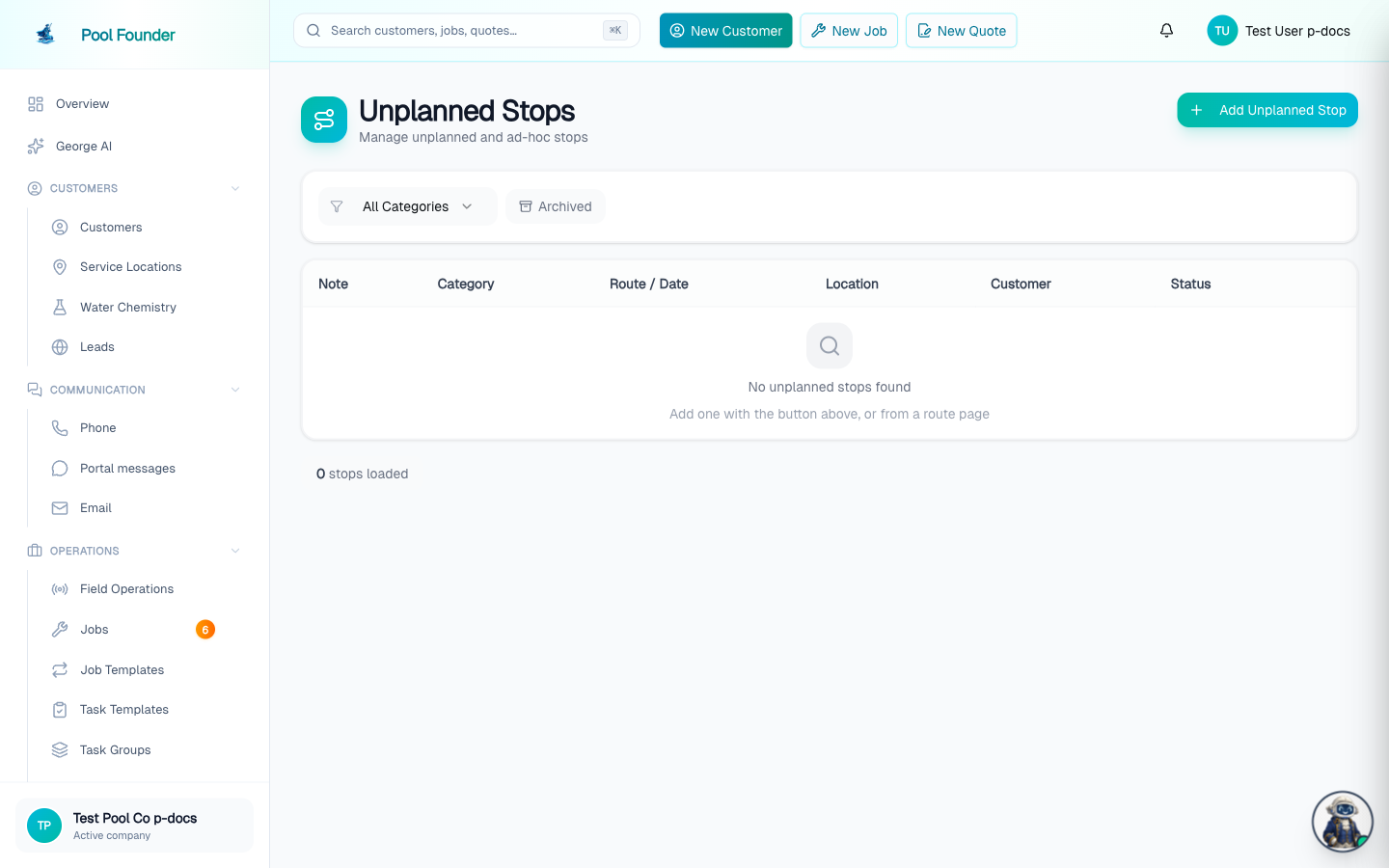
The Unplanned Stops page holds supply runs, courtesy visits, and equipment stops technicians logged in the field — plus open stops: lightweight to-dos the office creates with just a description and an address. Open stops need no route, date, customer, or billing, and any technician can pick one up and mark it complete, from the web or the mobile app. Completed stops can optionally be invoiced afterward.
Create an open stop from the web
- 1On Unplanned Stops, click Add Unplanned Stop (top right).
- 2Under The stop (left column), pick a Category — Supply Run, Courtesy, Break, Equipment, Quote Walkthrough, or Other (the default) — enter a Note (e.g. "Drop off chlorine at the Smiths"), and optionally add tasks. Click Photo on a task so it reads Photo required when the technician must photograph it (e.g. "Photo of old cartridges"); they can't complete the stop until each such task has a photo. Tasks are set when the stop is created: there is no screen for changing an existing unplanned stop's tasks, Photo required settings, PO number or arrival window afterwards (only its note, its category, its technician and day, with Move, and its completion notes).
- 3For a Supply Run, an optional PO number field appears for the distributor order to pick up. For a supply run pickup of parts ordered for a work order, use Add pickup stop on the work order's Parts orders card instead: it fills in the store, the PO number and a checklist of the parts, and completing the stop marks the order picked up (see parts orders on a work order). Any stop can have an optional Arrival window (start and end time) for an appointment the customer was promised.
- 4Under Location (right column), choose Manual Address or Service Location (which links an existing customer).
- 5Click Add Stop.
No route, date, customer contact info, or pricing is needed. The stop appears in the table with status "Open" and "Open pool / Any technician" in the Route/Date column.
Assign it to a technician (optional)
The same dialog has an "Assign to a technician (optional)" section. It starts on Open, any technician. Below that is a grid with technicians down the side and days across the top. Each box shows when that technician's day would end with the work added; a red box (for example 47m late) means the day would run past their workday, and a dash means they don't work that day. Earlier and Later move a week at a time. Only days the technician already has a route are shown. Click a box and an info card shows the route name, how many stops are already scheduled, and the minutes this stop adds — submitting then pins the stop onto that route day instead of the open pool. Click Open, any technician again to undo the pick. A Where on the route picker and a Time at stop field (in minutes) appear next to it, so you can choose the stop's spot in that day (see below). Leaving it on Open, any technician keeps the stop open-pool.
You can also pin a stop to a specific route and day from that route's day view on the Route Schedule: click Unplanned Stop. It's the same dialog, but the right column ends with On the route, holding Where on the route and Time at stop, and the stop is scheduled onto that route and date.
Choose where the stop goes in the day
When the stop goes onto a route day that already has stops, Where on the route decides its place. It starts on Best spot: the position that adds the least straight-line driving from the route's start through that day's stops, shown like "Best spot: after Henderson, +0.4 mi" or "Best spot: first stop, no extra driving". Or pick First stop, After a specific stop (listed as "After 1. Name", "After 2. Name"...), or Last stop.
- The stop is slotted into that day's order at the chosen spot, and the technician's app shows it there.
- If the route is already running, the stop never goes ahead of stops the technician has started or finished.
- An address that isn't mapped yet can't be measured, so Best spot puts it at the end; the dialog says so under the picker. Pick a spot yourself if it should go elsewhere.
- Open stops (no technician or route) have no place in a route yet, so there is no picker for them.
The same picker is on the Add Jobs to Route screen and in the technician app. See build and optimize routes for every place it appears and the few ways of adding a stop that still put it at the end.
Move an unplanned stop to a different technician or day
An unplanned stop has no home route, so moving it is a plain move, not a transfer: only its technician and day change (for example, from Mike on Tuesday to another tech on Thursday). Its note, tasks, time at stop, and customer stay the same, and there is nothing to transfer back later.
- 1On the Unplanned Stops page, click the stop's Route / Date entry (for an open stop it reads Open pool / Any technician). Or open the route's day view on the Route Schedule, find the stop (it has an UNPLANNED STOP badge) and click Move on its card. Either way the Move Unplanned Stop dialog opens.
- 2Click one of the Recommended days, or click a box under Technician and day: a grid with technicians down the side and days across the top. Each box shows when that technician's day would end with the work added; a red box (for example 47m late) means the day would run past their workday, and a dash means they don't work that day. Earlier and Later move a week at a time. Recommendations cover every technician's route days from today through the next week, ranked by the driving the stop adds and whether the day still fits in their workday (the same ranking as a one-time transfer). A day past the workday is flagged with how far over it goes.
- 3Check the card under the grid: "Goes on [route name]" means that technician has a route that day. If they don't, it says the stop will be their only stop that day, and a route is made for it.
- 4Under Where on the route, keep Best spot or choose First stop, After a specific stop, or Last stop.
- 5Click Move stop.
- The stop leaves the old day (and the technician's phone, if that route is running) and joins the new one. If the new route is running, it shows up on that technician's phone right away and they get a notification.
- A stop the technician has already started or finished, an invoiced stop, and a stop on a finished route day can't be moved. Completed stops have no Move button, and their Route / Date entry on the Unplanned Stops page can't be clicked.
- You can move a stop only to today or a later day.
- Moving a stop onto or off another technician's route needs the "Add stops to other techs' routes" permission (Owners, Administrators and Office Managers have it). Without it you can move a stop only between your own days.
- This is also how you assign an open (pool) stop to a technician, route and day after it was created: click Open pool / Any technician on the Unplanned Stops page. There is no way to put a stop back into the open pool once it's on a technician's day.
In the technician app, open the stop and tap Move Stop. See field work orders and stops.
How open stops get done
- Every technician sees open stops in the mobile app — the Today tab's actions list has an Unplanned Stops button that opens the list.
- Any tech taps Complete Stop (before photos, tasks, notes and after photos; works offline) to check it off. It's first come, first served — no assignment or claiming needed.
- The stop's page shows the technician's Before photos and After photos in separate sections, each task's photos under the task (with a Photo required or Photo taken tag), and the Arrival Window and PO Number under Route Info.
- Notes after the fact: on a completed unplanned stop (open-pool or on a route), the stop's page in the mobile app has a Notes section with Add note (or Edit) so the tech can add or fix completion notes later. The tech who completed it can edit them, and so can anyone with the Manage unplanned stops permission. They show on the stop's page on the web dashboard too, where they can't be edited. Once the stop is invoiced the notes lock. These notes are for your team; they don't go to the customer.
- The mobile list also shows a Completed section with completed pool stops, newest first, including who completed each one and when — a Load more button pages further back through the full history.
- From the web, you can check a stop off right from the list with Mark done — and an accidental check-off has a Reopen button. The stop's own page also has a Mark Complete button. Neither works for a stop with a Photo required task, since photos are only taken in the technician app.
Technicians can also create unplanned stops from the mobile app, on or off a route — choosing "My route now", "Open — anyone", or a specific technician and day. See field work orders and stops for the mobile side.
Invoice a completed stop
If a completed stop should be billed after all, open it and click Create Invoice — the button appears once the stop is completed, and it needs a linked customer with an email on file. See create and manage invoices.
Sort, filter, archive, and unarchive stops
The Unplanned Stops table lists the newest stops first. Click a column header (Note, Category, Route / Date, Location, or Customer) to sort the whole list by that column; click it again to reverse the order. An arrow next to the header shows the column and direction in use. Route / Date starts with the latest day first and sorts by the stop's day (open-pool stops have no date and count as the earliest, so they come last); text columns start A to Z. The Status column can't be sorted. The sort is saved in the page address, so a sorted view can be bookmarked or shared.
To rename a stop (edit its note, the text it's listed under, like "Drop off chlorine at the Smiths"), open it and click Edit on its Notes card, edit the text and click Save. In the technician app, open the stop and tap Edit next to Note, then Save. The new note shows on the technician's phone right away. A stop can be renamed until it's completed (after that, add completion notes instead). On the web this needs the Manage unplanned stops or Add stops to other techs' routes permission; in the app a technician can rename a stop on their own day or in the open pool, and anyone with either of those permissions can rename any.
To change a stop's category, click its category in the Unplanned Stops table and pick a new one, or open the stop and pick one in its Category card (needs the Manage unplanned stops permission; not on archived stops or in the technician app).
The Unplanned Stops table has a category filter so you can view just supply runs, breaks, or equipment stops. Stops you no longer need in the list can be archived: open the stop and choose Archive Stop from its actions menu. Archived stops disappear from the default view — toggle the Archived filter button next to the category filter to see them, and use Unarchive Stop on the stop's page to bring one back. Like everywhere else in Pool Founder, archiving hides the record without deleting its history.
Frequently asked questions
Can I move an unplanned stop to another technician or another day?
Yes, for example from Mike on Tuesday to another technician on Thursday. Click Move on the stop's card, pick one of the Recommended days or a box in the Technician and day grid, and click Move stop. Only its technician and day change, so it's a plain move, not a transfer. A stop that has started, finished or been invoiced can't be moved, and you can only move it to today or later.
Can I change an unplanned stop's category after it's created?
Yes, on the web: click its category in the Unplanned Stops table, or open the stop and use its Category card. Needs the Manage unplanned stops permission.
Can I rename an unplanned stop or edit its note?
Yes, until it's completed. On the web, open the stop and click Edit on its Notes card; in the technician app, open the stop and tap Edit next to Note. A technician can rename a stop on their own day or in the open pool; anyone with the Manage unplanned stops or Add stops to other techs' routes permission can rename any. Once it's done, add completion notes instead.
Do I need a customer or a price to create an open stop?
No. An open stop needs just a description and an address — no route, date, customer contact info, or pricing. Linking a service location (and therefore a customer) is optional, but it's required if you want to invoice the stop after completion.
Who completes an open stop?
Any technician. Open stops appear in every tech's mobile app, and completing one is first come, first served — no assignment or claiming needed.
Can I add notes to an unplanned stop after it is completed?
Yes, from the mobile app. Open the completed stop and tap Add note (or Edit) in its Notes section, then Save. The tech who completed it can do this, as can anyone with the Manage unplanned stops permission. Not possible once the stop is invoiced, and not from the web dashboard, which only shows the notes.
Can I bill for an unplanned stop?
Yes — after it's completed. Open the completed stop and click Create Invoice (requires a linked customer with an email on file).
Can I choose where an unplanned stop goes in the route?
Yes. When the stop is going onto a route day (added from the route's day view, or assigned to a technician who has a route that day), the Where on the route picker starts on Best spot, the position that adds the least driving, like "Best spot: after Henderson, +0.4 mi". You can pick First stop, After a specific stop, or Last stop instead. On a route already running, it never goes ahead of stops already started or done.
How do I move an unplanned stop to another technician or a different day?
Yes. On the route's day view, click Move on the stop's card, then pick a Recommended day (technicians' working days from their work schedules, ranked by added driving; only days that still fit the workday are recommended, and a technician with nothing scheduled that day is offered too, with their day set up when you move the stop) or choose a technician and day, pick where on the route it goes, and click Move stop. It's a plain move, not a transfer: the stop keeps its note, tasks and customer. Moving onto or off another technician's route needs the "Add stops to other techs' routes" permission. Stops already started, completed or invoiced can't be moved. Technicians can also tap Move Stop on the stop in the app.
What if I marked a stop done by accident?
Use the Reopen button that appears after a check-off from the list.
Can I require photos, like before and after shots, on an unplanned stop?
Yes. When adding the stop, click Photo on any task (for example "Photo of old cartridges", "Photo of new cartridges") so it reads Photo required. The technician can't complete the stop until each of those tasks has a photo. Every completion screen also has optional Before photos and After photos sections, and the stop's page shows them separately. The requirement is set when the stop is created; an existing stop's tasks can't be edited to add it.
Where do I put the PO number for a supply run?
Pick the Supply Run category in Add Unplanned Stop and fill in the optional PO number field. The technician sees it on the Complete Stop screen and the stop's details, and it shows as PO Number on the stop's page.