What's new in Pool Founder: a tidier dashboard, and where everything went
We rebuilt a lot of the dashboard this week. Nothing was removed and your old links still work. Here is what changed.
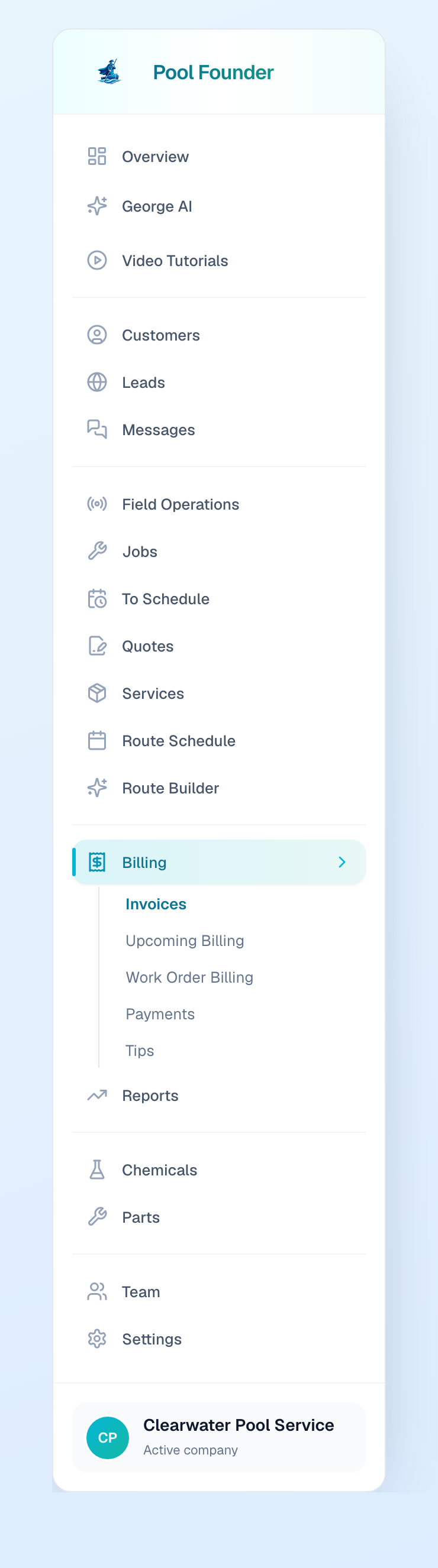
1. The sidebar
55 links down to about 20. Related pages are now tabs: Work Order Billing and Upcoming Billing (was Work Orders and Maintenance Billing) are under Billing, Service Plans and One-Time Services are one list under Services, Phone and Email are under Messages. Set-up pages (Branding, Roles, QuickBooks) are on one Settings page. George is the Ask George button in the top bar. Cmd+K still knows the old names.
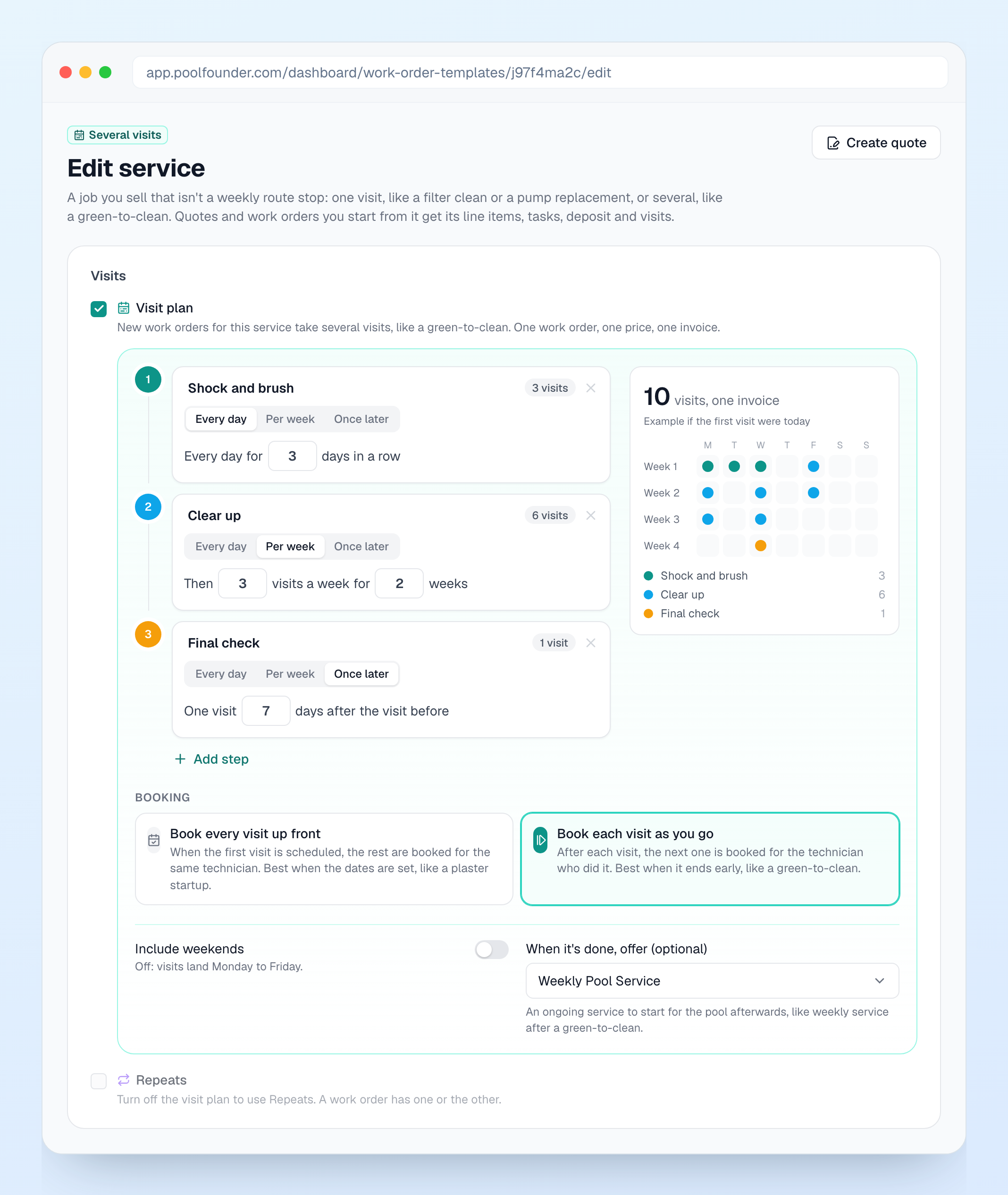
2. Services
The biggest change. Service Plans and One-Time Services were two lists for the same thing: what you sell. Now there is one Services page with everything on it, ongoing or one-time. Every new job, work order and quote starts with Start from a service, so the price, tasks and checklist fill in for you. A service can now have a visit plan for jobs that take several trips, like a green-to-clean (daily, then 3 a week, then a final check), all on one work order and one invoice. There are 19 starter services ready to go, just add your price.
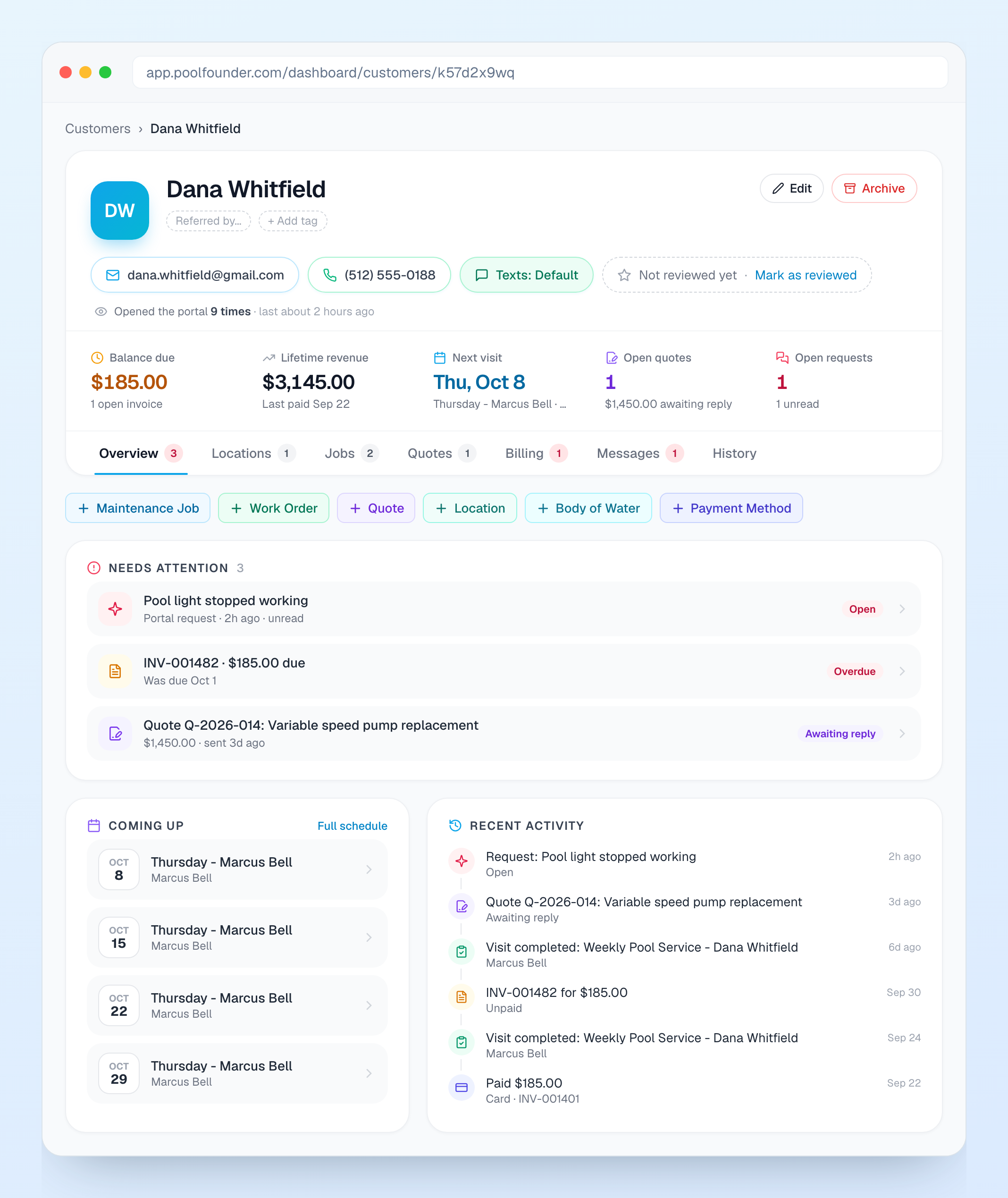
3. Customer page
Tiles up top (balance, next visit, open quotes, requests) and tabs below. Payment history, quotes and messages are on it now.
4. Job page
Same layout: tiles, then tabs for Overview, Tasks, Schedule, Visits, Billing and Insights. Work orders show a tracker from scheduled to paid. New: Change plan, and one-time discounts on the next invoice.
5. Jobs
Opens on a summary: pools with no job, work orders to schedule, jobs not on a route, finished work not invoiced. The full list is under View all jobs.
6. Invoices
Opens on a summary: failed payments, past due, unsent drafts, what you are owed and collected. The full list is under View all invoices. New A/R aging report.
7. Upcoming Billing
Was Maintenance Billing. Shows the next 60 days of recurring invoices, run by run, and flags any that will not go out.
8. Work Order Billing
Was Work Orders. Split by stage: Deposits due, Ready to bill, On a maintenance bill, Invoiced unpaid, Paid.
9. Payments
If you used your own Stripe account before, you can import the cards your customers already saved there.
10. Tasks
Tasks and task groups are one page now, with a library of common pool tasks and ready-made checklists.
11. To Schedule
Work orders can be put on hold Waiting on parts, and ASAP ones float to the top.
12. Route Schedule and route pages
Each tech's day shows an estimated finish ("Done ~4:40 PM", "30m over"). Lock stops so Optimize leaves them, and new stops go to the best spot.
13. Transfer stops
Three steps, with a grid showing when each tech would finish. Prefer the old page? Click Classic view.
14. Technician Alerts
Issue templates techs tap to report, follow-up checkboxes, a notes log, and a linked work order that closes the alert when it is done.
15. Customers
Request payment methods emails customers a link to put a card or bank account on file.
16. Reports
Profitability has a Quote Sales tab (quotes and close rate per person) and a chemical usage report by tech.
17. Settings
New Activity page showing every change made in your account. Built-in roles can be edited directly. Service reports can be reordered.
18. Messages
On-the-way texts can include an ETA and a live tracking link (off until you turn it on). The AI phone hangs up on robocalls.
19. Tech app
Same tabbed customer screen, techs can write quotes, log equipment work and restock chemicals, and George can make changes with approval cards.
20. New video walkthroughs
Every rebuilt page has a fresh narrated walkthrough. Click Watch next to the page title, or see them all at poolfounder.com/tutorials.
If anything is confusing: watch the video on that page (the Watch button next to the title), ask George (he has gotten a lot smarter over the last few weeks and can now find things and do them for you), or just reply to this email.