Why Is QuickBooks Integration the Most Requested Feature Among Pool Service Owners?
QuickBooks Online is used by 73% of small pool service companies for accounting, the average pool owner spends 5-10 hours per week on manual double-entry between their service software and QuickBooks, and sync errors between the two systems cause $2,400-$6,000 per year in misposted revenue and reconciliation labor. Integration is not a convenience feature — it is the difference between books that close in 2 hours and books that take 2 days every month.
This guide evaluates QuickBooks integration depth across every major pool service platform, explains what data should sync and in which direction, and provides a framework for diagnosing the sync errors and duplicate records that plague most pool-to-QuickBooks connections. Not all QuickBooks integrations are equal — the gap between a one-way invoice push and a real-time two-way sync with payment matching changes how much manual accounting work your business requires.
5-10 hrs/week
Time pool owners spend on manual data entry between service software and QuickBooks
Source: Intuit Small Business Survey 2025
What Data Should Pool Service Software Sync With QuickBooks?
Invoices, payments, and customer records are the three data types that must sync automatically between pool service software and QuickBooks — missing any one creates a reconciliation gap that compounds monthly, with invoice sync alone eliminating 60-70% of manual accounting work while payment sync eliminates the remaining 25-30%.
Which Data Types Flow Between Pool Software and QuickBooks?
A complete integration syncs six data types — customers, invoices, payments, credits, products/services, and tax rates — with each type requiring specific field mapping to land in the correct QuickBooks accounts and categories without creating duplicates or misclassified transactions.
| Data Type | Sync Direction | QuickBooks Destination | Impact of Missing Sync |
|---|---|---|---|
| Customers | Pool software → QBO (and updates back) | Customers list | Manual customer creation in both systems; name mismatches cause duplicate records |
| Invoices | Pool software → QBO | Invoices / Sales receipts | 5-10 hours/week manual invoice re-entry; revenue recognition delays |
| Payments | Pool software → QBO | Payment against invoice | Open invoices in QBO despite being paid; AR reports unreliable |
| Credits / refunds | Pool software → QBO | Credit memos | Overstated revenue; incorrect customer balances |
| Products / services | Pool software → QBO | Products and Services list | Line items mapped to wrong income accounts; category-level P&L inaccurate |
| Tax rates | QBO → Pool software | Tax settings | Incorrect tax collection; compliance risk |
What Is the Difference Between One-Way and Two-Way Sync?
One-way sync pushes data from pool software to QuickBooks only — changes made in QuickBooks (like manual payment recording or customer address updates) never flow back to the pool software. Two-way sync ensures both systems stay aligned regardless of where changes originate, eliminating the "which system is correct?" confusion that causes 80% of reconciliation errors in pool businesses.
| Sync Type | How It Works | Manual Work Required | Risk Level |
|---|---|---|---|
| One-way push | Pool software sends invoices/payments to QBO; QBO changes are ignored | Medium — must update pool software if anything changes in QBO | Medium — QBO becomes out of sync if payments are recorded there first |
| Two-way sync | Changes in either system propagate to the other automatically | Minimal — only handle sync conflicts and edge cases | Low — both systems always show the same data |
| Manual export/import | CSV export from pool software, manual import into QBO | High — 3-8 hours per week depending on volume | High — typos, missed records, formatting errors |
Two-way sync is essential if your bookkeeper or accountant makes adjustments directly in QuickBooks. If you record a partial payment, apply a credit, or update a customer address in QBO, one-way sync will not reflect those changes in your pool software — creating two different versions of the truth that diverge further every month.
How Does QuickBooks Integration Compare Across Pool Service Platforms?
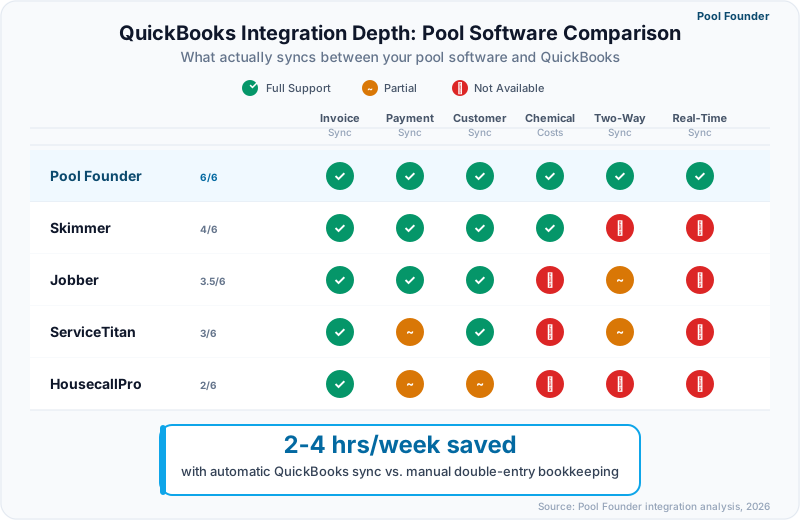
Pool Founder and Jobber offer the deepest QuickBooks integrations with real-time two-way sync across invoices, payments, and customers, while Skimmer offers a one-way sync that sends invoices, payments, and customers to QuickBooks but never pulls QBO changes back, and ServiceTitan requires its own proprietary accounting module — making the choice of pool software a direct determinant of your accounting workflow complexity.
| Integration Feature | Pool Founder | Skimmer | Jobber | ServiceTitan | HousecallPro |
|---|---|---|---|---|---|
| Sync type | Two-way real-time | One-way push only | Two-way sync | Two-way (with proprietary layer) | Two-way sync (Essentials plan and up) |
| Invoice sync | Yes — automatic on creation | Yes — push to QBO | Yes — automatic | Yes — via accounting module | Yes — automatic |
| Payment sync | Yes — matches to QBO invoice | Yes — synced when recorded in Skimmer | Yes — auto-matched | Yes — via accounting module | Yes — auto-matched |
| Customer sync | Yes — bidirectional with merge detection | One-way — Skimmer to QBO only | Yes — bidirectional | Yes — bidirectional | Yes — bidirectional |
| Credit/refund sync | Yes — credit memos created automatically | No | Yes — credit notes synced | Yes | Partial — manual credit sync |
| Product/service mapping | Yes — maps line items to QBO income accounts | No — generic line items | Yes — configurable mapping | Yes — detailed mapping | Yes — basic mapping |
| Duplicate detection | Yes — fuzzy matching on name, email, phone | Yes — prevents duplicates by syncing new invoices only | Yes — matching by name and email | Yes — matching by name | Partial — basic matching |
| Sync error handling | Yes — error dashboard with resolution steps | Limited — email notification only | Yes — sync status page | Yes — detailed error logs | Partial — basic error alerts |
| Chart of accounts mapping | Yes — map services to specific income accounts | No — all revenue to one account | Yes — configurable | Yes — detailed | Yes — basic |
| QuickBooks Desktop support | QBO only (Desktop via third-party connector) | QBO only | QBO only | QBO and Desktop | QBO only |
Why Does Skimmer Fall Short on QuickBooks Integration?
Skimmer syncs customers, invoices, payments, and product costs to QuickBooks — payments post as soon as they are recorded — but the sync is strictly one-way. Adjustments made on the QuickBooks side (manual payments, credits, customer address changes) never flow back to Skimmer, so any account your bookkeeper touches directly in QBO drifts out of alignment with Skimmer and has to be reconciled by hand at month-end.
How Does ServiceTitan Handle QuickBooks Differently?
ServiceTitan routes all financial data through its proprietary accounting module before syncing to QuickBooks, creating a three-system workflow (field operations → ServiceTitan accounting → QuickBooks) instead of the two-system direct sync that Pool Founder, Jobber, and HousecallPro provide. This approach gives ServiceTitan tighter control over financial data but adds implementation complexity, training overhead, and a cost users report at $245-$500 per technician per month (ServiceTitan does not publish pricing) that includes features most pool companies under 10 trucks do not need.
What Are the Most Common QuickBooks Sync Errors and How Do You Fix Them?
Duplicate customer records, unmapped income accounts, and payment-to-invoice matching failures are the three sync errors responsible for 85% of QuickBooks integration problems in pool service companies — each has a specific cause and a preventable fix that eliminates hours of manual reconciliation.
How Do Duplicate Customer Records Get Created?
Duplicate customers are created when the pool software and QuickBooks use different name formats ("John Smith" vs. "Smith, John"), when a customer exists in QBO before the initial sync runs, or when a sync disconnection causes re-creation of previously matched records. Preventing duplicates requires running a deduplication pass before enabling sync and choosing a platform with fuzzy matching that catches near-duplicates based on email, phone, and address.
| Sync Error | Root Cause | Prevention | Fix |
|---|---|---|---|
| Duplicate customers | Name format mismatch or pre-existing QBO records | Deduplicate QBO before sync; use platform with fuzzy matching | Merge duplicates in QBO; map surviving record in pool software |
| Unmapped income account | New service type created in pool software without QBO account assignment | Map all service types to QBO income accounts during initial setup | Assign the unmapped service to the correct QBO account; re-sync affected invoices |
| Payment not matching invoice | Invoice was edited after sync or payment was recorded in QBO first | Record all payments through pool software; avoid editing synced QBO invoices | Void the unmatched QBO payment; let pool software re-sync the correct payment |
| Tax rate mismatch | Tax rate updated in QBO but not pulled into pool software | Use QBO as tax rate source of truth; verify rates quarterly | Update pool software tax settings to match QBO; re-generate affected invoices |
| Sync disconnection | OAuth token expired or QBO password changed | Re-authorize integration immediately when notified; set calendar reminder | Re-connect integration; run catch-up sync for missed period |
The number one rule for maintaining a clean QuickBooks sync: never edit invoices or record payments directly in QuickBooks for transactions that originate in your pool software. All financial activity should flow from pool software to QuickBooks, not the other way around. The only exception is journal entries and adjustments that your accountant makes for year-end or tax purposes.
How Do You Audit Your QuickBooks Sync for Accuracy?
A monthly 15-minute sync audit comparing three numbers — total invoiced in pool software vs. QBO, total payments received in pool software vs. QBO, and customer count in pool software vs. QBO — catches 95% of sync drift before it compounds into a reconciliation project. Run this audit on the 1st of every month and investigate any variance over 1%.
- 1Compare total invoices created last month in pool software vs. total invoices in QBO for the same period. They should match exactly.
- 2Compare total payments received in pool software vs. total payments posted in QBO. Variance indicates unmatched payments or missed sync.
- 3Compare active customer count in pool software vs. QBO. Growing discrepancy means duplicate creation or deletion sync failures.
- 4Check the sync error log or dashboard in your pool software for any failed transactions from the past 30 days.
- 5Verify that revenue is landing in the correct QBO income accounts by checking the Profit & Loss by product/service line.
How Should Pool Companies Set Up QuickBooks Integration for the First Time?
Clean up QuickBooks customer records before connecting, map all pool service types to specific QBO income accounts, and run a test sync with 5-10 customers before enabling full synchronization — this three-step approach prevents the duplicate explosion and account misclassification that derail 40% of first-time QuickBooks integrations.
What Pre-Integration Cleanup Should You Do in QuickBooks?
Merge duplicate customer records, standardize customer name formats (First Last, not Last, First), verify that your chart of accounts has distinct income accounts for maintenance, repairs, and chemical sales, and archive inactive customers — spending 1-2 hours on cleanup before connecting prevents 10-20 hours of post-sync deduplication and reclassification.
- Merge duplicate customers: Search QBO for customers with similar names, matching emails, or matching phone numbers. Merge before sync to prevent the pool software from creating new records that match old duplicates.
- Standardize name format: Decide on "First Last" or "Last, First" and apply consistently. Most pool software syncs using "First Last" format.
- Set up income accounts: Create separate QBO income accounts for recurring pool maintenance, one-time repairs, chemical sales, and equipment installation. This enables category-level profitability reporting.
- Archive inactive customers: Mark customers you no longer service as inactive in QBO so they are excluded from the initial sync match.
- Verify tax settings: Confirm that QBO tax rates match your state and local requirements. Tax rate mismatches between systems cause invoicing errors that compound over time.
What Does a Step-by-Step QuickBooks Setup Look Like in Pool Founder?
Pool Founder walks through QuickBooks connection in four steps — OAuth authorization, customer matching, service-to-account mapping, and test sync — with a dedicated sync dashboard that shows connection status, recent sync activity, and any errors requiring attention. The entire initial setup takes 15-30 minutes for a typical pool company.
- 1Connect QuickBooks: Click "Connect to QuickBooks" in Pool Founder settings, authorize via OAuth, and select your QBO company file. The connection uses bank-level encryption and never stores your QBO password.
- 2Match existing customers: Pool Founder scans both systems and presents potential matches based on name, email, and phone. Review matches, merge duplicates, and confirm the mapping before proceeding.
- 3Map services to income accounts: Assign each Pool Founder service type (weekly maintenance, filter clean, equipment repair, etc.) to the corresponding QBO income account. This ensures revenue lands in the right P&L category.
- 4Run test sync: Sync 5-10 customers with recent invoices and payments. Verify in QBO that invoices, payments, and customer details match exactly. Resolve any discrepancies before enabling full sync.
- 5Enable full sync: Activate real-time sync for all customers. New invoices, payments, credits, and customer changes will sync automatically within minutes of creation.
Pool Founder includes a sync error dashboard that flags failed transactions, duplicate detection conflicts, and unmapped service types in real time. Most QuickBooks integration issues surface in the first 48 hours after connection — checking the error dashboard daily for the first week catches problems before they affect month-end reconciliation.
Ready to streamline your pool service business?
Pool Founder gives you route optimization, automated invoicing, chemical tracking, and everything else you need to run a more profitable pool business.
Frequently Asked Questions
What is the best QuickBooks pool service software?
Pool Founder is the best pool service software with QuickBooks integration in 2026. It offers real-time two-way sync across invoices, payments, customers, and credits with automatic duplicate detection and an error resolution dashboard. Jobber is a close second with similar sync depth but lacks pool-specific features like chemical tracking and LSI calculations. Skimmer offers a one-way sync that sends customers, invoices, and payments to QuickBooks, but changes made in QuickBooks never flow back to Skimmer. For pool companies that rely on QuickBooks Online for accounting, the quality of the QuickBooks integration should be a primary factor in choosing service software.
Is there cloud-based pool service software that integrates with accounting software?
Yes. Pool Founder, Jobber, and Housecall Pro (on its Essentials plan and up) are all cloud-based service platforms that integrate directly with QuickBooks Online for two-way accounting sync. Pool Founder offers the deepest integration for pool companies specifically, syncing invoices, payments, credits, and customer records bidirectionally with QuickBooks Online in real time. The integration eliminates manual double entry between your field service platform and your accounting system. All three platforms are fully cloud-based with no software installation required, accessible from any browser or mobile device.
Does pool service software work with QuickBooks Desktop?
Most pool service platforms (Pool Founder, Skimmer, Jobber, HousecallPro) integrate with QuickBooks Online only. ServiceTitan supports both QBO and QuickBooks Desktop. If you use Desktop, consider migrating to QBO (Intuit offers migration tools) or use a third-party connector like Sync with Connex or DBSync to bridge your pool software with QuickBooks Desktop.
How long does QuickBooks integration setup take?
Initial QuickBooks integration takes 15-30 minutes for the technical connection and another 1-2 hours for customer matching and account mapping. Pool Founder automates most of the matching process with fuzzy duplicate detection. The total setup, including pre-integration cleanup in QBO, typically takes half a day for companies with under 200 customers.
Will my existing QuickBooks data be overwritten by pool software sync?
No. Two-way sync platforms like Pool Founder add new records and update existing matches but do not delete or overwrite historical QuickBooks data. Invoices and payments created before the integration remain untouched. Only new transactions created after sync is enabled will flow between systems. Always back up your QBO company file before enabling any new integration.
How do I prevent duplicate customers when syncing with QuickBooks?
Clean up duplicates in QuickBooks before enabling sync, standardize name formats across both systems, and choose a platform with fuzzy matching (like Pool Founder or Jobber) that catches near-duplicates based on email, phone, and address — not just exact name matches. After initial sync, spot-check the first 20-30 matched customers to verify accuracy before processing invoices.
What happens if my QuickBooks sync disconnects?
Sync disconnections (usually caused by expired OAuth tokens or QBO password changes) pause data flow between systems but do not lose data. Transactions created during the disconnection queue up and sync once you re-authorize the connection. Pool Founder alerts you immediately when a disconnection occurs and runs a catch-up sync automatically upon re-connection.
Can I sync chemical surcharges and one-time repairs to QuickBooks?
Yes, if your pool software supports line-item mapping to QuickBooks income accounts. Pool Founder maps each service type (recurring maintenance, chemical surcharges, repairs, equipment) to a specific QBO income account, so your P&L report shows revenue by category. Skimmer pushes all revenue as a single line item, making category-level reporting impossible without manual reclassification.
Do I still need a bookkeeper if my pool software syncs with QuickBooks?
QuickBooks sync eliminates 70-80% of routine data entry but does not replace a bookkeeper for bank reconciliation, payroll processing, tax preparation, year-end journal entries, and financial analysis. Most pool companies under 100 accounts can reduce bookkeeping time to 2-4 hours per month with a good sync. Companies over 100 accounts typically still benefit from a part-time bookkeeper at $200-$500/month.
Which pool service software has the best QuickBooks integration?
Pool Founder and Jobber offer the deepest QuickBooks Online integrations with real-time two-way sync, automatic payment matching, duplicate detection, and configurable income account mapping. Skimmer syncs one-way — customers, invoices, and payments flow from Skimmer to QuickBooks, but QBO-side changes never flow back. ServiceTitan has comprehensive sync but routes data through a proprietary accounting layer that adds complexity and cost. For pool companies that prioritize seamless QuickBooks workflow, Pool Founder provides the best combination of sync depth and pool-specific features.