Set Up Your Business Phone (1:35 video). Open on its own page
Two ways to get your calls answered
Phone setup lives in the sidebar under Messages → Phone. Before you have a line, the page is a setup pitch ("Never miss another customer call") with two side-by-side cards — "Keep my number" (badge: Included) and "Get a business line" (badge: $25/mo; "Bring the number you already have, or get a new one") — each listing what's good and what isn't about that path. The fine print under the cards sums it up: a business line is $25/mo added to your Pool Founder subscription, prorated from today, and call answering itself is included either way. The AI assistant that answers your calls is never what the $25/mo pays for.
On Quo (formerly OpenPhone) and want to stay there? Pick the third card, "Keep using Quo" (badge: Included), and connect Quo: Pool Founder texts from your Quo number while calls keep ringing in Quo.
Already have a business number (on GoHighLevel, Quo, Google Voice, RingCentral, a landline or another carrier)? You can bring it over (a number port): pick "Get a business line", not "Keep my number" (that one only forwards your missed calls and leaves the number with your carrier). After the texting registration and the $25/mo confirmation, the number step asks "Which number will customers use?" and you choose "Bring my current number". See "Bring your existing number" below.
Both paths require an active paid subscription. Trial companies see "Call forwarding comes with a plan" and a "Choose a plan" button pointing to Billing — pick a plan first, then come back.
Compare the two paths
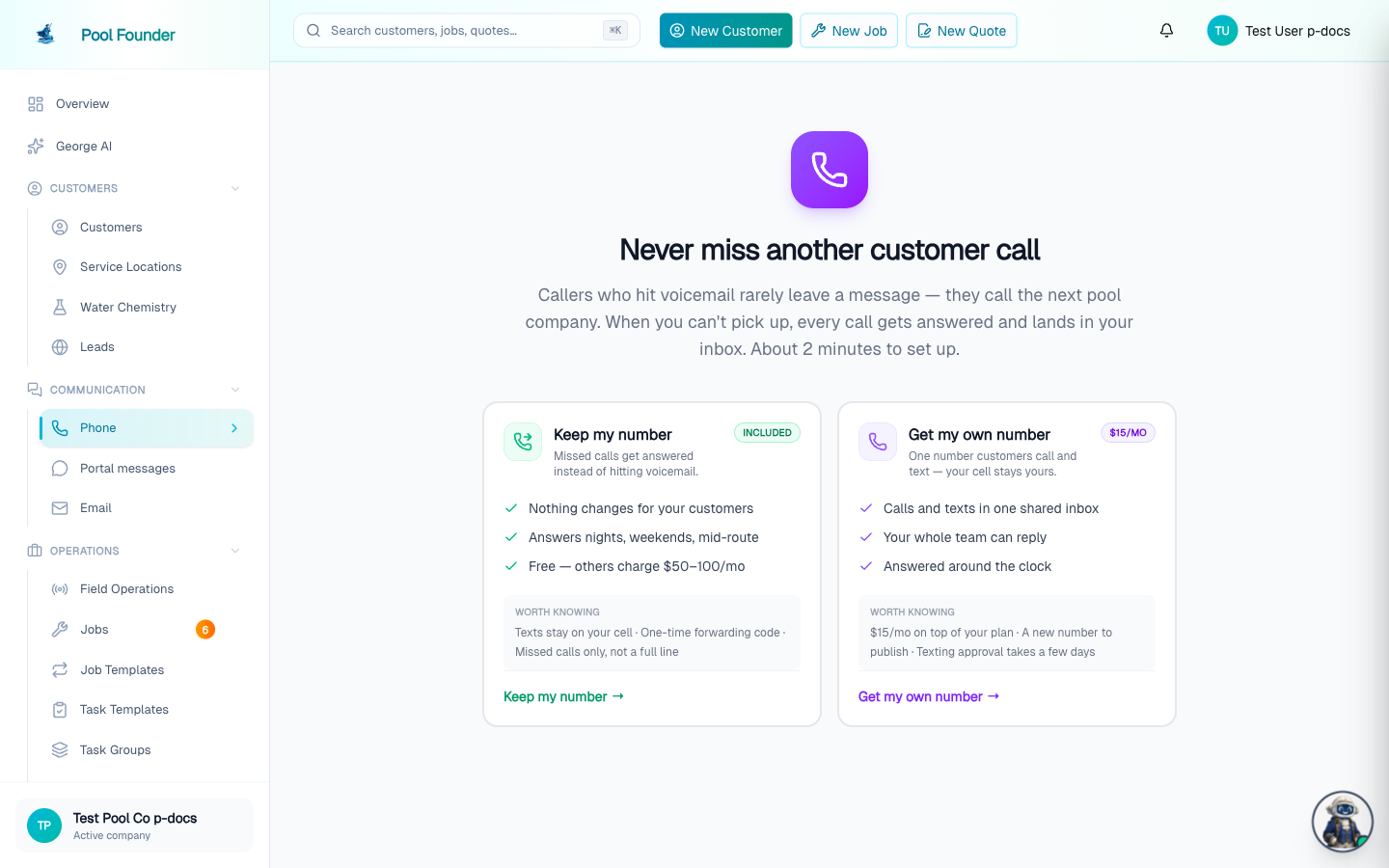
| Keep my number (Included) | Get a business line ($25/mo) | |
|---|---|---|
| Price | Included with your plan | $25/mo added to your existing subscription, prorated from today |
| How it works | You keep your published number — a private line is set up behind the scenes to catch the calls you forward to it | A real business line customers call and text directly, answered into the shared inbox |
| What's good | Your published number never changes, and your calls still get answered | The whole team can reply from one inbox, and work stops chasing your personal cell |
| Trade-offs | Texts still go to your personal phone, and you dial a forwarding code on your cell once | The $25/mo, either a new number to put on the truck, website, and invoices or a number transfer (a week or two, your old carrier keeps it working meanwhile), and texting needs carrier registration first (usually a few days) |
| Texting | Not available — texting can only run on a line Pool Founder provides | Unlocked once the free carrier registration is approved |
AI call answering is included on both paths and on every plan. For everything about texting once you have a line, see Texting and the Phone inbox.
The free path: keep your number
- 1On the Phone page, click "Keep my number". This opens the "Set up your phone" screen with a "Set up my forwarding line" button.
- 2A private line is created behind the scenes to catch forwarded calls — your published number never changes, and texting stays on your own phone. The line's area code defaults to your own cell number's area code when numbers are available there.
- 3Complete the guided answering setup (the "Set up call answering" checklist step) — see the AI phone assistant.
- 4Dial the forwarding code for your carrier once from your cell (covered below), and calls you miss start reaching the assistant.
The paid path: add a business line
Clicking "Get a business line" starts a short flow, and nothing is charged until you explicitly confirm:
- 1"Register your business for texting" comes first — the carrier (10DLC) registration form: legal business name (exactly as it appears on IRS records), business type, EIN, business address, website (pre-filled with your custom email domain when you have one; with no website, enter your Google Business or Facebook page instead, because carriers reject registrations they cannot match to an online presence), and a contact email and phone. The Contact phone and Contact email are just where the carriers can reach you about the registration; your own cell is fine. It is not the number customers will call, and not a number you plan to bring over (that comes on the number step). Registration is free — Pool Founder covers the carrier fees — and filing it is instant; the carriers review in the background while setup continues.
- 2If you pick "Sole proprietor (no EIN)" on this step, the form explains that a business line needs an EIN and offers a "Use free call forwarding instead" button that switches you to the free path — deliberately before any billing, so nobody pays for a line they can't register.
- 3Next is the "Add your business line" confirmation page: the $25/mo price badge, what's included, and fine print naming the exact card on file it will bill ("prorated from today") plus the one-way caveat. Looking at this page is free — a "Back" button returns to the registration step.
- 4Nothing is charged and no number is provisioned until you press "Add to my subscription — $25/mo". If your card is declined, you're left exactly where you were, on the confirmation page, with nothing charged or changed.
- 5After confirming, the number step asks "Which number will customers use?": "Bring my current number" (see "Bring your existing number" below) or "Get a new number".
- 6For a new number, pick a preferred area code (optional) and click "Get my number". Leave the area code blank and Pool Founder defaults to your own cell number's area code when numbers are available there, so the line looks local. The number works for calls immediately. Texting unlocks by itself when the carriers approve your registration — usually a few days, with a live progress card under Phone → Settings → Texts and a Live / Pending carrier approval / Registration needs attention / Not registered chip in the Phone section header. Registration needs attention means nothing is with the carriers: the filing was turned back or the card was declined, and the card under Phone → Settings → Texts says what to fix and lets you retry for free.
Upgrade from forwarding later (one-way)
A company on the forwarding path can upgrade any time: the "Make this your business number" card under Messages → Phone → Settings → Phone line — same $25/mo, prorated, and you keep the same number. The button asks twice ("Upgrade — $25/mo", then "Click again — $25/mo") before anything is billed. The upgrade is one-way: a business number can never be switched back to forwarding, because by then the number may already be published on your truck or website, or registered for texting.
After upgrading, turn OFF the forwarding code you dialed on your cell — the number is now dialed directly, so leaving forwarding on points your cell back at your own business line and can loop the "ring first" bridge instead of ringing you. A "Turn off call forwarding" card appears under Phone → Settings → Phone line, in the Advanced group (and on the mobile Account screen), with the turn-off code for your carrier; it only shows for companies that had forwarding set up before upgrading.
Companies that had a business number before the $25/mo add-on existed are grandfathered and are not charged.
Bring your existing number
A business-line company can move a number it already has into Pool Founder (a number port), so customers keep calling and texting the number they know. There is no transfer fee. It lands on your business line, so you need the $25/mo line first: pick "Get a business line" on the Phone page, and after the registration and the $25/mo confirmation the number step asks "Which number will customers use?": click "Bring my current number". That opens the transfer form. No other number is set up in the meantime: your current carrier keeps the number working until the transfer finishes, and then it becomes your Pool Founder line. While it moves, the setup page shows "Your number is on its way" with a "View transfer" button, plus a "Get a temporary number now" link if you want calls answered by Pool Founder before it lands (that number then stays on your account as a second line). Have the account number and transfer PIN from your current provider ready before you start; if you do not have them yet, you can leave the form and come back from the same setup page. Companies that already have a line start it from Messages → Phone → Settings → Phone line, on the "Bring your existing number" card ("Bring my number"), or from ⌘K → "Bring your number". Only roles with the "Manage phone & AI front desk" permission can do it.
- 1Your number: enter it and click "Check number". Pool Founder checks it can move and shows the carrier it's with today. A cell phone number gets a warning: once it moves, the phone it's on stops getting calls and texts on it, so if it's your personal cell, keep it and use call forwarding instead. You tick "I understand. Move it anyway." to continue.
- 2Account details: the account holder name, the authorized person, the service address, the account number and the transfer PIN, all exactly as your current carrier has them (your Customer Service Record, or CSR), plus a recent bill or a screenshot of your online account page. A cell number always needs its transfer PIN. Tick "Other numbers on this account stay with…" if you are only moving this one number. "Where do I find these?" lists where Verizon, AT&T and T-Mobile keep them.
- 3Sign: review the summary, draw your signature, type your full name and click "Sign and submit transfer". That signs the authorization (Letter of Authorization) the carriers require.
Coming from GoHighLevel, Quo, Google Voice or another business phone app? Ask their support to port the number out: they give you the account number, the PIN, and the account name and address on file (the CSR). You never contact Pool Founder's carrier (Telnyx) yourself: the form files the transfer with them. Don't cancel your old service until the transfer finishes, or the number can be lost.
After you submit, the same page (Phone → Settings → Phone line → "View transfer") shows where it stands: Transfer submitted, Carrier sets the transfer date, Calls move to Pool Founder, Texting moves. Pool Founder emails you when the carrier sets the date, if it pushes back, and when the number lands. Most transfers take a few business days to two weeks.
- If the carrier pushes back ("Your transfer needs attention"), the page lists what didn't match. If it's something you entered (account number, PIN, name, address), click "Fix and resubmit", correct it, sign again and click "Sign and resubmit". Leave the account number blank to keep the one you sent. Problems on the carrier's side (no response, a lapsed date) are Pool Founder's to chase, and the page says so.
- When it lands, the number becomes your main business line and calls to it are answered the way you set up. If you had a Pool Founder line while it moved (a temporary number, or the line you had before), that line stays on your account as "Previous line", so replies to anything you sent from it still reach your inbox. Texting usually follows within minutes. If the old carrier holds on to it, new texts keep going out from the previous line until they release it, then switch over by themselves. If the ported number is your first line, set up call answering then if you have not yet (the email says so).
- Cancel with "Cancel transfer" (click twice) on the transfer page while it hasn't landed. Close to the transfer date only support can stop it.
- One transfer at a time, and the self-serve transfer is for your main number. To bring another number after that (a second line), ask George to contact support.
- Forwarding-path companies upgrade to a business line first (the "Make this your business number" card), then bring the number over.
Forward your calls: carrier dial codes
On the forwarding path, the codes live under Messages → Phone → Settings → Phone line, on the Call forwarding card ("The one-time carrier code that points the number your customers already know at your assistant") — the assistant's number with tap-to-copy dial codes per carrier: Verizon *71/*72, AT&T and T-Mobile **61*.../**21*.... Each carrier offers three rows: "When you don’t answer", "All calls", and "Turn off". Pool Founder recommends the "When you don’t answer" variant so your phone rings first and the assistant only catches what you miss. The turn-off code is *73 on Verizon, ##004# on AT&T, and ##002# on T-Mobile.
- The card flips green automatically the moment a forwarded call actually reaches the assistant — that's how forwarding verifies itself. You can also click "Mark done" to record it manually.
- You can skip forwarding entirely and publish the assistant's number directly as your office line.
Troubleshooting: calls still hitting voicemail
- iPhone Live Voicemail must be OFF (Settings → Phone → Live Voicemail) — it answers on the device before conditional forwarding can trigger.
- A busy signal when dialing the code means it didn't register — listen for the confirmation tone when you dial it.
- If carrier voicemail answers before the forward timer, extend the ring time with your carrier, or verify forwarding works using the "all calls" / "every call" code first.
- Budget carriers and MVNOs (Mint, Visible) usually need forwarding set in their own app instead of dial codes.
Forward from your phone: the mobile "Forward Your Calls" screen
The technician mobile app has the same setup on the Account screen → "Forward Your Calls" (the Account tab in the bottom bar, or the person icon in the top header once the Comms tab is live). The row only appears for roles with the "Manage phone & AI front desk" permission — owners and admins by default; plain technicians never see it. It is also hidden for companies on the business-number path: that line is dialed directly, so there is nothing to forward — forwarding is only for owners who keep their own published number.
- If the company has no number yet, the screen says "You don't have a phone number yet" and its only button opens poolfounder.com — numbers can only be provisioned on the web, never from the app.
- With a number, the top card shows the assistant's number, then a carrier picker: Verizon / AT&T / T-Mobile / Other ("Other" uses the AT&T-style codes, which nearly every non-Verizon US carrier honors). Your choice is remembered on that phone.
- Picking a carrier reveals three options, each with an explanation and a button that opens your phone's dialer with the code already filled in — you just press call: "When you don't answer" (recommended — your phone rings first), "Every call" (your phone never rings), and "Turn forwarding off". The codes match the web card exactly (Verizon *71/*72/*73; GSM **61*.../**21*.../##004# or ##002#).
- If call answering is switched off, an amber warning appears at the top — forwarded calls are refused until "Answer phone calls" is turned on from the web dashboard (that switch is not on mobile).
- The screen carries the same voicemail troubleshooting and works offline — the codes are cached, and dialing them is a phone-network operation, not an internet one.
- It only dials — it records nothing on your account, so the web checklist still verifies forwarding on its own when a real forwarded call reaches the assistant.
More than one number (for example, a billing line)
A business-line company can have additional numbers alongside its main line, such as a separate billing line. Additional numbers are added by Pool Founder support only: there is no button to buy or add one yourself. Email support@poolfounder.com and tell us the number and what to call it. Once added, each number gets its own settings page: Phone → Settings shows a Your numbers list under the sections on the left (the main line first, then each additional number with its name and number), and Phone → Settings → Phone line lists them too, each with a Settings button. A number's page shows its name with a Rename link (owners and administrators can rename any number, the main line included; it is called "Main line" until you name it), the number with a Calls and texts or Calls only tag, When someone calls [name] (the steps a call to that number goes through), Ring a phone first, Ring in the browser (who it rings in Pool Founder) and Texts. If you have one number there is no Your numbers list, and the Phone line card is the usual "Your number".
- What each number can set, and what is shared. Per number: its name, whose cell it rings first, and who it rings in the browser. Shared by all numbers: the assistant (voice, greeting, what it knows), text auto-replies, saved replies and notifications. An additional number starts out handled exactly like the main line (ring-first, the assistant and the missed-call text) until you change it on its page. There are no separate business hours or greetings per number yet.
- Make a number someone's direct line. On an additional number's page, the Ring a phone first menu picks "Same as [main line's name]" (the default) or a team member's cell. Pick a person and calls to that number ring their cell first, with the same "Press 1 to answer" screen as ring-first; the screen names the number ("Billing line call for …") so they know which line is ringing. If they don't press 1, your assistant answers, and it knows which number was called. Only owners and administrators can change it.
- Their calls show that number. When that person calls a customer from Pool Founder (the call button in the technician app, or the web dialer), the customer sees their direct line instead of the main line. Everyone else's calls still show the main line.
- What a direct line needs. The person must have a cell number on their profile on the Employees page (only people with one are listed), phone answering must be turned on (the assistant catches the calls they miss), and each person can have only one direct line. The main line can't be made a direct line. There are no separate hours per number yet: a direct line rings its person at any hour, and they can simply not press 1.
- The assistant knows which number was called. On an additional number it leads with that number's purpose (on a billing line: invoices, payments and account balance) but still helps with anything.
- One inbox. Calls and texts to an additional number land in the same Phone inbox, with a small tag showing the number's name (for example "Billing line"). Replies in a text conversation go out from the number the customer texted.
- Not yet possible: sending invoices or reminders from an additional number, choosing which number to use when you start a new text, or choosing a number per call. Those use the main line (calls use the caller's direct line if they have one). Calls placed from your own phone's dialer, outside Pool Founder, show your own cell number.
The setup checklist
A "Finish setting up" banner sits at the top of the Phone inbox until everything is live, showing "N of M done"; click the line to expand the checklist, or the ✕ to hide it for this browser session. The steps are Get your phone number → Set up call answering → Forward your calls, and the forwarding step only exists on the forwarding path. "Set up call answering" only shows as done once answering is actually turned on, and "Forward your calls" completes on its own the moment a real forwarded call reaches the assistant — no manual verification needed; it links to Phone → Settings → Phone line, where the dial codes live. The banner shows to owners and administrators only, and disappears entirely once every step is done.
Frequently asked questions
Can I port my existing number to Pool Founder?
Yes, on the business-line path, with no transfer fee. Pick "Get a business line" on the Phone page (not "Keep my number"), then choose "Bring my current number" when the number step asks which number customers will use, or the "Bring your existing number" card under Messages → Phone → Settings → Phone line. You enter the number, the account details your current carrier has on file (account number, transfer PIN, account holder name and service address: your CSR), upload a recent bill and sign the authorization. Your current carrier keeps the number working while it moves (usually a few business days to two weeks); no stand-in number is set up unless you ask for one. Keep your old service active until the transfer finishes. If you'd rather not move it, the free call-forwarding path keeps your number where it is.
Which phone number goes in "Contact phone" on the texting registration?
Any number where the carriers can reach you about the registration, usually your own cell. It is not the number customers will call or text, and not the number you are porting: you choose that on the number step after registration ("Bring my current number").
Can I have more than one business number?
Yes, but only through Pool Founder support: email support@poolfounder.com to add one (for example a billing line). Each number has its own settings page (Phone → Settings → Your numbers, on the left): its name, whose cell it rings first and who it rings in the browser. Make it someone's direct line there (Ring a phone first) and it rings that person's cell first, the assistant answers if they don't press 1, and their calls from Pool Founder show that number. Calls and texts land in the same inbox tagged with the number's name, and replies go out from the number the customer texted. New texts and invoice texts always go out from the main line.
Does the $25/mo pay for the AI answering?
No. Call answering is included on every plan and on both paths, including free forwarding. The $25/mo buys the business line itself — a number of your own that customers can call and text directly — and is what unlocks texting.
What happens if my card is declined on the confirmation page?
Nothing. You stay on the "Add your business line" confirmation page with nothing charged or changed. No number is provisioned until the payment goes through.
Can I give my business number back or delete it myself?
No — there is no "release this number" or "delete number" button anywhere in the product. Phone → Settings → Phone line lets you see your number, set up or turn off carrier forwarding, and upgrade forwarding to a business number; it never hands a number back. Email support@poolfounder.com if you need to give one up.
Can I switch a business line back to call forwarding?
No — upgrading to a business number is one-way, because the number may already be published on your truck or website, or registered for texting.