---
title: "Saved Replies: Canned Answers for Customer Texts"
description: "Save the answers you text over and over — pricing, service days, what to expect — and drop one into any text reply on the web or in the mobile app, with the customer's name already filled in."
canonical: https://www.poolfounder.com/help/saved-replies
source: https://www.poolfounder.com/help/saved-replies
---
# Saved replies
Source: https://www.poolfounder.com/help/saved-replies
> Save the answers you text over and over — pricing, service days, what to expect — and drop one into any text reply on the web or in the mobile app, with the customer's name already filled in.
_Saved Replies: Canned Answers for Customer Texts_
1. [Help Center](https://www.poolfounder.com/help)
3. [Phone, Texting & Email](https://www.poolfounder.com/help#communication)
5. Saved replies
Save the answers you text over and over — pricing, service days, what to expect — and drop one into any text reply on the web or in the mobile app, with the customer's name already filled in.
Updated September 24, 2026
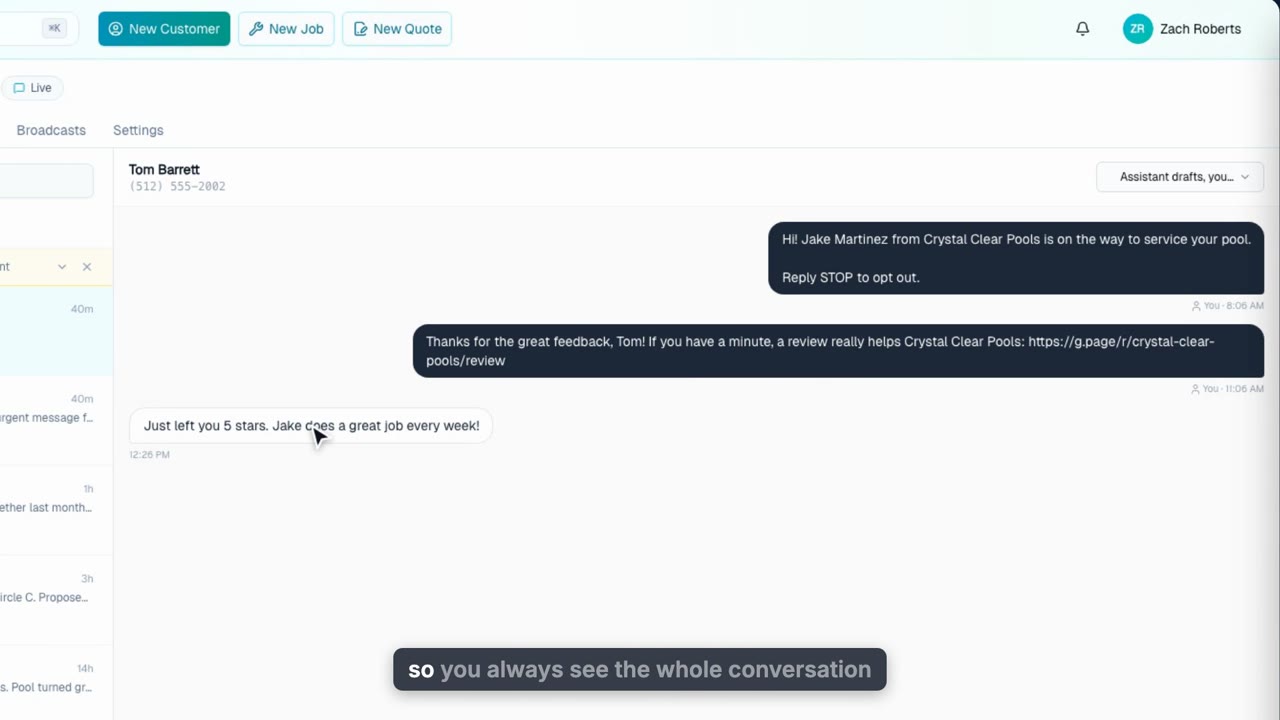
1:19
Texting and the Phone Inbox (1:19 video). [Open on its own page](https://www.poolfounder.com/tutorials/texting-inbox)
## The same six questions, answered once
Saved replies are canned text answers your whole team shares. In any text conversation in the Phone inbox, you pick one and it lands in the reply box with the customer's name, your company name and your own name filled in. You edit it if you like and press send yourself. **A saved reply never sends on its own.**
Saved replies work in text conversations on your business line (Messages → Phone → Inbox, and the mobile app's Comms tab). They are not offered in portal message threads, email, or text broadcasts, and they are separate from the wording of your **Automated texts**.
On this page
1. [Add and edit saved replies](#section-0)
2. [Variables](#section-1)
3. [Use a saved reply on the web](#section-2)
4. [Use a saved reply in the mobile app](#section-3)
5. [Who can use and manage them](#section-4)
## Add and edit saved replies
1. 1Go to **Messages → Phone → Settings** and click **Saved replies** in the section rail (or open /dashboard/comms/phone/settings?section=saved-replies). From a conversation, the **Manage saved replies** link at the bottom of the saved-replies list goes to the same place.
2. 2In the **Your saved replies** card, click **Add saved reply**.
3. 3Fill in **Name** (what you search for, e.g. "Pricing") and **Reply** (the text itself).
4. 4Use the **Insert:** chips to add variables at the cursor. A **Preview** shows the reply for a sample customer, Jamie Rivera, sent by Chris.
5. 5Click **Save reply**.
Each saved reply has buttons to move it up or down (the order is the order everyone sees in the picker), **Edit**, and **Delete**. Deleting asks first; texts already sent are not affected.
- Names can be up to 60 characters; replies up to 1,000 characters. A company can keep up to 100 saved replies.
- Saved replies belong to the company, not to one person. There are no personal (private) saved replies.
## Variables
- {firstName} — the customer's first name.
- {lastName} — the customer's last name.
- {companyName} — your company name.
- {techName} — the name of the person inserting the reply (the sender), not the customer's assigned technician.
For a texter who is not a customer yet, the name comes from their lead record when there is one. A variable with nothing to fill it with is left blank, never shown as {firstName} in the text, and the stray space before a comma is tidied up — so "Hi {firstName}, thanks for texting" becomes "Hi, thanks for texting". Any other word in curly braces is rejected when you save.
## Use a saved reply on the web
1. 1Open a text conversation in **Messages → Phone → Inbox**.
2. 2Click the **Saved replies** button (the speech-bubble icon next to the photo button, left of the reply box), or type / into an empty reply box.
3. 3Search by name or by any words in the reply, then click one.
4. 4The filled-in text lands in the reply box at your cursor (replacing the / if that is how you opened it). Edit it, then press send.
## Use a saved reply in the mobile app
In the mobile app, open a text conversation from the **Comms** tab and tap the **Saved replies** button (the quick-reply icon next to the photo button), or type / into an empty reply box. A **Saved replies** sheet opens with a search box; tap a reply to put it in the reply box, then edit and send. Saved replies can only be added or changed on the web.
## Who can use and manage them
- **Using** saved replies needs the same permission as replying to texts: **"Respond to inbox messages"**. Owners, Administrators and Office Managers have it by default.
- **Adding, editing, reordering and deleting** them needs **"Manage saved replies"** (Owners and Administrators by default; any role that has "Manage phone & AI front desk" has it too until an admin unchecks it), because the wording is shared by the whole team. Give it to an office role to let them maintain the replies without touching the rest of the phone settings; they manage them from Phone → Settings. Someone without it sees the saved replies in the picker but no Manage link. See [roles and permissions](https://www.poolfounder.com/help/roles-and-permissions).
## Frequently asked questions
### Can I save canned text replies?
Yes. Add them under **Messages → Phone → Settings → Saved replies**, then in any text conversation click the saved-replies button next to the reply box (or type / in an empty reply) to insert one. The customer's name fills in, and you edit and send it yourself.
### Does a saved reply send automatically?
No. Choosing a saved reply only puts the text in the reply box. Nothing goes out until you press send. For texts that send on their own, see [Automated texts](https://www.poolfounder.com/help/texting-and-the-phone-inbox).
### Can my technicians use saved replies on their phones?
Yes, anyone who can reply to texts in the mobile app gets the same saved replies in the conversation screen. With the "Manage saved replies" permission you can also add, edit, reorder and delete them in the app under Comms → Phone → Settings → Saved replies.
### Can I use saved replies in email or portal messages?
No. Saved replies are for text conversations only. They are not offered in portal message threads, email, or text broadcasts.
## Related articles
[
Phone, Texting & EmailTexting and the Phone inbox
](https://www.poolfounder.com/help/texting-and-the-phone-inbox)[
Phone, Texting & EmailThe AI phone assistant
](https://www.poolfounder.com/help/ai-phone-assistant)[
Phone, Texting & EmailText broadcasts
](https://www.poolfounder.com/help/text-broadcasts)[
Team & PermissionsRoles and permissions
](https://www.poolfounder.com/help/roles-and-permissions)
Still stuck? Email [support@poolfounder.com](mailto:support@poolfounder.com) or ask George from your dashboard — he can walk you through it.
## Make Monday easier than last Monday.
30-day free trial. No credit card required. Cancel anytime.
[Start free trial](https://www.poolfounder.com/signup) [Book a call with Anthony](https://www.poolfounder.com/book-a-call)