---
title: "Leads: Capture, Track, and Convert Prospects"
description: "Every prospective customer in one place — captured by your phone assistant, submitted through your website, or added by hand — with the calls, texts, and scheduling proposals tied to each one. Add Lead needs only one of a name, phone, email, or address (an address alone is enough, on the web and in the technician app); converting a lead into a customer still asks for a first name and a phone or email."
canonical: https://www.poolfounder.com/help/leads
source: https://www.poolfounder.com/help/leads
---
# Leads
Source: https://www.poolfounder.com/help/leads
> Every prospective customer in one place — captured by your phone assistant, submitted through your website, or added by hand — with the calls, texts, and scheduling proposals tied to each one. Add Lead needs only one of a name, phone, email, or address (an address alone is enough, on the web and in the technician app); converting a lead into a customer still asks for a first name and a phone or email.
_Leads: Capture, Track, and Convert Prospects_
1. [Help Center](https://www.poolfounder.com/help)
3. [Customers & Leads](https://www.poolfounder.com/help#customers)
5. Leads
Every prospective customer in one place — captured by your phone assistant, submitted through your website, or added by hand — with the calls, texts, and scheduling proposals tied to each one. Add Lead needs only one of a name, phone, email, or address (an address alone is enough, on the web and in the technician app); converting a lead into a customer still asks for a first name and a phone or email.
Updated November 4, 2026
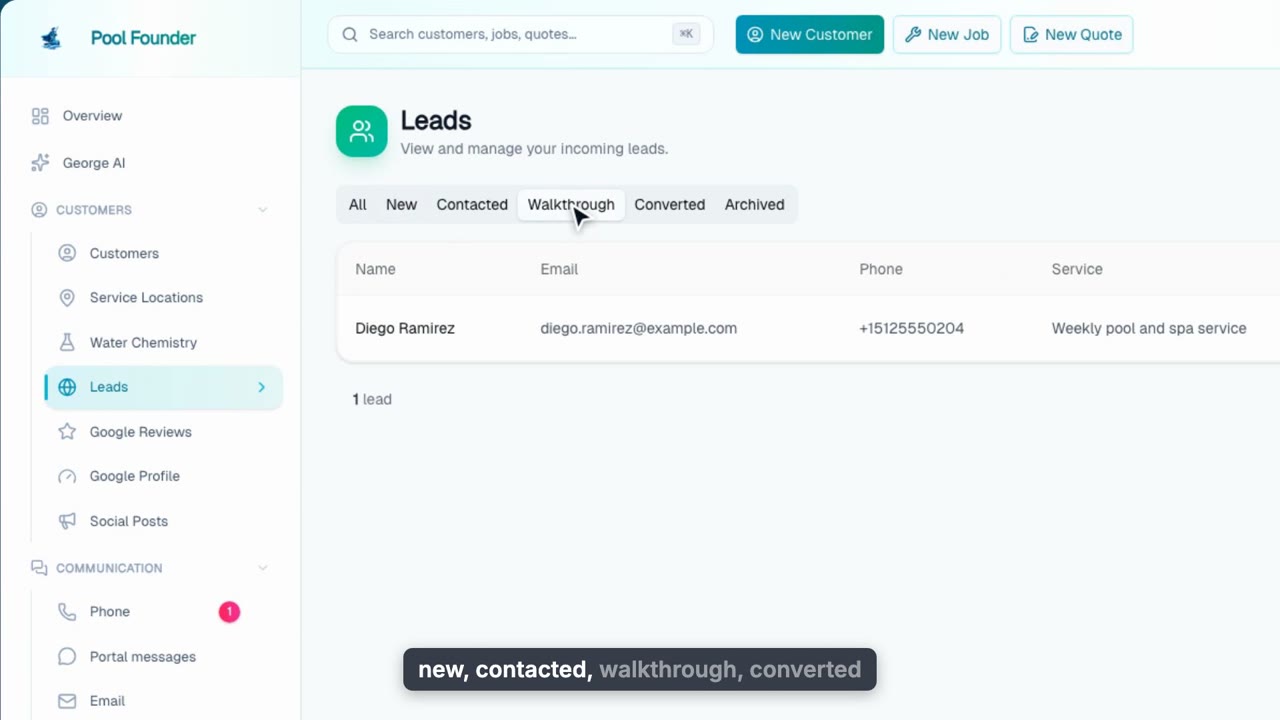
1:35
Leads (1:35 video). [Open on its own page](https://www.poolfounder.com/tutorials/leads)
More videos:[Capturing a Lead From the Field1:11](https://www.poolfounder.com/tutorials/tech-app-leads)
## Every prospect, one table
The **Leads** page is every prospective customer in one table: leads your assistant captured on phone calls and text conversations, website contact-form submissions, leads pushed in through the API, and leads you add manually. Click any row to see everything connected to that lead — the calls, texts, and AI scheduling proposals behind it — and convert it to a customer when you win the work.
On this page
1. [What lands in Leads](#section-0)
2. [Lead categories: your own groups, like a waitlist](#section-1)
3. [Merge duplicate leads](#section-2)
4. [Quote requests from existing customers](#section-3)
5. [The lead page](#section-4)
6. [Everything connected to a lead](#section-5)
7. [Follow-up texts and the Follow-ups card](#section-6)
8. [Schedule a walkthrough from the web](#section-7)
9. [Add a lead manually — and the Lead API](#section-8)
10. [The automatic first reply](#section-9)
11. [Work leads from the mobile app](#section-10)
## What lands in Leads
- **Live Assistant captures** — leads taken by your AI assistant on phone calls and text conversations. See [The AI phone assistant](https://www.poolfounder.com/help/ai-phone-assistant).
- **Quote requests from existing customers** — when a customer you already have calls or texts your assistant for a quote, an estimate, or new work, it becomes a lead marked **Existing customer** (see below).
- **What stays out of Leads** — calls and texts from a number you saved as a contact (with or without a type, including contacts imported from Quo); a first text from a new number that isn't someone asking for pool service (a supplier's order notice, a sales pitch or scam, a personal text, or a customer texting from another phone); and a caller or texter who gives the service address of a customer you already have. These stay in the Phone inbox as messages, and you're still notified. When the address matches exactly one customer, the assistant also saves the number on that customer as an **other** phone, so they're recognized next time. To make one a lead anyway, open the conversation and use **Save as lead**.
- **Website contact-form submissions** — and leads created through the [Leads API](https://www.poolfounder.com/help/api-keys-and-leads-api), which arrive with the Website badge.
- **Sign-up page** — homeowners who signed up for weekly service on your public [Sign-up Page](https://www.poolfounder.com/help/service-signup-page) (off until you turn it on at Settings → Sign-up Page). They arrive with the Website badge and the source **Sign-up page**, plus the service they picked.
- **Manual adds** — leads you or your technicians enter by hand.
- Addresses on new leads are verified against Google at capture.
The Source column shows a channel badge for how each lead arrived, plus any human-entered source like "Google Search":
| Badge | How the lead arrived |
| --- | --- |
| Phone call | Captured by your assistant on a phone call |
| Text | Captured by your assistant in a text conversation |
| Website | Submitted through your website contact form, the Leads API, or your Sign-up Page (shown with the source "Sign-up page") |
| Manual | Added by hand |
Filter the table with the status tabs: **All / New / Contacted / Walkthrough / Converted / Archived**. **All** lists every lead that is not archived; archived leads are only on the **Archived** tab. Each row shows the name with the email under it, then the phone number. The tab you pick is kept in the page address (for example **/dashboard/leads?status=new**), so a link can open straight to it. On the **New** tab, turn on **Not contacted yet** to leave out leads someone already marked contacted and then set back to New. The **New leads to contact** row on the [To do list](https://www.poolfounder.com/help/to-do-list) opens the New tab with that switch on, so it lists the same leads the row counts. Newest come first; click a column header to sort by it (click again to flip). Each row also has a **⋮** menu of quick actions — Convert to Customer (also shown on a Converted lead that has no customer yet), Schedule Walkthrough, Mark as Contacted, **Mark as Converted (no customer)**, **Customer no longer interested**, **Closed for other reasons**, and Archive/Restore — so you can work leads without opening them. (**Convert to Customer** here opens the full customer form; the one-step [Route Fit](https://www.poolfounder.com/help/route-fit) conversion lives on the lead's own page.)
## Lead categories: your own groups, like a waitlist
Categories are groups you make up for your leads, such as **Waitlist**, **Commercial**, **Repair only**, **Summer startups** or **Referral partner**. They are separate from the status: a lead can be **Contacted** and on the **Waitlist** at the same time, and moving it between categories never changes its status. A company starts with none, and until you add one the Leads page looks exactly as before.
1. 1Go to **Settings** → **Lead Categories** (or search "Lead Categories" with ⌘K).
2. 2Type a name, pick a color, and click **Add category**. Names must be different from each other, ignoring capitals and punctuation.
3. 3Use **Edit** on a category to rename or recolor it, the up and down arrows to change the order (the order of the filter and menus), and **Archive** to retire one. An archived category stays on the leads already in it (shown faded) but disappears from the filter and the menus; **Restore** it from the **Archived** list.
Once you have an active category, the Leads table gets a **Category** column next to Status, and a **\+ Filter** button next to the status tabs that adds a **Category** filter (each category, or **No category**; click the **×** on the chip to show all categories again) that works together with the tab. Tick some leads with the checkbox on each row (or the header box for every loaded lead) and click **Move to category** on the bar at the bottom (press Esc or the **×** to clear the selection); pick **No category** to take them out. One lead can also be moved from its row's **⋮** menu (**Move to category**) or from the category badge in the header of the lead's page. Adding, editing and moving need the "Manage website leads" permission.
Leads from your website or the [Leads API](https://www.poolfounder.com/help/api-keys-and-leads-api) can arrive already in a category: send **category** with the lead's name or slug. An unknown category is ignored and the lead still comes in. The technician app shows each lead's category on the leads list and the lead page, but categories are set from the web dashboard.
Your phone and text assistant can sort new callers and texters into a category for you. Click **Edit** on a category, write a **Use when** line (for example "A business, HOA or apartment pool"), and turn on **Your assistant can put new leads here**. After a call or a text, a lead that has no category goes into the one that clearly fits what the person said, judged by those lines, or stays in none. Its pick shows a small sparkle next to the category until you change it. It never moves a lead you put in a category or took out of one, and categories with the switch off are never used. The switch is off for every category until you turn it on.
## Merge duplicate leads
The same person sometimes comes in twice: a website form and a phone call, a second form a week later, a text from a different number. Merge them into one lead so there is one timeline and one set of follow-up texts.
1. 1On the **Leads** page, tick the checkbox on 2 to 10 duplicate leads. A bar appears at the bottom with the count.
2. 2Click **Merge Selected**.
3. 3Pick the lead to keep. Pool Founder suggests the one furthest along (a converted lead, then walkthrough scheduled, then contacted), then the oldest.
4. 4Click **Merge leads**.
The texts, calls, documents, pools and equipment, scheduling proposals and timeline of the other leads move onto the lead you keep. Its empty details (name, email, phone, address, service, source, category) are filled in from the others. A phone number, email or address that differs from the kept lead's doesn't replace it: it is added to the kept lead's message as **Also from merged leads: …**, so nothing is lost. Every different message is kept, and the earliest date each lead came in or was contacted wins. The kept lead keeps its own status, and its follow-up texts are planned again once. The other leads are archived, and their timeline says **Merged into another lead**.
Merging can't be undone. A lead already converted to a customer can only be the one you keep, and leads from two different existing customers can't be merged (merge the customers instead, see [Merge duplicate customers](https://www.poolfounder.com/help/merge-duplicate-customers)). Pool Founder does not find duplicate leads for you: you pick them. Merging needs the "Manage website leads" permission, and it is on the web dashboard only, not the technician app. You can also ask George to merge leads.
## Quote requests from existing customers
When a customer you already have asks your AI phone assistant for a **quote**, an **estimate**, or **new work** (by call or text), it becomes a lead linked to that customer, with an **Existing customer** badge, and shows under **New leads to contact** on the [To do list](https://www.poolfounder.com/help/to-do-list). Something they already have that broke (a heater that won't turn on, a light that's out) or a request for a call back stays a phone message, unless they ask for a price, a quote, or a replacement. You get one **Your Assistant Captured a New Lead** notification, not a phone message. Its message box lists each request with "Phone call" or "Text" and when. A repeat within 3 days, while the lead is open, is added to it. A [blocked](https://www.poolfounder.com/help/block-a-customer) customer's request stays a phone message. These leads get no automatic reply or follow-up texts.
On the lead page, **Existing customer:** links to the customer, and **Create Quote** opens a quote for them with the request filled in; saving it marks the lead **Converted**. **Mark Converted** links the same customer. It never makes a second customer: the Route Fit card is hidden, the table's **⋮** menu offers **Create Quote** instead of Convert to Customer, and Convert & Schedule (also in the technician app, which shows no badge) refuses these leads. The **Bodies of Water** card stays, so a walkthrough can record the pool's equipment and photos: Create Quote adds them to the quote's service location and Mark Converted to the customer's location at the lead's address (else their first), merged into a pool of the same type without overwriting anything. See [Lead pool details](https://www.poolfounder.com/help/lead-pool-details).
## The lead page
Click any row to open the lead's full page: contact info, the intake notes or transcript, and its actions (these need the "Manage website leads" permission). The top right shows the main button (**Create Quote**, or **Create Customer** on a lead marked Converted without one), **Schedule Walkthrough** beside it (**Restore** on an archived lead), and the **More actions** menu (the **⋯** button) with **Mark Contacted**, **Mark Converted**, **Link to Customer…**, the close reasons and **Archive**. **Edit** is on the **Details** card, and **Call** and **Text** sit in that card under the phone number:
- **Create Quote** — quote a lead who isn't a customer yet (it also needs the Create quotes, Create customers and Create service locations permissions). A quote is always for a customer at a service location, because that is where its email, its accept link and the work order come from, so this first adds the lead as a customer: the lead's name, phone and email, a service location at the lead's confirmed address, and the pools and equipment recorded on the lead. The lead is marked **Converted** right away (Pool Founder has no "quoted" lead status), then the **New quote** form opens for that customer with the lead's service as the title and its message as the internal note. If the lead has no name, no phone or email, or an address that isn't confirmed on the map yet, the customer form opens prefilled instead; save it and come back to the lead. On a Converted lead that has a customer, **Create Quote** quotes that same customer again, so quoting a lead twice never makes a second customer. Without an email the quote can still be saved and sent, but no email goes out (add an email on the customer, then resend). If they decline, the customer record stays (with no jobs or route stops); archive the customer if you don't want to keep them.
- **Call** and **Text** — when the lead has a phone number and your company phone is set up, reach them from the lead's page: Call rings them from your business line (it needs the "Call customers as the business" permission), and Text opens their conversation in the Phone inbox (it needs "Respond to inbox messages" and texting turned on). These don't need Manage website leads.
- **Mark Contacted** (in **More actions**) — record that you've reached out, without changing anything else.
- **Schedule Walkthrough** — opens the **Schedule Quote Walkthrough** page to put a quote visit on a route (full steps below). Once a walkthrough is booked (the lead shows **Walkthrough Scheduled**), the button leaves the header and **Schedule another walkthrough** in the **⋯** More menu books another one; it adds a second visit rather than moving the first.
- **Mark Converted (no customer)** (in **More actions**) — set the lead to Converted _without creating a customer record_. Use it when the deal closed outside Pool Founder. It leaves the lead's texts and calls on the lead; if the person is already in your customer list, use **Link to Customer…** instead (next item). The table's row menu has the same action. If you used it by mistake, the lead isn't stuck: a Converted lead with no customer shows a **Create Customer** button on its page (and **Convert to Customer** in its row's ⋮ menu) that opens the customer form with the lead prefilled and links the new customer to the lead. That needs the Create customers permission.
- **Link to Customer…** (in **More actions**) — for a lead who is already one of your customers (say they texted from a new number). It opens **Link to an existing customer**: **Likely matches** at the top are customers with the lead's phone, email, address or name (tagged **Same phone**, **Same email**, **Same address** or **Same name**), with the best one already selected; **Someone else** searches your whole customer list. The box under it says what moves: the lead's texts and calls, progress notes, documents, and pools and equipment go to that customer, and the lead is marked Converted and leaves the Leads board. Nothing new is created. When the lead has a phone number, **Save (number) on (customer)** is ticked: it saves the number on the customer (as their phone if they have none, else as another number of theirs) so their next text shows under them; it needs the Edit customers permission, and it isn't offered when the number already belongs to a customer. Click **Link to (customer)** to finish. There is no undo, so check the name first. The item also shows on a lead marked Converted with no customer. It isn't shown for a lead that already has a customer (the **Existing customer** badge, or one converted to a customer).
- **Closing a lead** / **Restore** — close a lead you won't win, or bring it back. The **More actions** menu offers **Customer no longer interested**, **Closed for other reasons**, or a plain **Archive**. All three archive the lead: it leaves the New, Contacted and Walkthrough tabs, stops its follow-up texts, and moves to the **Archived** tab, where its status shows **Not interested**, **Closed** or **Archived**. Nothing is deleted, and a closed lead does not become a customer. **Restore** (the button next to the main one on an archived lead) sets it back to New and clears the reason. Pool Founder has no other close reasons, and you can't add your own; use a lead category (above) for groupings of your own.
Apart from **Create Quote**, converting is _not_ in that header row. Below the details, the **Route Fit** card carries **Convert & Schedule** (creates the customer, service location, job, and route stop in one confirm) and **Adjust** (the older full customer form with the lead prefilled) — alongside ranked route options and a suggested per-visit rate. Full details: [Route Fit](https://www.poolfounder.com/help/route-fit). The **⋮** menu on the Leads table still offers the older **Convert to Customer** action.
**Edit** (next to the status badge) makes the lead's details editable in place — first and last name, phone, email, service address, service needed, and notes — then **Save**. This is handy for filling in what an AI call or text didn't capture. The same rule as Add Lead applies: a lead must keep at least one of a name, phone number, email, or address, and a lead that came in by call or text can't have its phone number removed ("This lead came in by phone, so its phone number can't be removed.").
**Progress notes** is a dated log on the lead's page for how working the lead is going: calls, what they asked for, where it stands ("Called, wants a quote after the HOA meets"). Type in the box and click **Add note**; each note shows who wrote it and when, newest first, and can carry photos. It's separate from the lead's single **Notes** field under **Edit**, which holds the message the lead came in with. Adding progress notes needs the Manage website leads permission; anyone who can view leads can read them. When the lead converts to a customer (Convert & Schedule, the Add Customer form from a lead, Create Quote, or Mark Converted on an existing customer's lead), every progress note is added to that customer's **Notes** timeline with its original author and date, and stays on the lead page too. Merging leads moves the merged leads' progress notes onto the lead you keep. Progress notes are on the web dashboard; the technician app's lead page doesn't show them.
A lead can also carry the **bodies of water** at the property — the pool, spa, or hot tub they're asking about, with its gallons, sanitizer, and surface — and the **equipment** on each one (pump, filter, heater…) with **photos**, added with **Add equipment** under the pool on the web or in the technician app. Those details let Route Fit estimate chemicals from similar pools you already service, and the pools, equipment and photos transfer to the customer's service location however the lead converts (Convert & Schedule, the Add Customer form from a lead, or Create Quote / Mark Converted on an existing customer's lead). See [Lead pool details](https://www.poolfounder.com/help/lead-pool-details).
**From a technician alert:** **Create Lead** on the alert fills in its contact details, address, title and description, and copies its photos into a **Photos** section. (Equipment photos you take at the property go on the pool's equipment instead; see above.) Use **Edit** if the prospect is someone else.
A lead's phone number can't be cleared — it's how calls and texts stay linked to the lead.
## Everything connected to a lead
Below the lead's details, the page gathers all the activity tied to it:
- **Follow-ups** — the automated text sequence for this lead, plus its whole timeline. Covered in its own section below.
- **AI Scheduling Proposals** — appointments the assistant proposed for this lead. Pending ones show "Approve & schedule" / "Decline" for users with the "Approve scheduling" permission; decided ones show Scheduled or Declined badges.
- **Calls** — every AI-answered call with an outcome badge. Click a row to expand the transcript and any message taken.
- **Texts** — a conversation preview with an **Open thread** link that jumps to that exact conversation in the [Phone inbox](https://www.poolfounder.com/help/texting-and-the-phone-inbox).
New-lead notifications link straight to the lead's page on the web. On mobile, tapping a "new lead" push opens the call that captured it, and that call screen has a "Lead from this call" link through to the lead.
## Follow-up texts and the Follow-ups card
Every lead page carries a **Follow-ups** card: the state of the automated text sequence for that lead, and a timeline of everything it has (and has not) sent. It shows on closed leads too, because "why did this lead archive itself?" is answered there. The sequence itself is the **Lead follow-up** automation on **Messages → Phone → Automated texts** — **off by default** for the whole company. See [texting and the Phone inbox](https://www.poolfounder.com/help/texting-and-the-phone-inbox).
The badge on the card is one of four:
| Badge | What it means |
| --- | --- |
| On | The sequence is running for this lead |
| Paused | You paused it — "You paused follow-ups for this lead." |
| Done | Nothing more will send: "This lead converted.", "This lead is archived.", or "They texted back, so follow-ups stopped." |
| Off | Nothing can send: "Automated texts are turned off.", "Lead follow-up texts are off for your company.", "No phone number on this lead.", or "This lead didn't agree to texts, so we won't text them." |
- **Pause** (shown while On) stops the sequence for this lead alone and cancels anything already booked — the "I've got this one" button when you have picked the phone up yourself. **Resume** (shown while Paused) re-plans from where the lead actually is now rather than replaying a stale schedule. Both need the "Manage website leads" permission.
- When nothing has overridden it, the card reads: _"Automated texts keep chasing this lead until they reply, convert, or you pause them."_
- The timeline underneath is the lead's whole life: "Lead came in", "Address verified", "First reply texted"/"First reply emailed", "Status changed to …", "Follow-ups scheduled: never contacted, walkthrough reminder, …", "Follow-up text sent (gone quiet)", "Follow-ups paused"/"Follow-ups resumed", "Converted to a customer" (or "Marked converted (no customer created)" when no customer was made), and "Archived automatically after no reply".
- Skipped steps are on the timeline too, with the reason in plain English — _"No follow-up sent (never contacted) — someone had already contacted them"_, or "they texted back", "the lead was converted or archived", "follow-ups are paused", "lead follow-ups are turned off", "that step is turned off", "they replied STOP", "no phone number", "the walkthrough changed", "waiting for your approval", "quiet hours ended before it could send", "your daily text limit was full", and so on. Nothing goes unexplained.
### Which leads can be texted
- A lead who **called you or texted you** is always eligible — they started the conversation.
- A lead from your **website form or the Leads API** is texted only if it arrived with **smsConsent: true**, meaning the person ticked a texting-consent box on your form. Without it the lead is followed up by email only, and the Follow-ups card goes to **Off** with the consent reason quoted in the table above.
- Both POST /api/v1/leads and the public form endpoint POST /api/website-lead accept the field. Recommended checkbox wording: _"Text me about my request. Msg & data rates may apply. Reply STOP to opt out."_ See [API keys and the Leads API](https://www.poolfounder.com/help/api-keys-and-leads-api).
- For your own website form, you build the form and post it to the endpoint, so the consent checkbox is yours to add. Or use the [Sign-up Page](https://www.poolfounder.com/help/service-signup-page): a ready-made Pool Founder page (and iframe embed) that already has this checkbox. Its leads arrive with the source **Sign-up page**.
If your Reply style is "Draft and wait for me", assistant-written follow-ups wait for your approval in the Phone inbox exactly like an inbound reply — the timeline records them as "waiting for your approval" until you send.
## Schedule a walkthrough from the web
**Schedule Walkthrough** (in the lead page's quick actions, or in the table's **⋮** menu) opens the **Schedule Quote Walkthrough** page — pick a technician, then click a date on the month calendar. Switching technicians keeps the date you picked, so you can compare who has a route that day; click the date again to clear it. A summary panel builds as you go:
- The selected **date** and **technician**.
- The **route** the walkthrough will land on, with its stop count for that date — e.g. "Route: Monday North (12 stops)". It counts everything booked that date: the regular stops due that week, work orders and other one-time stops, and stops transferred in, minus stops skipped or transferred away. The calendar days show the same count and day length.
- If the technician has no route that day, the panel warns _"No route exists for this day. A route will need to be created first."_ and the **Schedule Walkthrough** button stays disabled — the web flow only schedules onto existing routes.
Scheduling adds the walkthrough to that route as an [unplanned stop](https://www.poolfounder.com/help/unplanned-and-open-stops) (category Quote Walkthrough) carrying the lead's name, phone, and address, and moves the lead to the **Walkthrough** status tab. On mobile the flow is simpler and can fall back to the open pool — see below.
## Add a lead manually — and the Lead API
**Add Lead** (top right of the Leads page) creates a lead by hand. No single field is required — a name, a phone number, an email, or an address is enough to save the lead, so you can capture "the blue house on Maple" mid-call and fill in the rest later. Everything else (source, service, notes, bodies of water) is optional. Converting the lead into a customer still asks for a first name and a phone or email.
The **Source** field is a searchable picker that comes pre-seeded with common answers — Google Search, Website, Referral, Phone Call, Walk-in, Social Media, Nextdoor, Yard Sign, Door Hanger — merged with any sources your company has used before. Type something new and click **Create "…"** to add your own; it shows up in the Source column and joins the picker for next time.
The **Lead API** button next to it jumps to the API page (sidebar → Settings → API), where API keys and the endpoint docs live — that's how you push leads in automatically from Zapier or custom code. See [API keys and the Leads API](https://www.poolfounder.com/help/api-keys-and-leads-api).
## The automatic first reply
When a lead comes in through a website contact form, Pool Founder emails the prospect back **within seconds**, branded as your company — your logo, your colors, and your custom sending domain if you've verified one. The reply confirms their request was received and says someone will follow up. The time from submission to first reply is recorded on the lead.
- It **never states a day, a time, a technician, or a price** — it acknowledges the request and hands off to a human.
- Phone calls and inbound texts don't use this reply — those are answered live by the assistant in the moment.
- The reply goes by **text instead of email** only if your company has finished 10DLC texting registration and turned the text option on. Text auto-replies require a business line of your own (the $25/mo add-on) plus finished registration — companies on the free call-forwarding path can't use them, because texting can only run on a line Pool Founder provides. See [Phone setup](https://www.poolfounder.com/help/phone-setup).
There is not yet a settings screen for turning the automatic first reply off or editing its wording. If you need it changed, contact support at support@poolfounder.com.
## Work leads from the mobile app
The whole Leads section is also in the technician mobile app: Today tab → actions list → **Sales** → **Leads** (needs the "View website leads" permission and an internet connection). See [Mobile invoices and leads](https://www.poolfounder.com/help/mobile-invoices-and-leads).
- Same list, same status filter chips, and the same channel badges — with tap-to-call and tap-to-email on each lead's page.
- The same quick actions work with the "Manage website leads" permission: edit in place, Mark Contacted, Schedule Walkthrough, Mark Converted, Archive / Restore.
- The mobile lead page has a **Convert to Customer** card with three tabs. **Recurring** is [Route Fit](https://www.poolfounder.com/help/route-fit): pick a **Service**, check the **Rate** (prefilled with the suggested rate; **See the math** shows how), and pick a **Route** (the best fit is preselected), then one button such as **Add to Tuesday · $58/visit** creates the customer, service location, job, and route stop. **Work Order** (any work order, or No service) and **Quote** add the lead as a customer and open Create Work Order or Create Quote for them, prefilled. After converting, a **Create for \[name\]** card offers Maintenance, Work Order, Quote and View Customer. See [Route Fit](https://www.poolfounder.com/help/route-fit).
- **Schedule Walkthrough** on mobile is a simple picker: choose a technician and a date, and a card shows which route it lands on. If that technician has no route that day, the walkthrough goes to the open pool instead.
- **New lead** — at the top right of the Leads list (the row reads "New business? Add a lead, see route fit and pricing"), opens the **Add Lead** form.
- On that form the **Address** field is a button ("Search for an address") that opens a full-screen search: type to pick a suggestion, choose one of your last five **Recent** addresses, or tap **Use my current location** for someone who flags a technician down at a house. Current location drops you on a **Confirm the address** map — "Move the map to adjust the pin" — because GPS can land on the curb or next door. Creating the lead with a pinned address opens its page with Route Fit already worked out.
## Frequently asked questions
### When an existing customer asks the phone assistant for a quote, where does it go?
To Leads. A quote, estimate, or new-work request from a customer you already have, by call or text, becomes a lead with the **Existing customer** badge, linked to that customer, and shows under New leads to contact on the To do list. The assistant does not draft the quote itself: open the lead and click **Create Quote**, which starts a quote for that customer and marks the lead Converted when you save it. A blocked customer's request stays a phone message instead.
### Can I send a quote to a lead before converting them to a customer?
Yes, from the lead's page: click **Create Quote**. A quote is always for a customer at a service location (that's what the email, the accept link and the work order use), so Pool Founder adds the lead as a customer first, with a service location at the lead's confirmed address and the lead's pools, marks the lead Converted, and opens the New quote form for them. There is no separate "quoted" lead status, and the lead does not wait for the quote to be accepted. If the lead is missing a name, a phone or email, or a confirmed address, the customer form opens prefilled first. Quoting the same lead again reuses that customer. A lead with no email can still be quoted, but the quote email can't go out until you add one. If they decline, the customer stays in your list with no jobs; archive them if you like. In the technician app, the lead's **Convert to Customer** card has a **Quote** tab that does the same.
### I marked a lead Converted but no customer was created. How do I fix it?
Mark Converted (no customer) only changes the status. Open the lead and click Create Customer (or use Convert to Customer in its row's ⋮ menu on the Leads table, Converted tab). It opens the customer form with the lead prefilled; saving creates the customer and links it to the lead, and the lead's pools and equipment are added to the new service location. You don't need to restore or archive the lead first.
### A lead turned out to be a customer I already have. How do I link them?
Open the lead, open **More actions** (the **⋯** button at the top right) and click **Link to Customer…** (next to Mark Converted). Pick them from **Likely matches** (customers with the same phone, email, address or name; the best one is already selected) or search under **Someone else**, leave **Save (number) on (customer)** ticked, and click **Link to (customer)**. The lead is marked Converted to that customer: its texts, calls, progress notes, documents and pools move onto them, it leaves the Leads board, and their next text shows under them. You can also ask George, for example "the lead Bob Sroka is my customer Bob and Helen Sroka"; he prepares a card that does the same. Don't use the other buttons for this: **Mark Converted (no customer)** only changes the status and leaves the texts on the lead, and **Create Customer**, **Create Quote** or **Convert & Schedule** would make a second customer. A lead the phone assistant made from an existing customer's quote request (the **Existing customer** badge) is already linked.
### Can I keep notes on a lead and have them go to the customer when they convert?
Yes. On the lead's page, add dated entries under **Progress notes** (calls, what they want, where it stands); each one records who wrote it and when. When the lead converts to a customer, however you convert it, those notes are added to the customer's **Notes** timeline with their original author and date. Adding them needs the Manage website leads permission. Only Mark Converted (no customer) moves nothing, since there is no customer yet; the notes move once you click Create Customer on that lead.
### Can I hide archived leads from the Leads table?
They already are. The **All** tab of the Leads page lists every lead that is not archived, and so do the New, Contacted, Walkthrough and Converted tabs. Archived leads appear only on the **Archived** tab, where you can restore one. There is no setting to show archived leads mixed in with the others.
### Can I merge duplicate leads?
Yes. On the **Leads** page, tick 2 to 10 duplicates and click **Merge Selected** on the bar at the bottom, pick the lead to keep, then **Merge leads**. The others' texts, calls, documents, pools and timeline move onto it, its empty details are filled in from them (a different phone, email or address is added to its message instead of replacing its own), and they are archived. It can't be undone, and a converted lead can only be the one kept. Pool Founder doesn't detect duplicate leads automatically. Web dashboard only; needs the "Manage website leads" permission.
### Can I sort leads into my own categories, like a waitlist?
Yes. Add your categories on **Settings** → **Lead Categories** (name and color; rename, reorder, archive and restore there too). The Leads table then shows a **Category** column next to Status, a category filter, and **Move to category** for the leads you tick (also in each row's ⋮ menu and on the lead page). Categories are separate from the lead's status. There are no per-ZIP counts, goals or alerts for categories: the filter is how you see who is in one.
### Can the phone assistant put new leads in a category for me?
Yes, for the categories you allow. On Settings → Lead Categories, click Edit on a category, write a Use when line saying which leads belong there, and turn on Your assistant can put new leads here. After a call or text, a lead with no category goes into the one that clearly fits what the person said, or stays in none. Its pick shows a sparkle until you change it, and it never moves a lead a person already categorised. It is off for every category until you turn it on.
### How do I stop the follow-up texts for one lead?
Open that lead and click **Pause** on its **Follow-ups** card. The badge flips to **Paused** and anything already scheduled is canceled; **Resume** starts the sequence again from wherever the lead actually is. You never have to touch the company-wide Lead follow-up switch to spare one lead — and a lead who texts back, converts, or is archived stops getting follow-ups on their own.
### Do leads from my website form get follow-up texts?
Only if they consented. Leads who called or texted you are always textable. A lead from a website form or the API is texted only when it arrives with smsConsent: true — meaning the person ticked a texting-consent box on your form. Without it the lead is followed up by email only, and its Follow-ups card sits at **Off** with the consent reason. Both POST /api/v1/leads and POST /api/website-lead accept the field; on your own form the checkbox is yours to add, while the Sign-up Page (Settings → Sign-up Page) already has one. Recommended wording: "Text me about my request. Msg & data rates may apply. Reply STOP to opt out."
### Can I turn off the automatic first reply or change what it says?
Not yet — there is no settings screen for the automatic reply. If you need it turned off or reworded, contact support at support@poolfounder.com.
### Will the automatic reply promise the customer a time or a price?
No. It never states a day, a time, a technician, or a price — it confirms the request was received and says someone will follow up.
### Why does the first reply go by email instead of text?
Text auto-replies require a business line of your own (the $25/mo add-on) plus finished 10DLC texting registration, with the text option turned on. For everyone else, the reply goes by email.
### Can my technicians work leads from the field?
Yes — the full Leads section is in the technician mobile app under the Today tab's Sales actions, with the same list, filters, detail pages, and quick actions as the web dashboard, plus a Convert to Customer card on each new lead: recurring service on a route in one tap (Route Fit), a one-time work order, or a quote.
### A guy just called and all I managed to write down was his address before he hung up. Can I still put him in as a lead on my phone, or does it make me enter a name and number?
Yes — save it with just the address. Add Lead (top right of the Leads page on the web, or Today tab → Actions → Sales → Leads → New lead in the technician app) requires only one identifying field: a name, a phone number, an email, or an address. Nothing else is mandatory, so type the address, save, and use Edit on the lead to fill in the name and number when they call back. The one step that still asks for more is converting the lead into a customer, which needs a first name and a phone or email.
### Can I turn a technician alert into a lead and keep its photos?
Yes: **Create Lead** on the alert (web or app). The lead gets the contact details, address, the alert text and its photos, and the two link to each other. Needs the Manage website leads permission.
### How does a technician add a lead from their phone?
Today tab → Actions → Sales → Leads → New lead (top right) opens the Add Lead form. Only one identifying field is needed — a name, phone, email, or address — so an address alone is enough when that is all you got on the call. The Address button opens a full-screen search with suggestions, your recent addresses, "Use my current location", and "Enter address manually". Current location and any imprecise pick ask you to confirm the pin on a map first. The new lead opens with Route Fit ready.
## Related articles
[
Customers & LeadsRoute Fit
](https://www.poolfounder.com/help/route-fit)[
Phone, Texting & EmailTexting and the Phone inbox
](https://www.poolfounder.com/help/texting-and-the-phone-inbox)[
Customers & LeadsLead pool details
](https://www.poolfounder.com/help/lead-pool-details)[
Settings & AnalyticsAPI keys and the Leads API
](https://www.poolfounder.com/help/api-keys-and-leads-api)
Still stuck? Email [support@poolfounder.com](mailto:support@poolfounder.com) or ask George from your dashboard — he can walk you through it.
## Make Monday easier than last Monday.
30-day free trial. No credit card required. Cancel anytime.
[Start free trial](https://www.poolfounder.com/signup) [Book a call with Anthony](https://www.poolfounder.com/book-a-call)